
How to password protect a PDF on iPhone and iPad
With Unlock my PDF you choose a PDF, type a password twice and slide: the copy is encrypted and asks for that password every time it's opened, on any device. Your file stays on your iPhone or iPad.

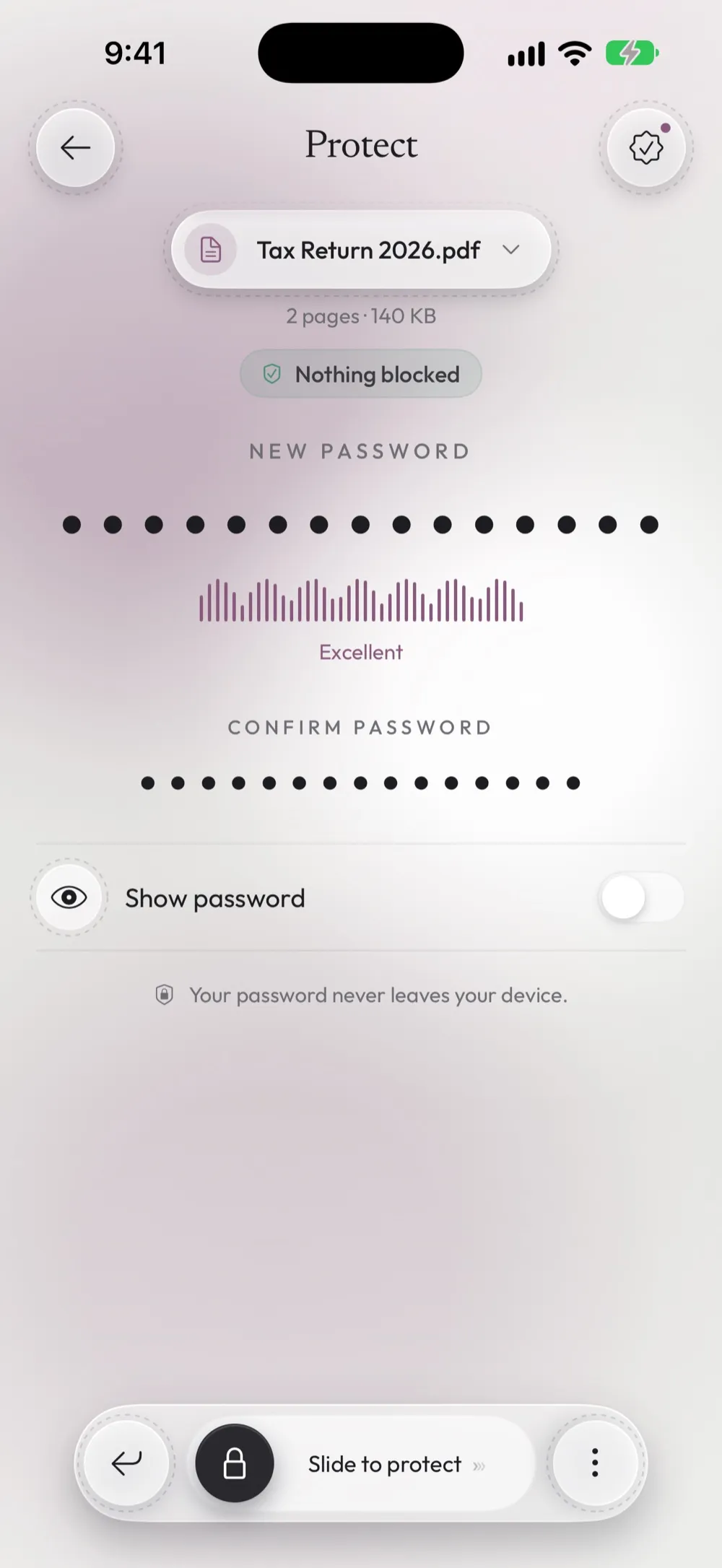
Step by step
- Step 1
Open Protect and choose the PDF
In the Protect tab, tap Tap to choose and pick the PDF from Files. You can also scan a paper document with the camera or pick some Photos: the app turns them into a PDF and protects it.
- Step 2
Type the new password twice
Write it in New password, then again in Confirm password. While you type, a meter goes from Weak to Excellent.
- Step 3
Slide to protect
Drag Slide to protect at the bottom. The app writes an encrypted copy; the original PDF is not changed.
- Step 4
Send or save the protected PDF
When you see Protected, tap Share to send it by email or message, or Save to Files to keep it. In the free version the copy is temporary, so save it before you close the app.
Good to know
How the password is protected
The PDF is encrypted with AES-128, the standard supported by every PDF reader. Whoever opens it on a phone, a Mac or a PC is asked for the password, and without it the content can't be read.
Rules for the password
Use letters A–Z, numbers and symbols, up to 32 characters. Spaces, accented letters and emoji aren't supported: use - or _ instead of spaces.
Send the password another way
If you email the PDF, don't put the password in the same email. Send it by text message or tell it on the phone: whoever reads the email alone can't open the file.
Keep a copy of the password
If you lose the password, nobody can open the file, us included. Write it somewhere safe. With Premium, the app's Library also keeps each protected PDF together with its password.
Free up to 3 times a day. Unlimited with Premium. The PDF is processed on your device. Unlock my PDF has no servers that receive your files.
Questions
Does the person I send it to need this app?
No. Every PDF reader asks for the password: Files, Mail, Chrome, Adobe Acrobat, the Mac and Windows apps.
Can I also block printing or copying?
Yes, with Premium: the Permissions tool sets an owner password that blocks printing, copying or editing, with or without a password to open.
Can I protect several PDFs at once?
Yes, with Premium: Protect several PDFs protects all the files you choose with the same password.
Why does the app say the PDF is already protected?
A PDF can't get a second password on top of the first. Remove the password you know first, then protect the copy with the new one.
Is it free?
Yes, up to 3 PDFs a day. Premium removes the limit and the ads.
Continue with
Do it now on your iPhone or iPad
Unlock my PDF is free to download. Your PDFs are processed on your device: no uploads, no account.
Updated October 2026 · app 2.0