
How to remove a password from a PDF on iPhone and iPad
If you know the password, Unlock my PDF saves a copy of the PDF that opens without it, ready to share, print or upload. It takes about ten seconds and the file never leaves your iPhone or iPad.

You need the password. The app opens a protected PDF only with the password you type. If you don't know the password, the app can't open the file: ask whoever sent it to you.
Step by step
- Step 1
Open Unlock and choose the PDF
In the Unlock tab, tap Tap to choose and pick the PDF from Files: iCloud Drive, Dropbox, OneDrive and the other apps connected to Files all work. If the PDF is in Mail, tap the attachment, then Share, and choose Unlock my PDF: it opens straight in Unlock.
- Step 2
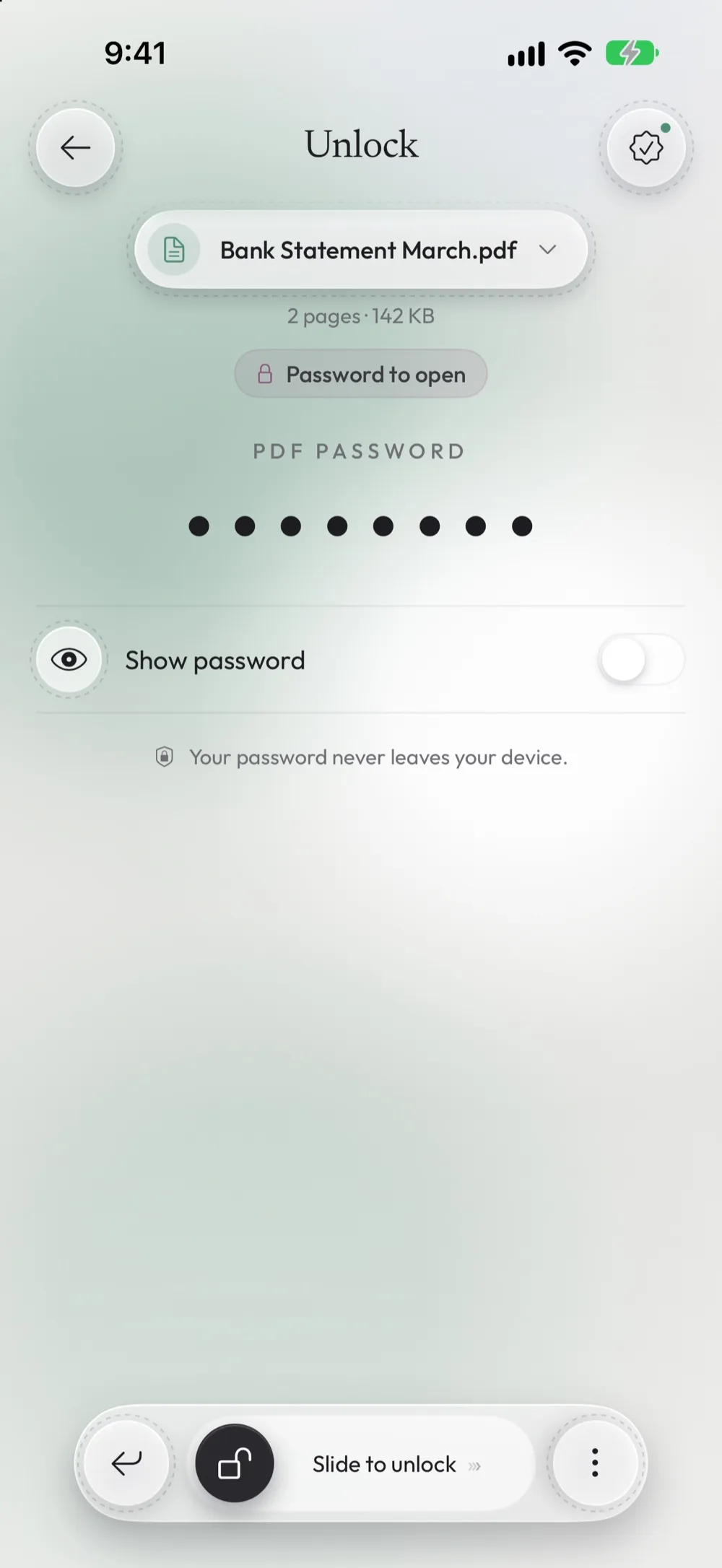
Type the password you know
The app shows what is locked. Password to open means the PDF asks for a password before it opens: type it in the password field. If the PDF opens but printing or copying is blocked, the app asks for the Owner password instead (see how that works).
- Step 3
Slide to unlock
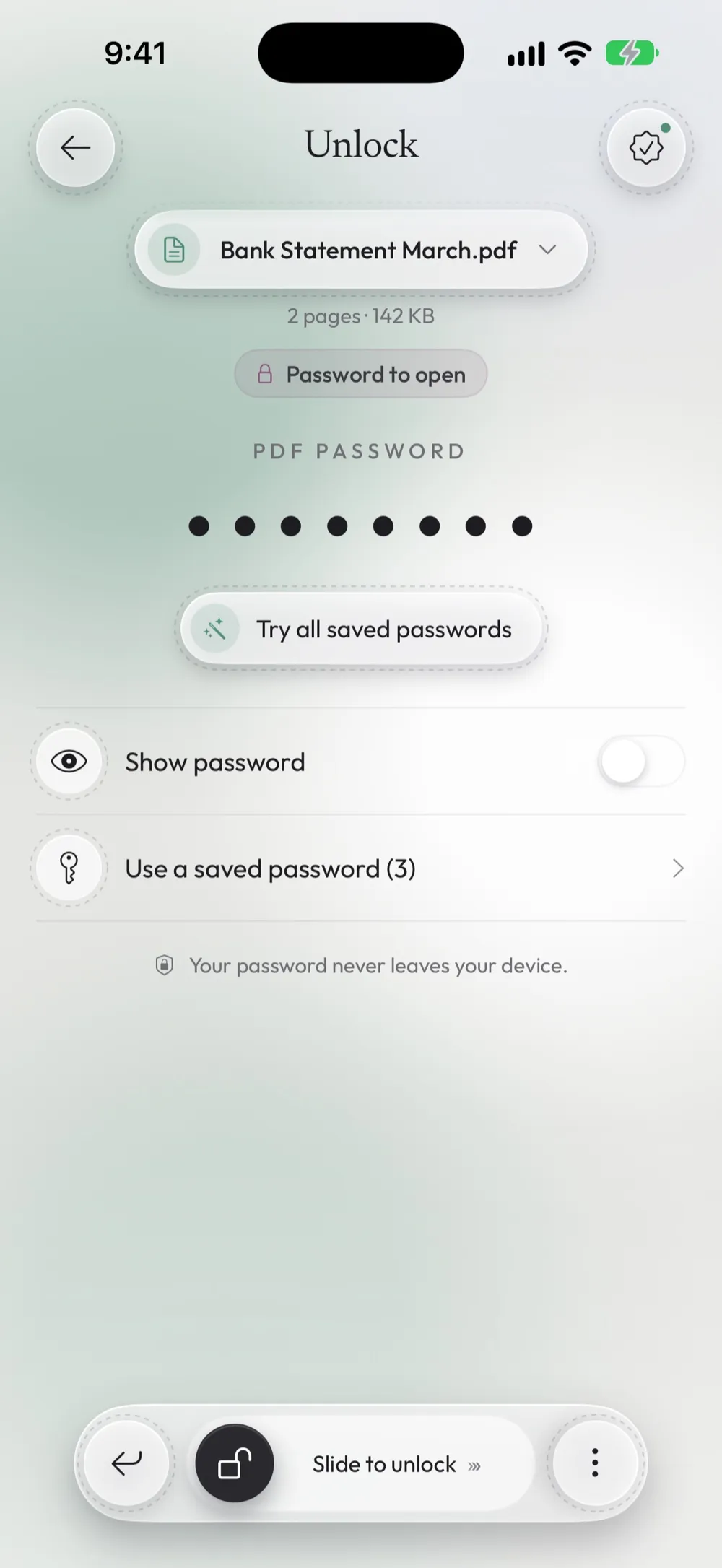
Drag Slide to unlock at the bottom of the screen. If the password is wrong, the app tells you and you can type it again. The original PDF is not changed: the app writes a new copy whose name ends in _unlocked.pdf.
- Step 4
Share or save the unlocked copy
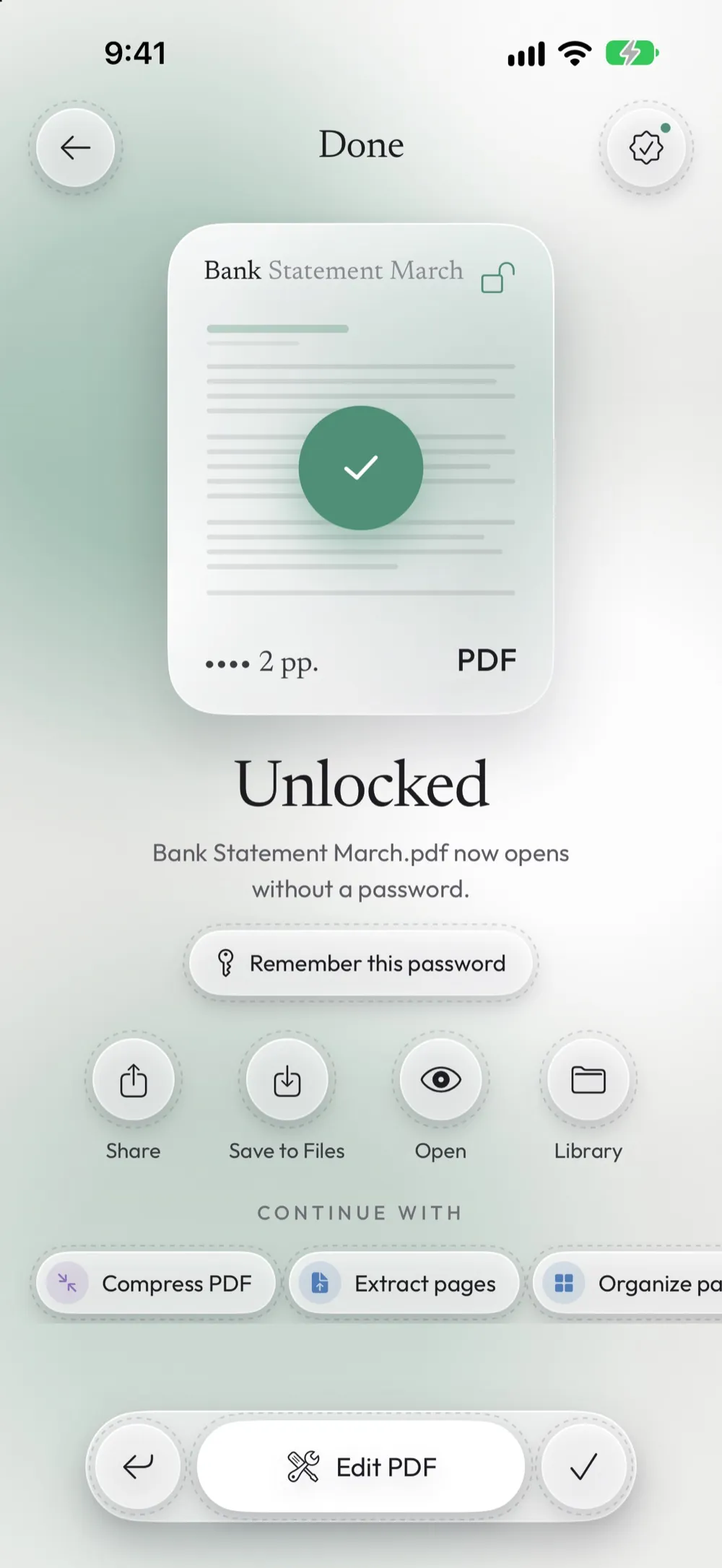
When you see Unlocked, the copy opens anywhere without asking for the password. Tap Share to send or print it, or Save to Files to keep it in iCloud Drive or on your device. In the free version the copy is temporary, so save it before you close the app.
Good to know
Password to open or owner password?
A PDF can have two different passwords. The password to open is the one you are asked for before you see anything. The owner password lets the PDF open but blocks printing, copying or editing. Unlock my PDF tells you which one your file has and asks for the right one.
The password is right but it doesn't work
Check capital letters, spaces at the start or end, and the keyboard language (some symbols move between keyboards). When a bank, an employer or an office sets the password, the email that came with the PDF usually explains its exact format.
The same password every month
Bank statements and payslips often use the same password every time. With Premium, tap Remember this password after unlocking: the password is stored in the iOS Keychain behind Face ID. Next month, Try all saved passwords finds it for you.
Several PDFs with the same password
With Premium you can unlock a whole set of files in one go: Unlock several PDFs asks for the password once and only asks again for a file that uses a different one.
Free up to 3 times a day. Unlimited with Premium. The PDF is processed on your device. Unlock my PDF has no servers that receive your files.
Questions
Do I need to know the password?
Yes. Unlock my PDF removes the protection only when you enter the right password. If you don't know the password, the app can't open the file: ask whoever sent you the PDF.
Is the original PDF changed?
No. The app saves a new copy that ends in _unlocked.pdf. The original stays where it was, still protected.
Is my PDF uploaded anywhere?
No. The PDF is unlocked on your iPhone or iPad. The free version needs an internet connection for ads and the daily limit, but your file is never sent anywhere.
Can I print the PDF after unlocking it?
Yes. Open the unlocked copy, tap Share and choose Print. If the PDF opened before but printing was blocked, you need the owner password: here is how.
How many PDFs can I unlock for free?
Three a day, and the count starts again at midnight. Premium removes the limit and the ads.
Does it work on iPad?
Yes. Unlock my PDF works on iPhone and iPad with iOS 16 or later, with the same steps.
Continue with
Do it now on your iPhone or iPad
Unlock my PDF is free to download. Your PDFs are processed on your device: no uploads, no account.
Updated October 2026 · app 2.0