
How to compress a PDF on iPhone and iPad
Compress PDF in Unlock my PDF shrinks a PDF that's too big for an email or an upload form. You pick how strong the compression is, see the estimated size before you start, and the file never leaves your device.

Step by step
- Step 1
Open Compress PDF
In the Tools tab, tap Compress PDF. Then tap Tap to choose and pick the PDF from Files, or scan a document straight into a PDF.
- Step 2
Choose the compression level
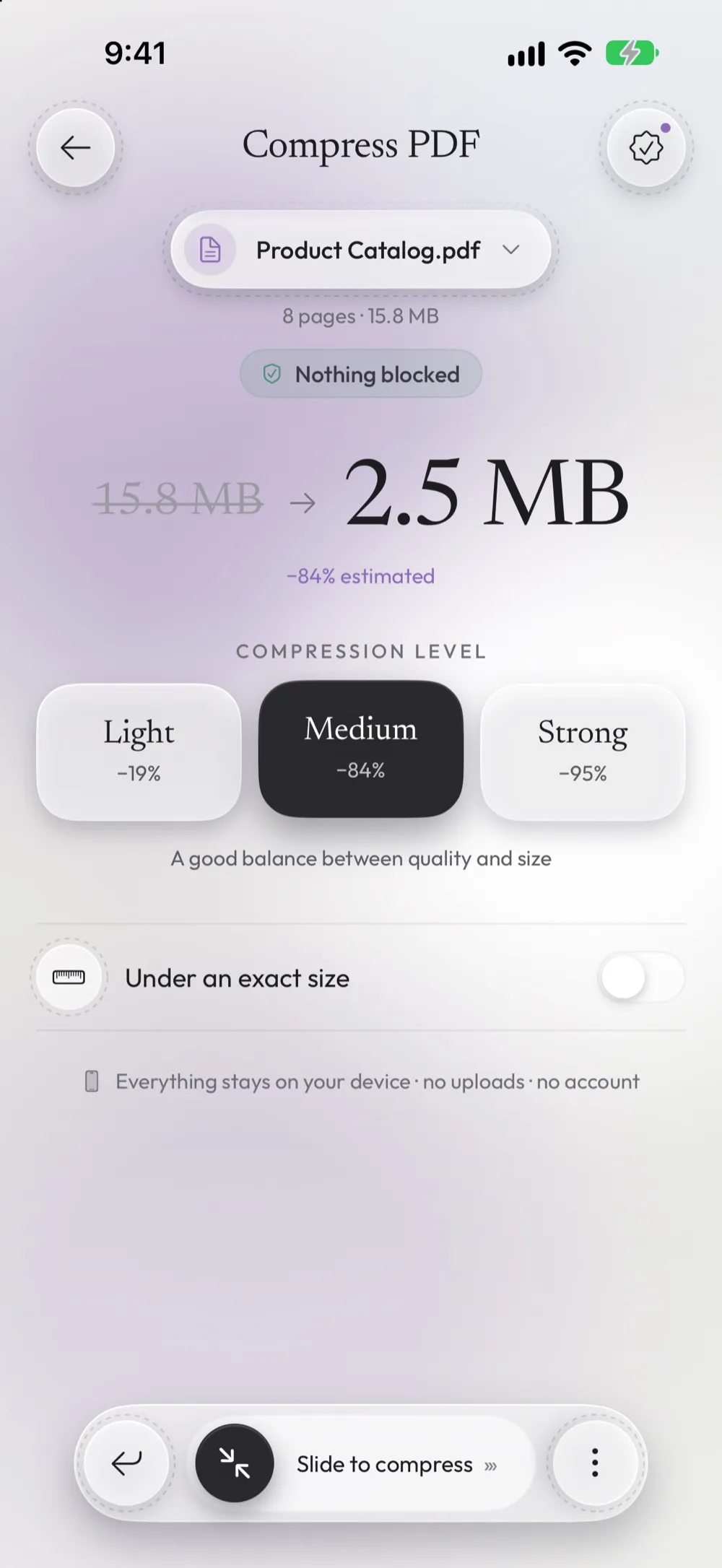
Light keeps almost all the quality, Medium is a good balance, and Strong gives the smallest file. Under each level you see an estimate of the new size.
- Step 3
Slide to compress
Drag Slide to compress. The app writes a new, smaller copy and leaves the original as it is.
- Step 4
Check the result and send it
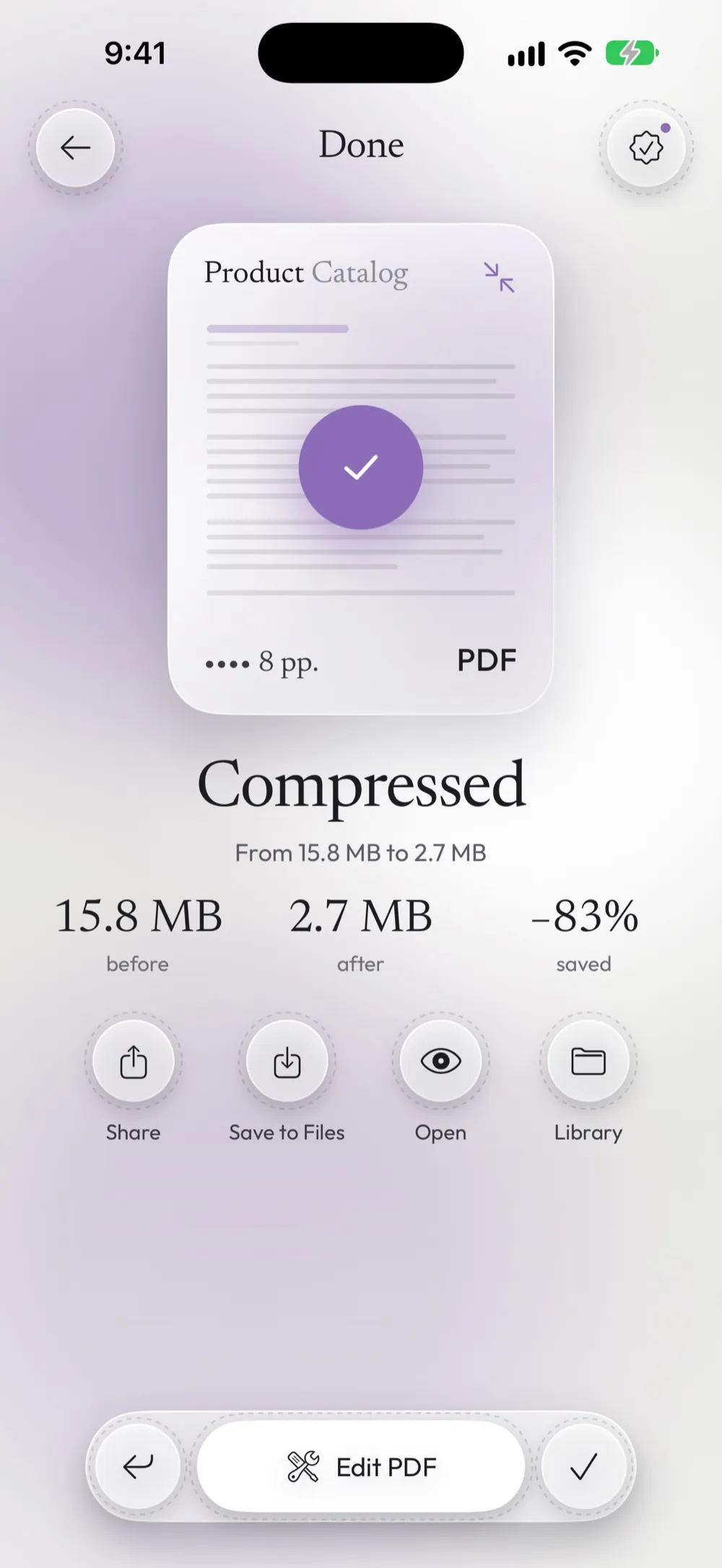
Compressed shows the size before and after and how much you saved. Tap Share to attach it to an email or Save to Files to keep it.
Good to know
Which level to choose
Start with Medium. Use Strong only when the file must be really small: it turns pages into images, so the text can no longer be selected or searched.
Why some PDFs barely shrink
PDFs with photos and scans shrink a lot. A PDF made only of text is already small, and may not get smaller at all: in that case the app tells you, saves nothing and doesn't count your free use.
Under an exact size for email and upload forms
Many email services stop attachments at 20–25 MB, and online forms often accept 1, 2 or 5 MB. With Premium, turn on Under an exact size and choose 1, 2, 5 or 10 MB: the app picks the level for you.
Older iPhones
Light and Medium need iOS 16.4 or later. On iOS 16.0–16.3 you can use Strong.
Free once a day after a short video. Unlimited with Premium. The PDF is processed on your device. Unlock my PDF has no servers that receive your files.
Questions
Does compressing reduce the quality?
A little with Light, more with the stronger levels. Text stays sharp with Light and Medium; Strong turns the pages into images.
Can I compress a protected PDF?
Yes. The app asks for the password you know, and the smaller copy stays protected with the same password. With Premium you can remove the password from the result.
Is Compress PDF free?
Yes, once a day after a short video, and if no video is available you can use it anyway. Premium makes it unlimited and adds compression under an exact size.
Is the PDF uploaded to a server?
No. The compression runs on your iPhone or iPad.
Continue with
Do it now on your iPhone or iPad
Unlock my PDF is free to download. Your PDFs are processed on your device: no uploads, no account.
Updated October 2026 · app 2.0