How to crop a PDF on iPhone and iPad
Wide white margins make text tiny on a phone screen, and scans often come with a dark border around the sheet. Trimming the margins makes the page fill the screen and look cleaner when printed.

Why crop a PDF
Documents made for print often have generous margins, which waste space on a small screen. Scans add a dark or grey frame where the scanner lid was. Cropping trims that space away, so the content is larger and the page looks tidy.
Cropping hides, it doesn’t erase
In a PDF, cropping sets the visible area of the page: what is outside is hidden, but it is still in the file. That’s fine for margins and borders. For names, numbers or signatures that must not be seen, use a tool that really removes them, such as Redact.
The simplest way to crop a PDF on iPhone and iPad
Crop pages in Unlock my PDF trims the margins of every page by the amount you choose, with a preview of page 1 that shows what will be cut. You can crop all sides equally or each side on its own.
The full flow · 25 s
How to crop a PDF
Step 01 of 04
Open Crop pages and choose the PDF
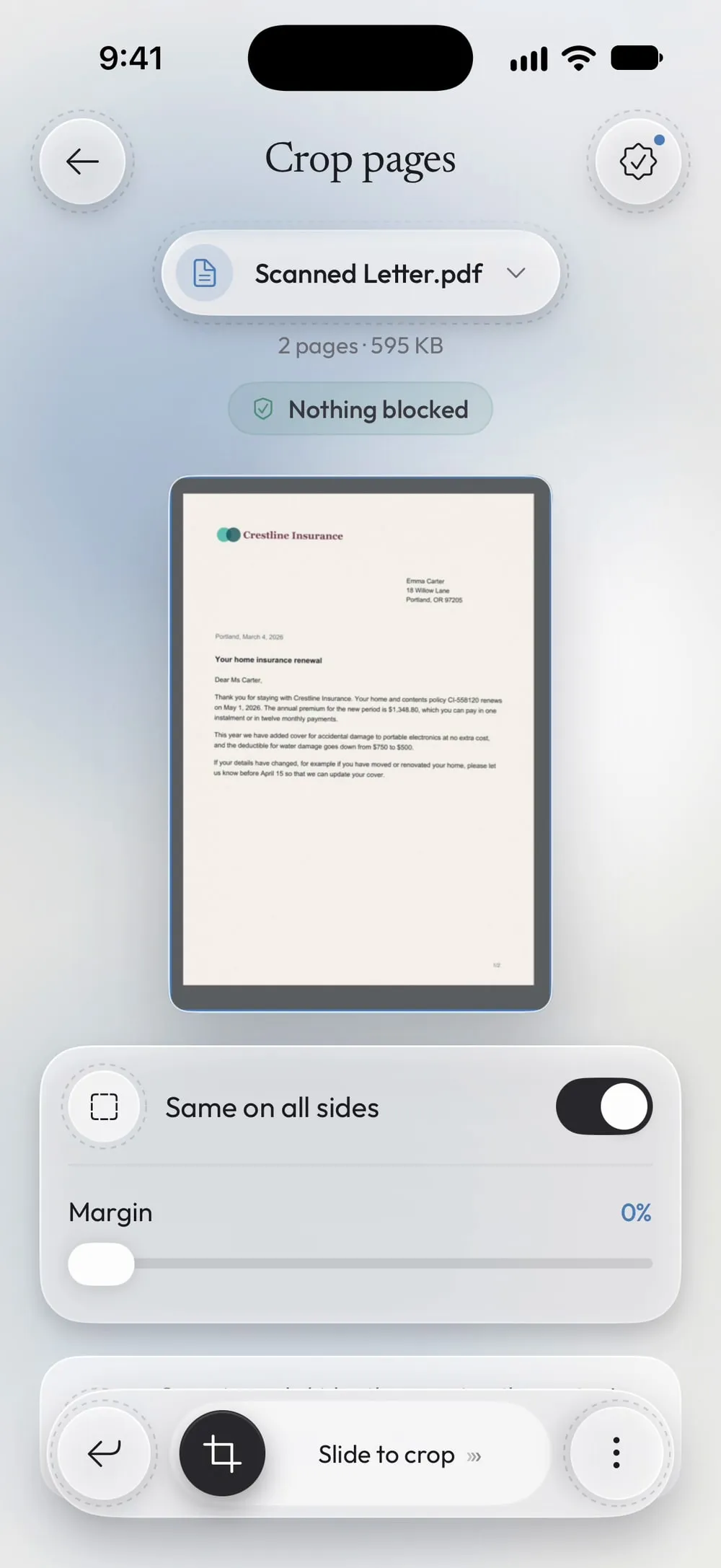
In the Tools tab, tap Crop pages, then Tap to choose, and pick the PDF from Files.
Step 02 of 04
Drag the margin slider
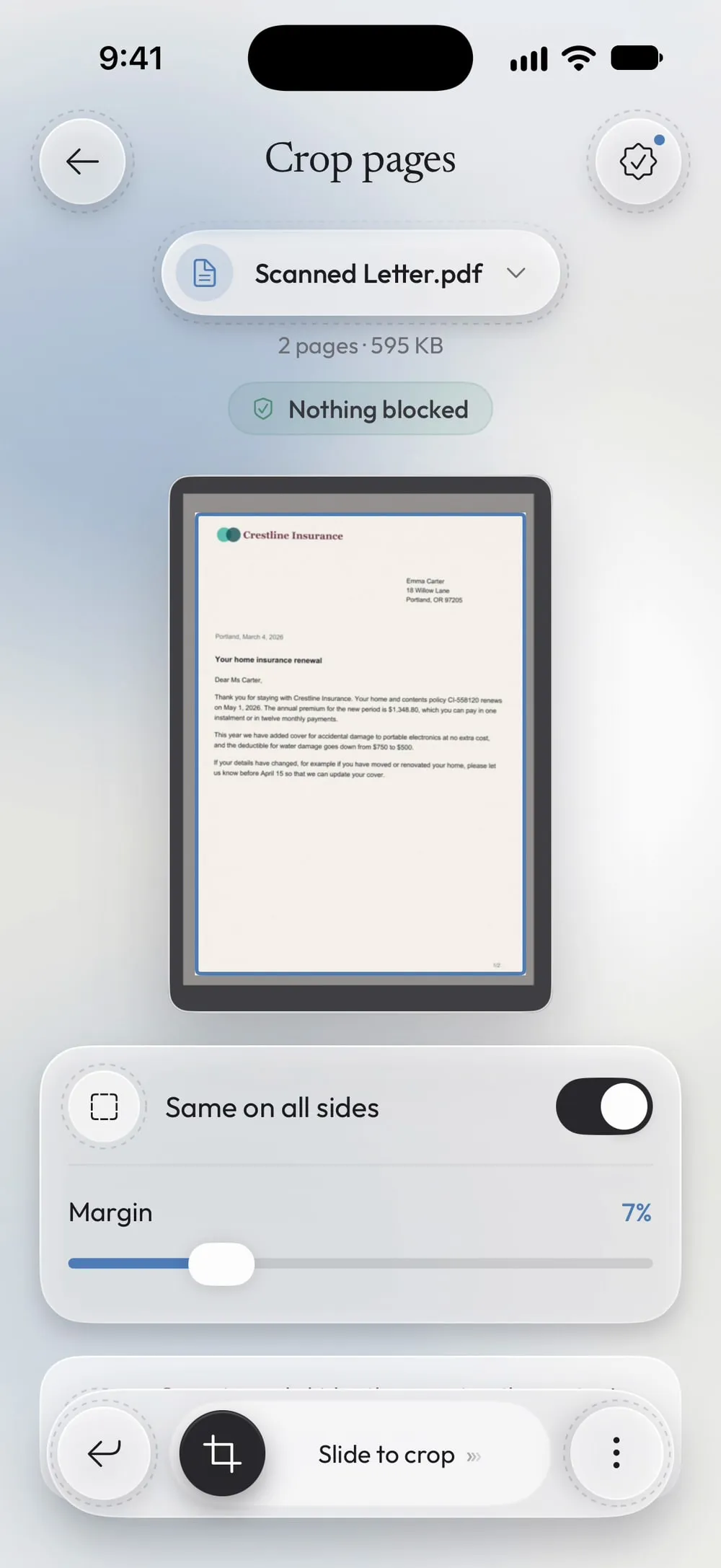
With Same on all sides on, one slider, Margin, trims all four sides. The preview shades the part that will be cut and outlines what stays.
Step 03 of 04
Adjust one side at a time if needed
Turn off Same on all sides to get four sliders: Top, Bottom, Left and Right. Useful when the border is only on one side.
Step 04 of 04
Slide to crop
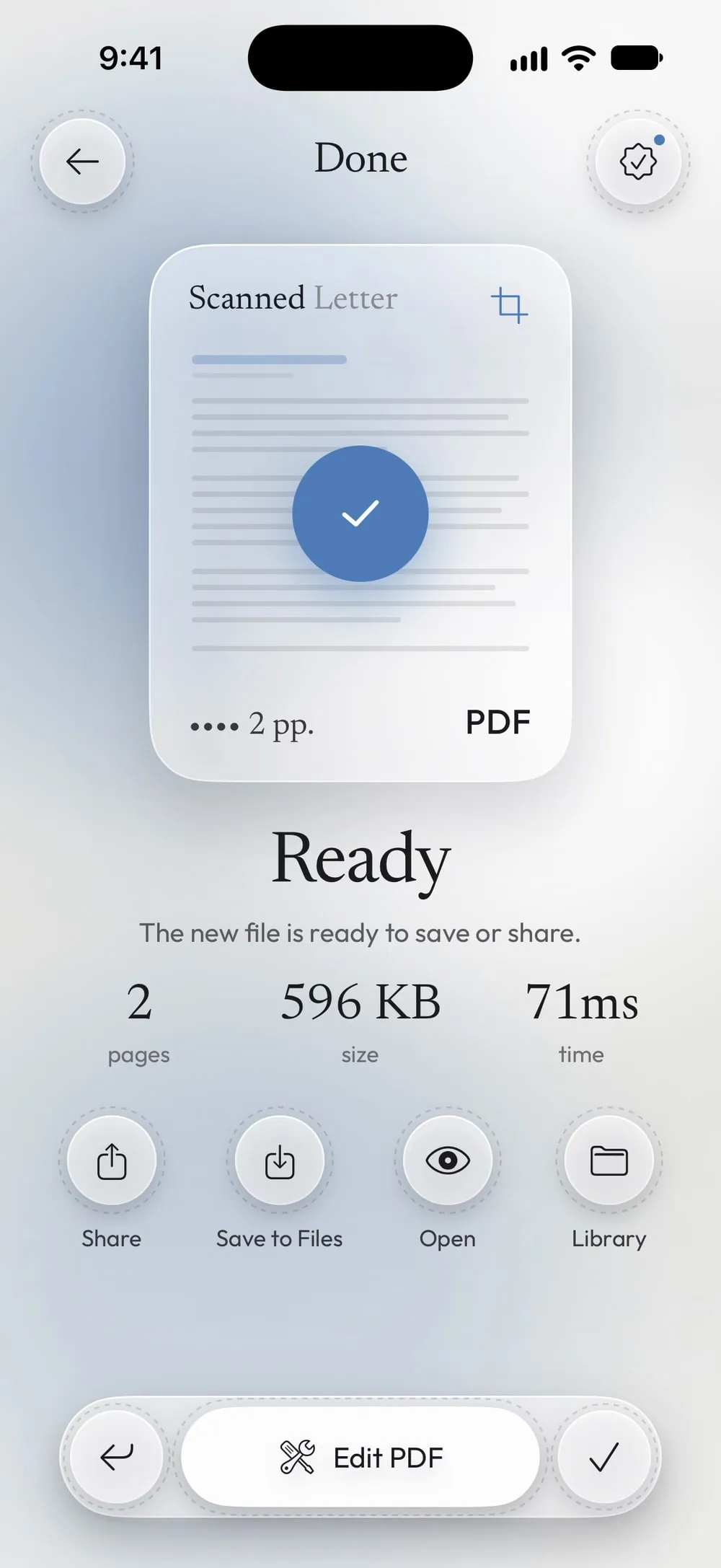
Drag Slide to crop. Share the new PDF or tap Save to Files. The original stays as it is.
Steps
-
In the Tools tab, tap Crop pages, then Tap to choose, and pick the PDF from Files.
-
With Same on all sides on, one slider, Margin, trims all four sides. The preview shades the part that will be cut and outlines what stays.
-
Turn off Same on all sides to get four sliders: Top, Bottom, Left and Right. Useful when the border is only on one side.
-
Drag Slide to crop. Share the new PDF or tap Save to Files. The original stays as it is.
Good to know
Cropping doesn't delete anything
Cropping only hides the margins: the content is still in the file. To hide sensitive data use Redact.
All pages at once
The same margins are trimmed on every page, in proportion to each page's size. If only a few pages need it, extract them first.
Start small
A few percent is usually enough to remove a white border. Look at the preview: the outlined area is what you'll see.
Questions
Can I crop only one page?
Crop works on all pages. To crop just one, extract it with Extract pages, crop it, and merge it back if needed.
Is the text still selectable?
Yes. Cropping only changes the visible area of the page; text and links stay as they were.
Is it free?
Yes, once a day after a short video. Premium makes it unlimited and removes the ads.
Are my files uploaded?
No. The PDF is cropped on your iPhone or iPad.