How to scan documents to PDF on iPhone and iPad
A signed form to send back, receipts for an expense report, a letter to keep: a phone camera is enough to turn paper into a PDF, as long as the result is straight, readable and not too heavy.

Scanning with a phone
A photo of a sheet is not a scan: it has a tilted page, the table around it, shadows and a grey background. A good scan finds the edges of the sheet, straightens it as if it were flat, and cleans the background so the text is easy to read and print.
What makes a good scan
Even light, a flat sheet and a contrasting background matter more than the camera. Scan all the pages of a document into one PDF instead of sending separate photos, and make the text searchable so you can find it again later.
The simplest way to scan to PDF on iPhone and iPad
Scan to PDF in Unlock my PDF uses the camera to capture one or more pages, finds the edges of each sheet and straightens it. A filter cleans the background, and the text can be made searchable, all on your device.
The full flow · 42 s
How to scan documents to PDF
Step 01 of 05
Open Scan to PDF
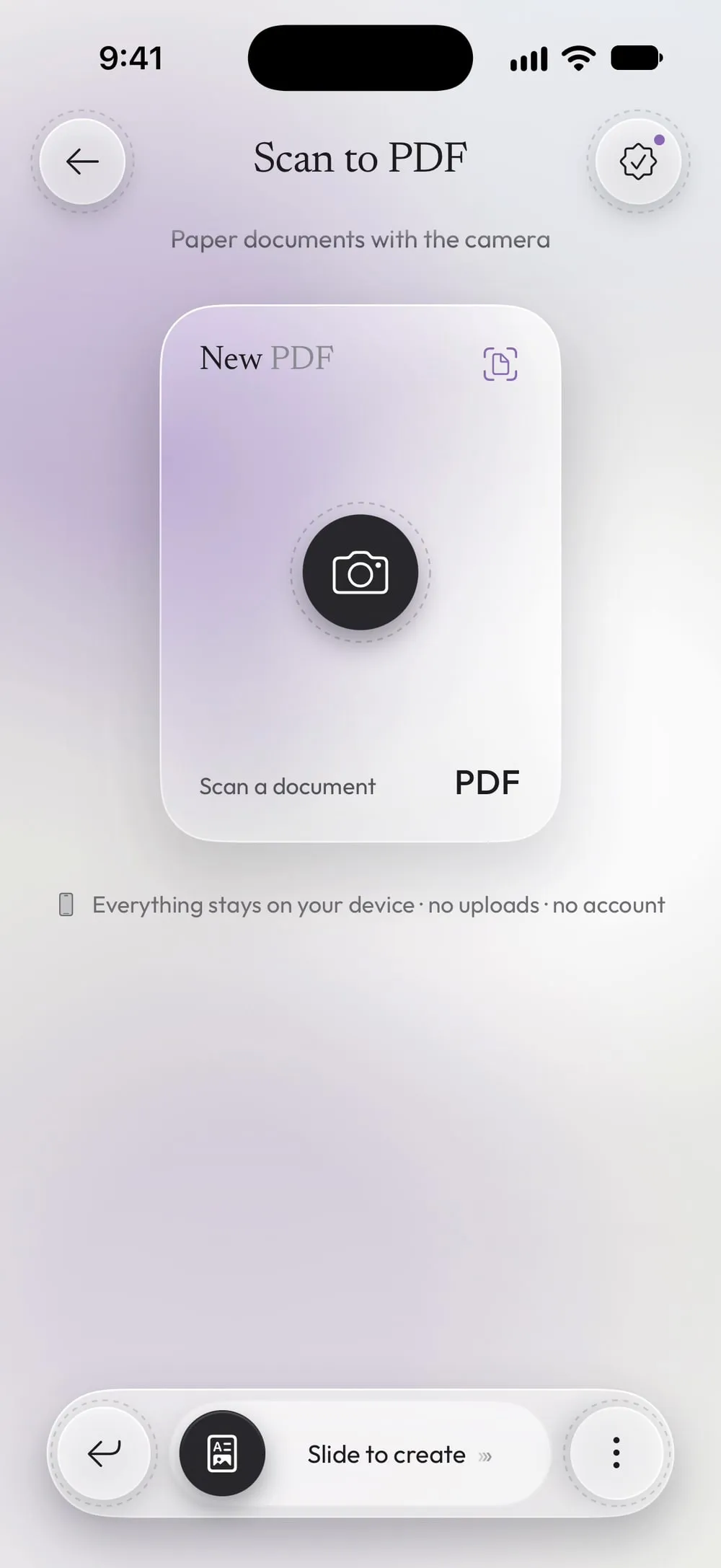
In the Tools tab, tap Scan to PDF, then Scan a document.
Step 02 of 05
Frame the sheet and take the picture
Hold the phone above the paper: the camera finds the sheet and can take the picture by itself. Scan all the pages you need, then tap Save. The app straightens every page and crops away the table.
Step 03 of 05
Check each page
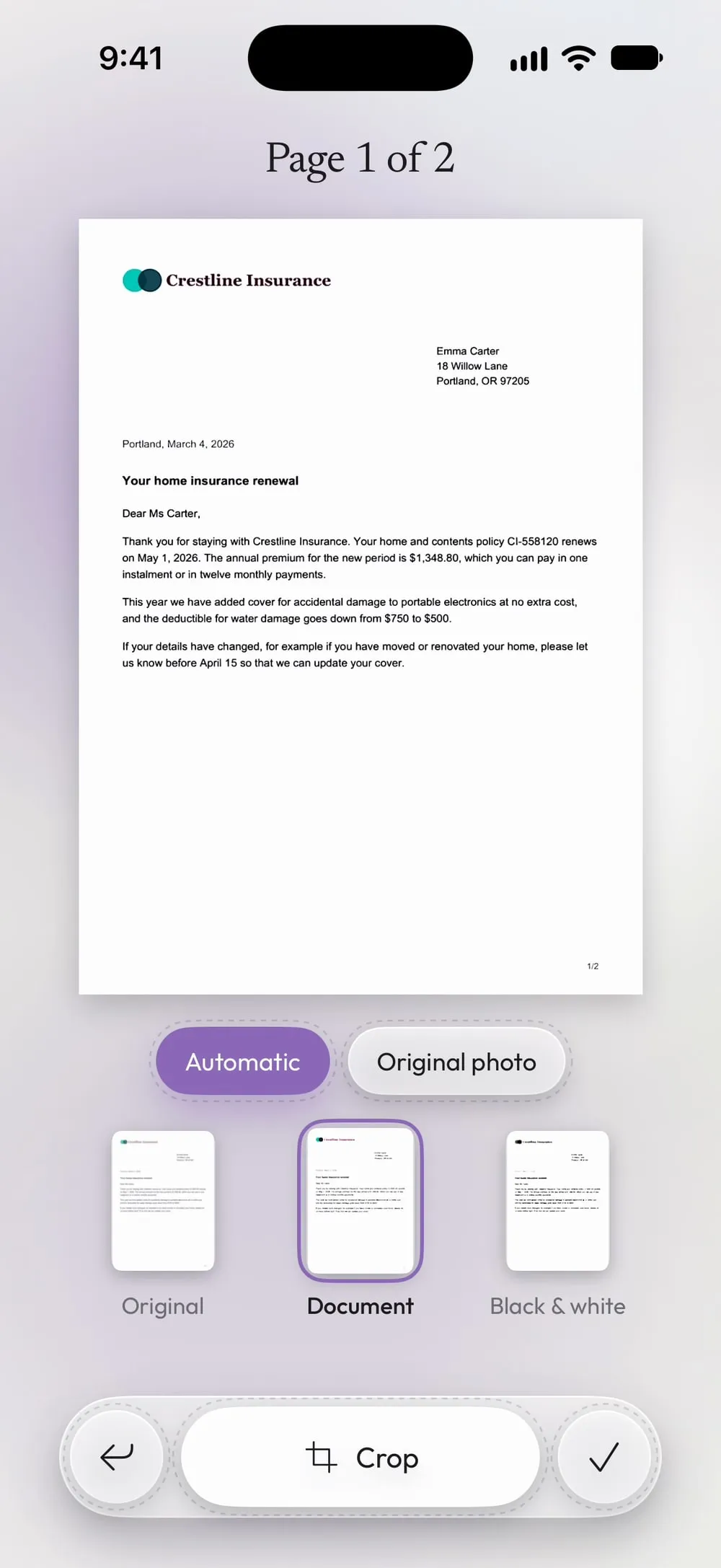
Tap the magnifier on a page to open it. Choose a filter, Original, Document or Black & white, or tap Crop and drag the corners onto the edges of the sheet.
Step 04 of 05
Add pages or change their order
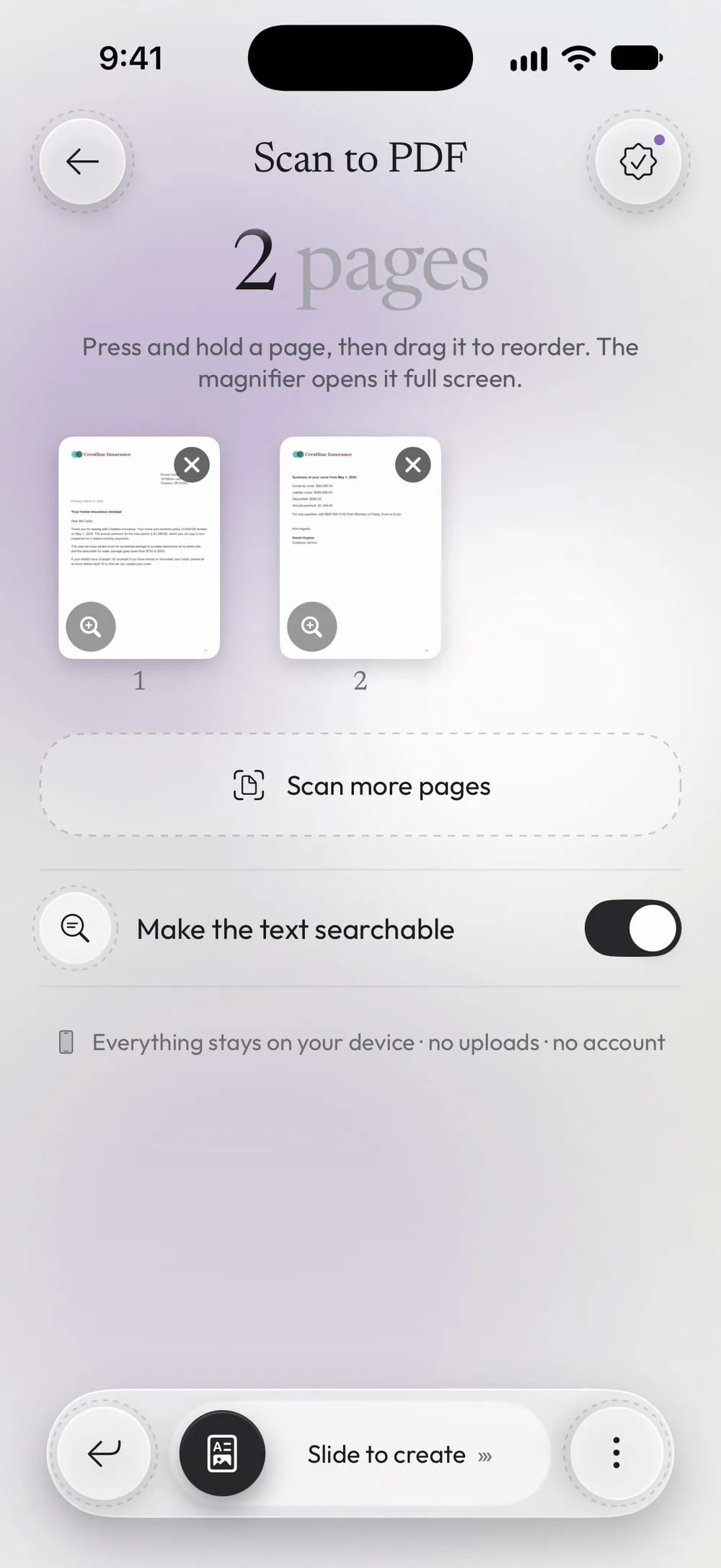
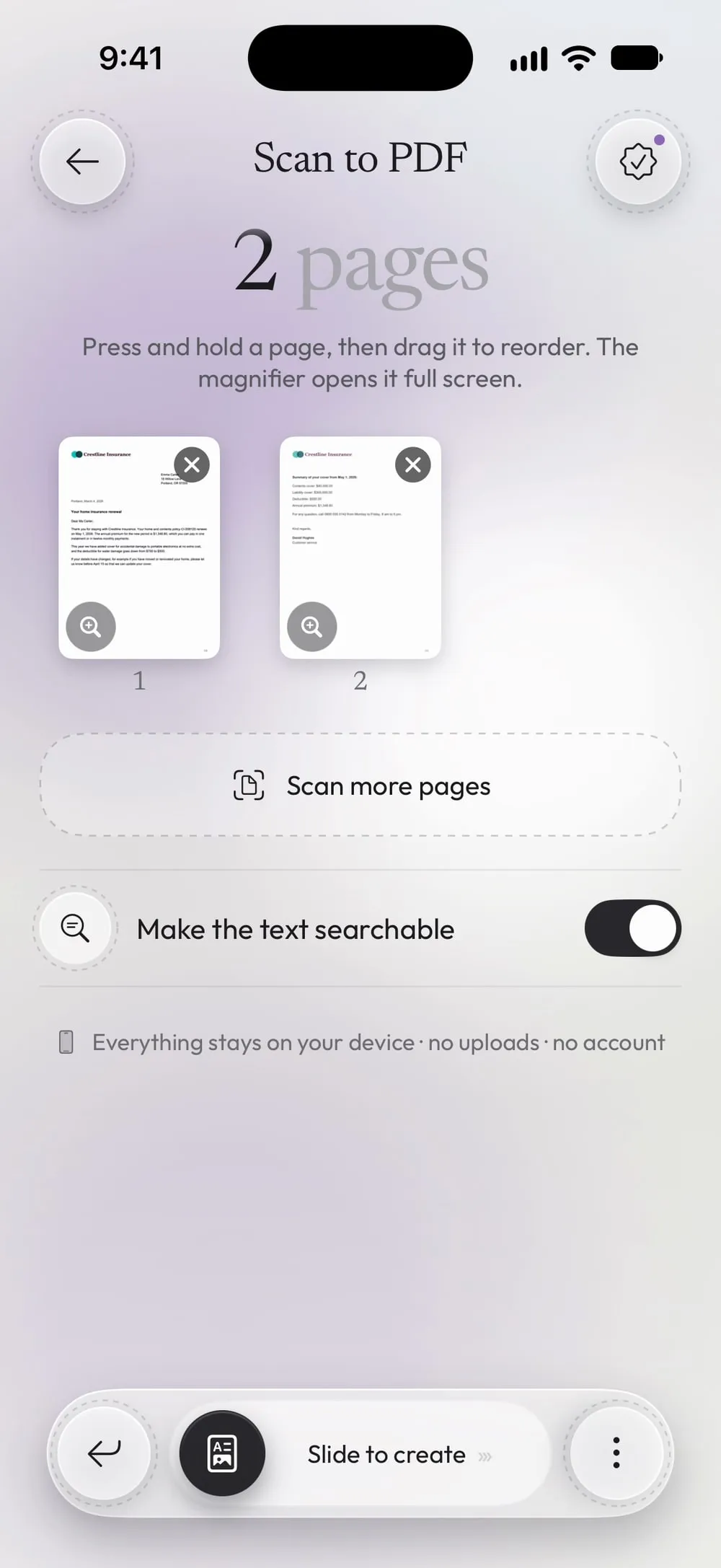
Tap Scan more pages for the next pages. Press and hold a page and drag it to change the order. Leave Make the text searchable on to search and copy the text later.
Step 05 of 05
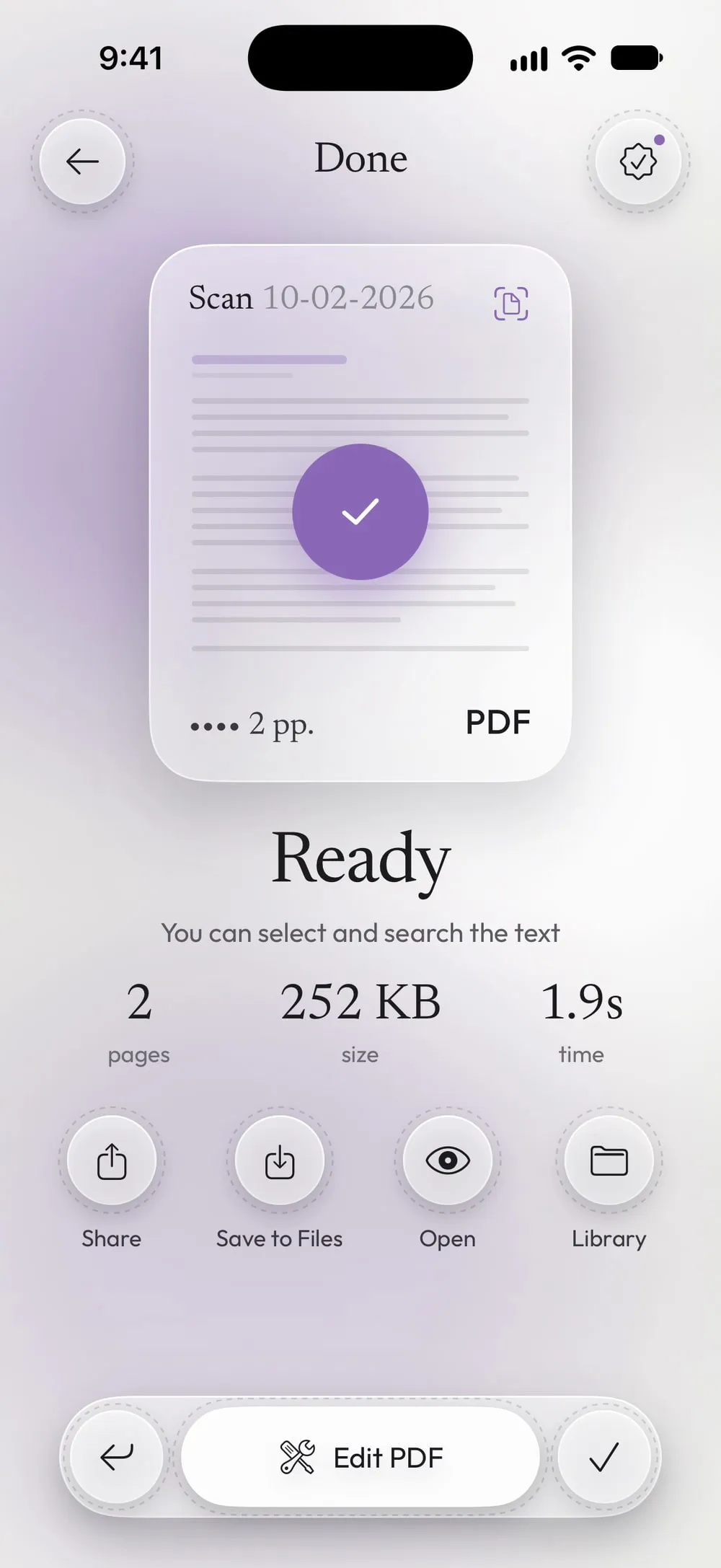
Slide to create the PDF
Drag Slide to create. The PDF is ready to share or to save with Save to Files.
Steps
-
In the Tools tab, tap Scan to PDF, then Scan a document.
-
Hold the phone above the paper: the camera finds the sheet and can take the picture by itself. Scan all the pages you need, then tap Save. The app straightens every page and crops away the table.
-
Tap the magnifier on a page to open it. Choose a filter, Original, Document or Black & white, or tap Crop and drag the corners onto the edges of the sheet.
-
Tap Scan more pages for the next pages. Press and hold a page and drag it to change the order. Leave Make the text searchable on to search and copy the text later.
-
Drag Slide to create. The PDF is ready to share or to save with Save to Files.
Good to know
Good light, flat paper
Scan near a window or under a bright lamp, with the sheet flat on a dark table. The contrast helps the app find the edges.
The Document filter
Document whitens the background and removes shadows: the best choice for letters, forms and receipts. Keep Original for photos and colored pages.
Edits can be undone
Every change starts from the original photo, so you can try a filter or a crop and go back to Original photo at any time.
Protect it straight away
Scanned an ID or a bank document? Add a password to the new PDF with Protect before you send it.
Questions
Can I scan several pages into one PDF?
Yes. Scan as many pages as you need, add more with Scan more pages, and they all go into one PDF in the order you choose.
Can I search the text of the scan?
Yes, with Make the text searchable on: the text is recognized on your device and you can select, copy and search it.
Is it free?
Yes, once a day after a short video. Premium makes it unlimited and removes the ads.
Are my scans uploaded?
No. Photos, text recognition and the PDF all stay on your iPhone or iPad.