How to extract pages from a PDF on iPhone and iPad
You need to send one chapter of a manual, the signed page of a contract or a single invoice from a long statement: extracting those pages gives you a small new PDF with only what matters.

When extracting is the right choice
Long documents are hard to share: an upload form wants just one page, a colleague needs one section, an email bounces because the file is too big. Extracting the pages you need gives you a small file with only those pages.
Extract, split or delete?
Extracting gives you one new PDF with the pages you choose. Splitting turns the whole PDF into several files. Deleting removes a few pages and keeps the rest. Pick the one that leaves you with less work.
The simplest way to extract PDF pages on iPhone and iPad
Extract pages in Unlock my PDF makes a new PDF with only the pages you choose. Type them, such as 2-5, or tap the thumbnails. You can also save them as JPEG images.
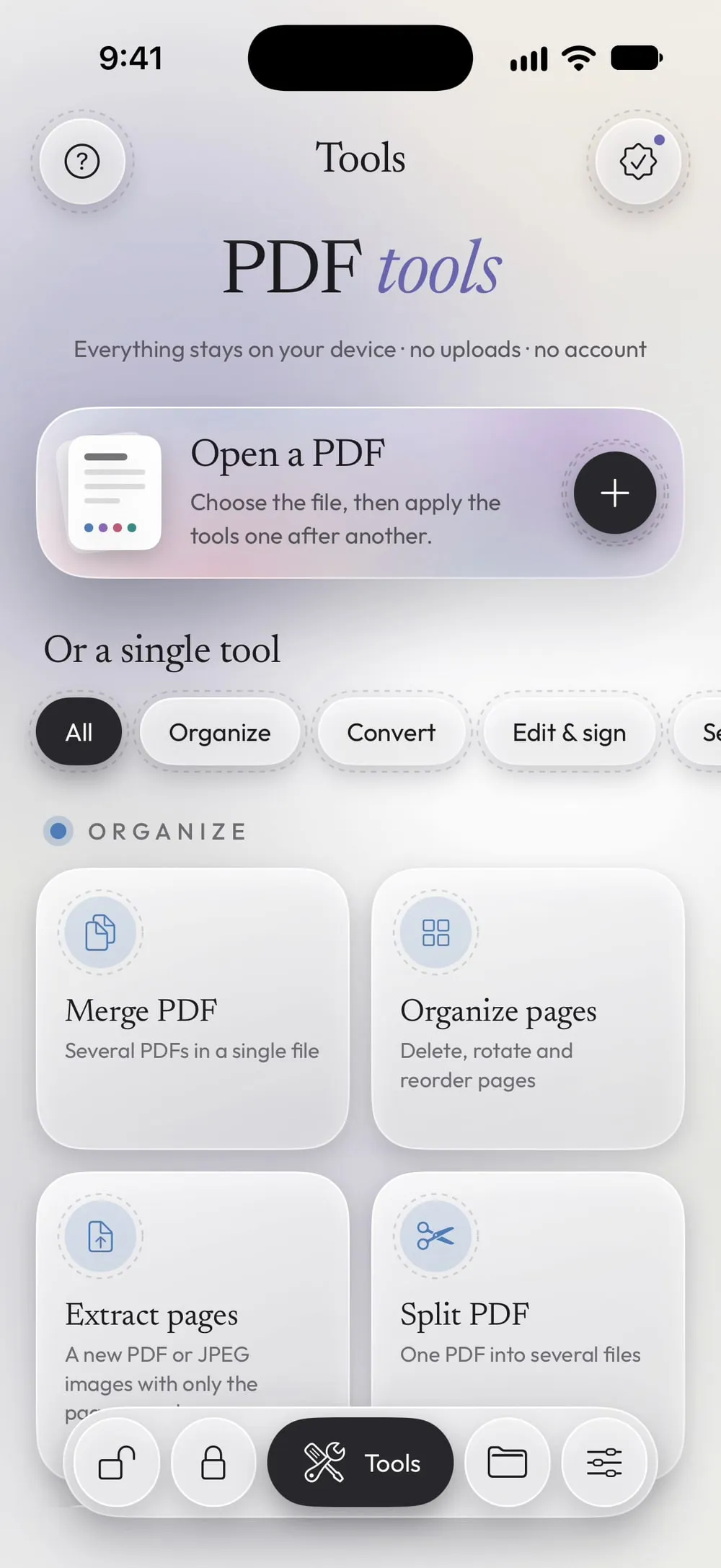
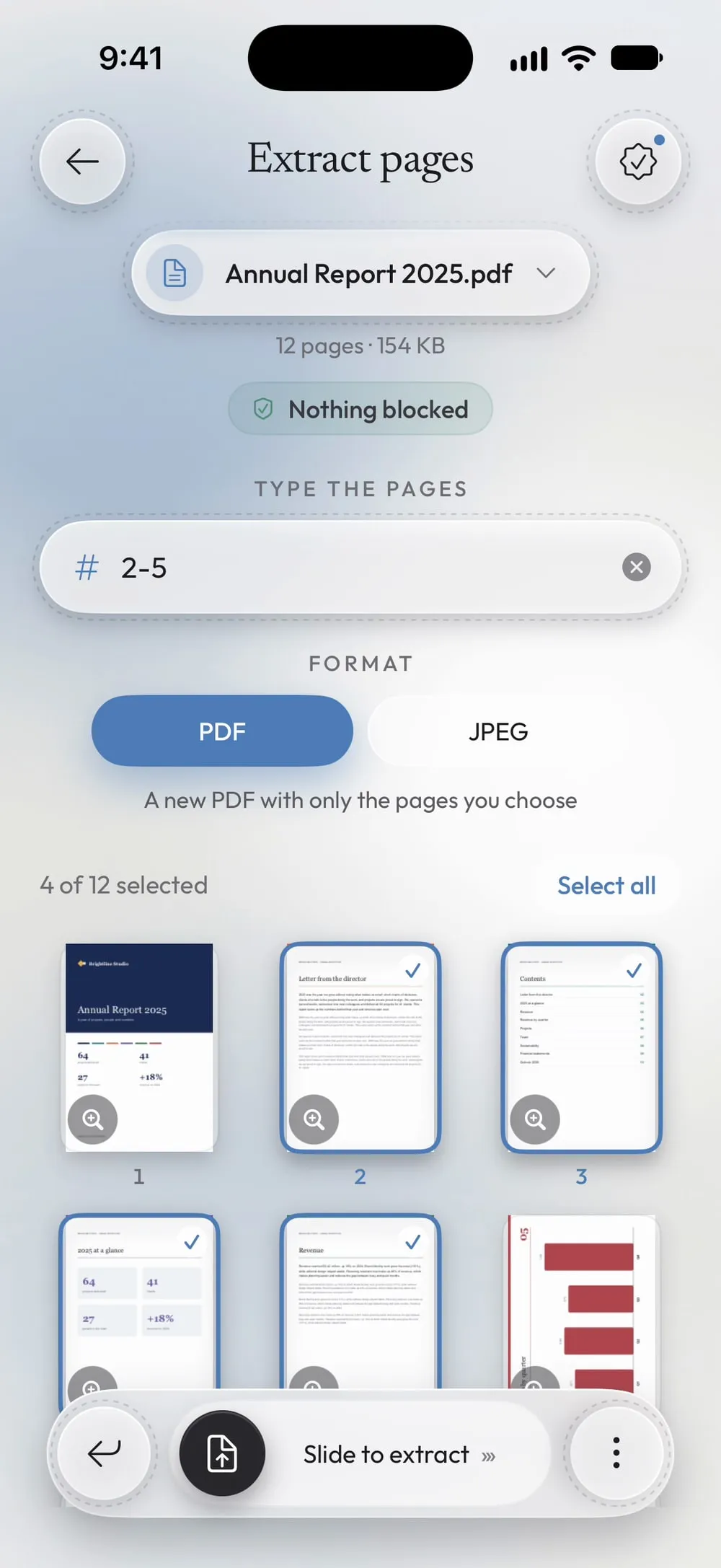
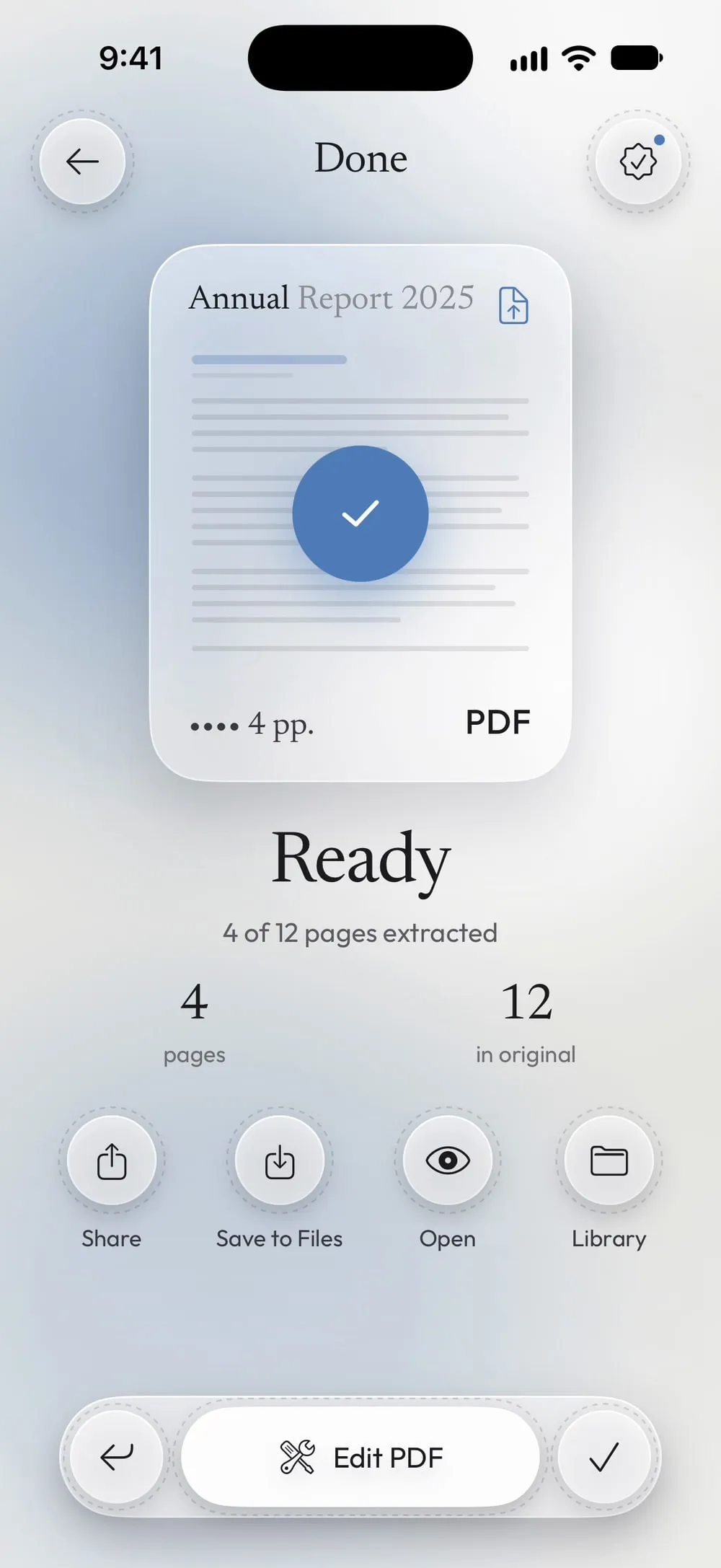
The full flow · 25 s
How to extract pages from a PDF
Step 01 of 04
Open Extract pages and choose the PDF
In the Tools tab, tap Extract pages, then Tap to choose, and pick the PDF from Files.
Step 02 of 04
Type the pages or tap them
In the field, type the pages to keep: single pages and ranges separated by commas, such as 2-5 or 1, 3, 7-9. Or tap the thumbnails: the field and the thumbnails always match.
Step 03 of 04
Choose PDF or JPEG
PDF: A new PDF with only the pages you choose. JPEG: One JPEG image per page (150 DPI), to share or save to Photos.
Step 04 of 04
Slide to extract
Drag Slide to extract. Share the new file or tap Save to Files. The original PDF stays as it is.
Steps
-
In the Tools tab, tap Extract pages, then Tap to choose, and pick the PDF from Files.
-
In the field, type the pages to keep: single pages and ranges separated by commas, such as 2-5 or 1, 3, 7-9. Or tap the thumbnails: the field and the thumbnails always match.
-
PDF: A new PDF with only the pages you choose. JPEG: One JPEG image per page (150 DPI), to share or save to Photos.
-
Drag Slide to extract. Share the new file or tap Save to Files. The original PDF stays as it is.
Good to know
Pages always keep their order
The new PDF follows the order of the original, even if you type 5, 2. To change the order, use Organize pages on the new file.
Several files instead of one
If you want to cut the whole PDF into parts, Split PDF is quicker: it makes one file for every range.
Protected PDFs
The app asks for the password you know, and the new PDF keeps it. To save JPEG images from a protected PDF you need Premium, because an image can't keep a password.
Questions
Is the extracted page still sharp?
Yes. In PDF format the pages are copied as they are, with selectable text and the same quality.
Can I extract a single page?
Yes. Type its number, or tap just one thumbnail.
Is it free?
Yes, once a day after a short video. Premium makes it unlimited and removes the ads.
Are my files uploaded?
No. Pages are extracted on your iPhone or iPad.