How to convert a PDF to text on iPhone and iPad
Copying text out of a PDF page by page is slow, and with a scan it doesn't work at all, because the words are part of a picture. A plain text file is easier to edit, search, quote or paste anywhere.

Text inside a PDF
Some PDFs contain real text that you can select; others, such as scans and photos, only contain a picture of the page. To get the words out of a scan, the text has to be recognized first, letter by letter.
Why a plain text file
A .txt file opens everywhere, from Notes to a computer, and weighs almost nothing. It’s the quickest way to reuse the words of a document: quote a paragraph, search a number, or edit the text in another app.
The simplest way to get the text out of a PDF on iPhone and iPad
PDF to text in Unlock my PDF puts all the text of a PDF into a .txt file. With Recognize text in scanned pages on, it also reads the words in scanned pages, on your device.
The full flow · 18 s
How to convert a PDF to text
Step 01 of 04
Open PDF to text and choose the PDF
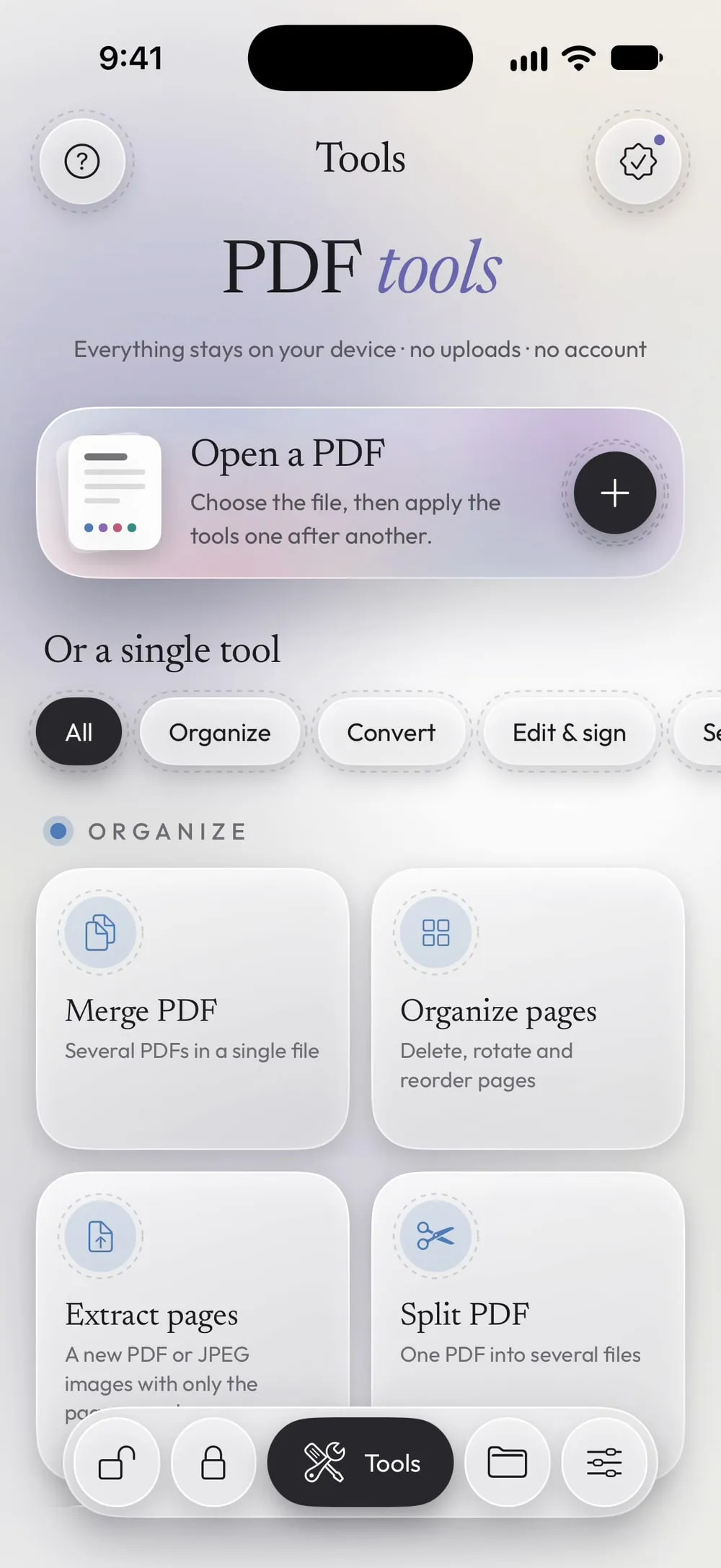
In the Tools tab, tap PDF to text, then Tap to choose, and pick the PDF from Files.
Step 02 of 04
Keep text recognition on for scans
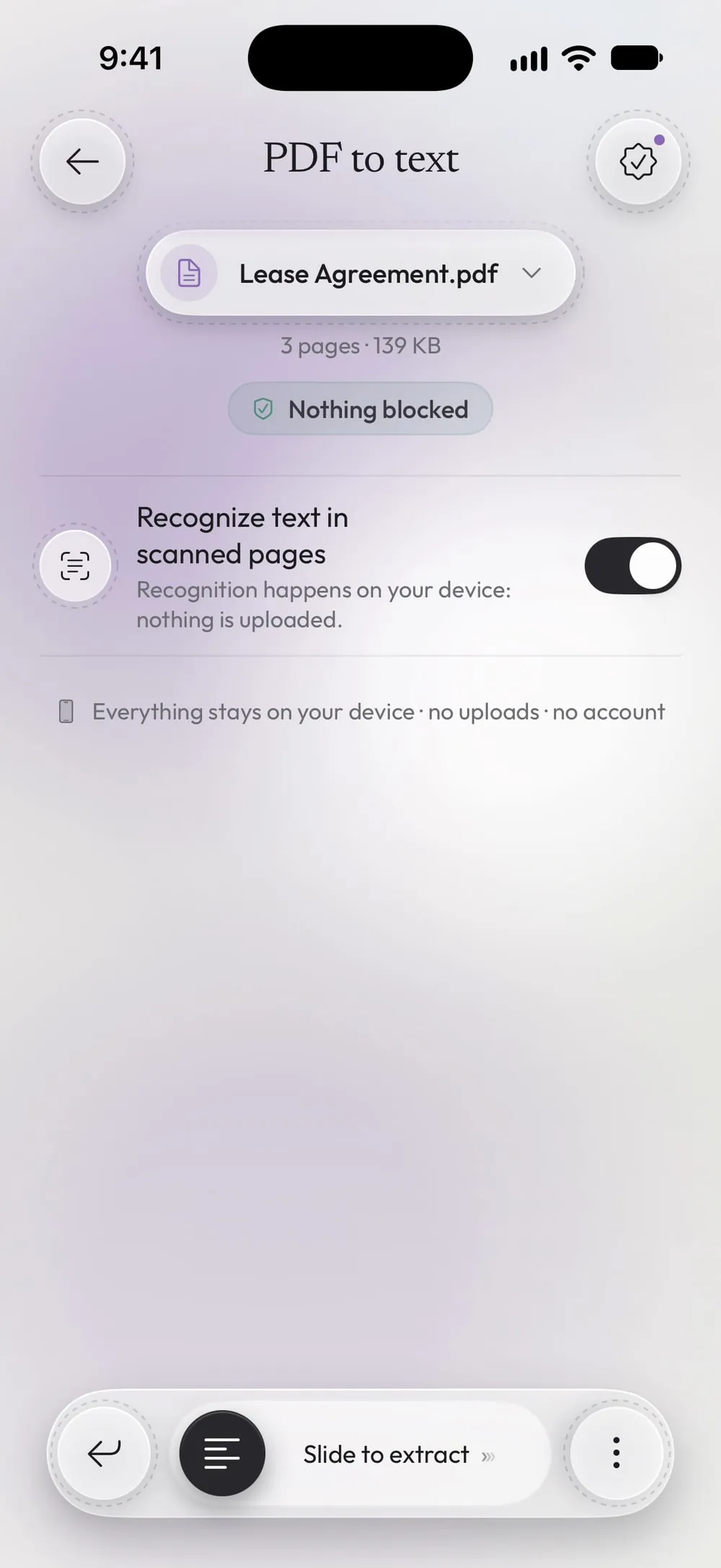
Recognize text in scanned pages is on by default. Pages that already contain text are read as they are; only the pages without text go through recognition.
Step 03 of 04
Slide to extract
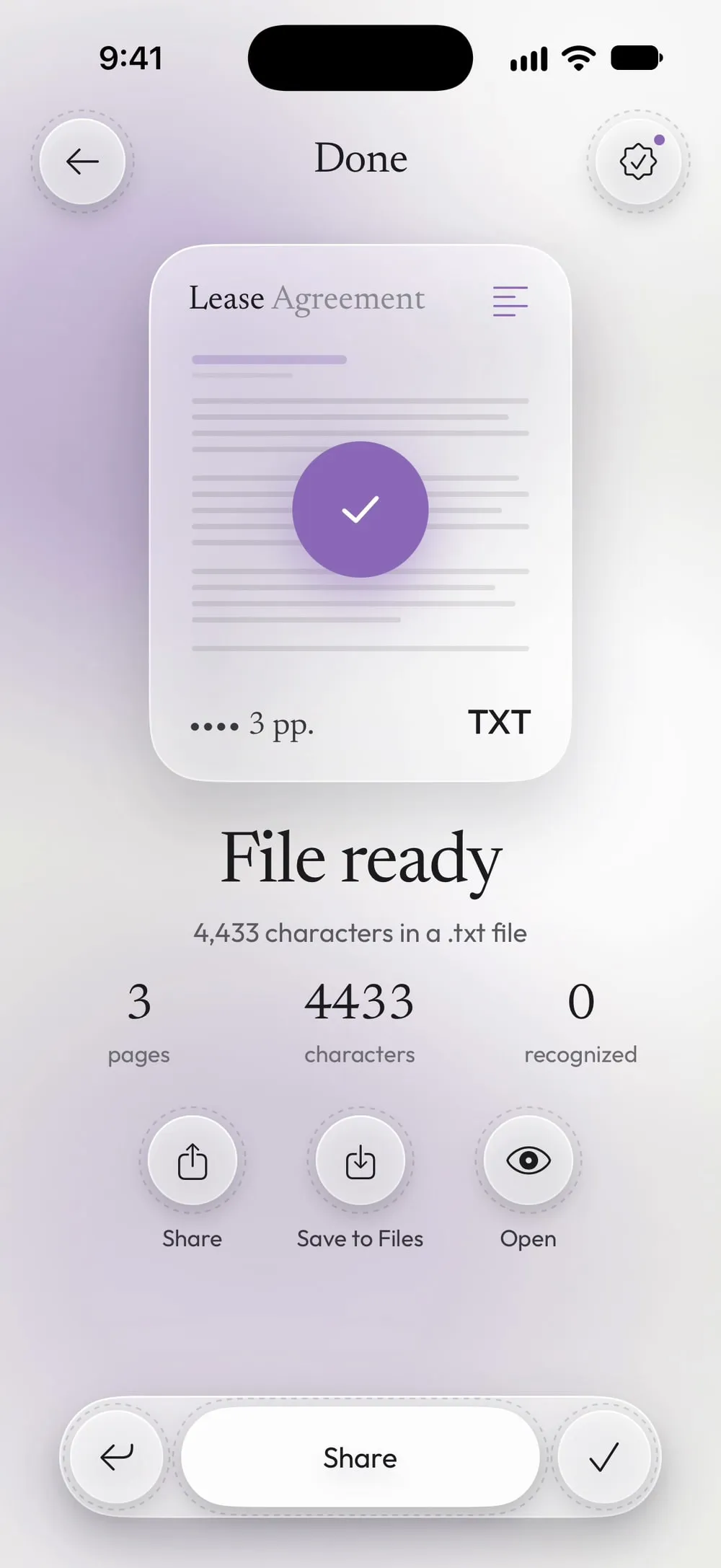
Drag Slide to extract. The result shows how many characters were found and how many pages were recognized.
Step 04 of 04
Open, share or save the text
Tap Open to read it, Share to send it to Notes, Mail or another app, or Save to Files.
Steps
-
In the Tools tab, tap PDF to text, then Tap to choose, and pick the PDF from Files.
-
Recognize text in scanned pages is on by default. Pages that already contain text are read as they are; only the pages without text go through recognition.
-
Drag Slide to extract. The result shows how many characters were found and how many pages were recognized.
-
Tap Open to read it, Share to send it to Notes, Mail or another app, or Save to Files.
Good to know
Page breaks
Pages are separated by an empty line in the .txt file, so you can tell where each page starts.
Clear scans, better text
Recognition works best on straight, sharp scans with dark text. Handwriting and very small print can come out with mistakes: check names and numbers.
Keep it as a PDF instead
If you only need to search and copy the text of a scan, Recognize text (OCR) keeps the PDF exactly as it looks and adds the text inside it.
Questions
Does it keep tables and formatting?
No. A .txt file has plain text only: no bold, columns or images. The words come out in reading order.
Can I convert a protected PDF?
Yes, with Premium and the password you know: a text file can't keep a password, so the app asks first.
Is it free?
Yes, once a day after a short video. Premium makes it unlimited and removes the ads.
Is my PDF uploaded?
No. Recognition happens on your device: nothing is uploaded.