How to make a scanned PDF searchable with OCR on iPhone and iPad
A scanned contract looks like text, but for your phone it is just a picture: you can't search a name, select a sentence or copy a number. OCR, optical character recognition, turns that picture back into text.

Why a scan isn’t searchable
When paper goes through a scanner, or a page is photographed, the PDF stores an image of the page, not the words. To you it reads like text; to search, copy and screen readers it’s a blank picture.
What OCR does
OCR looks at the image, recognizes the letters and adds them to the PDF as text, placed exactly over the words you see. The page doesn’t change, but now search finds names and numbers, and you can select and copy whole paragraphs.
The simplest way to OCR a PDF on iPhone and iPad
Recognize text (OCR) in Unlock my PDF reads the pages that have no text and adds the words inside the PDF. The pages look exactly the same, but now you can search, select and copy the text.
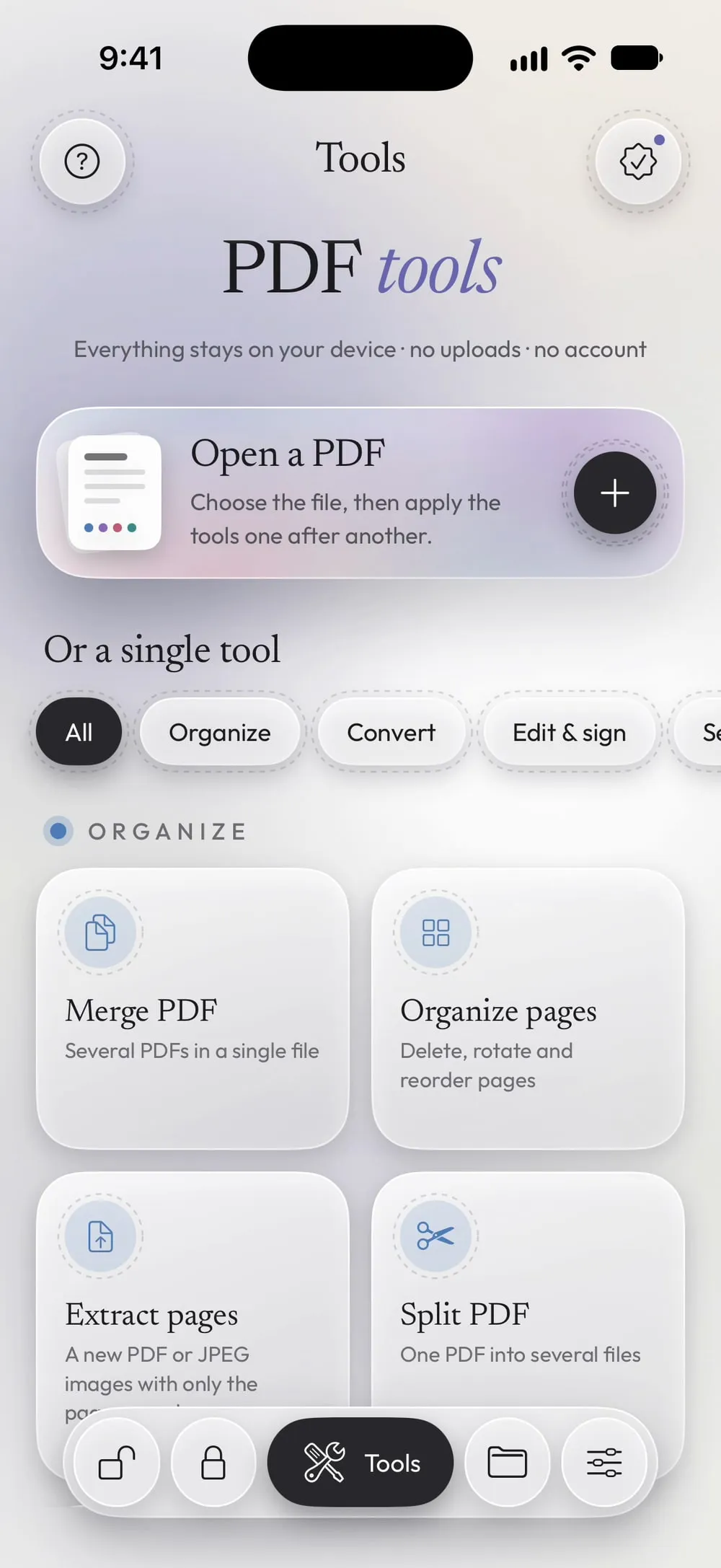
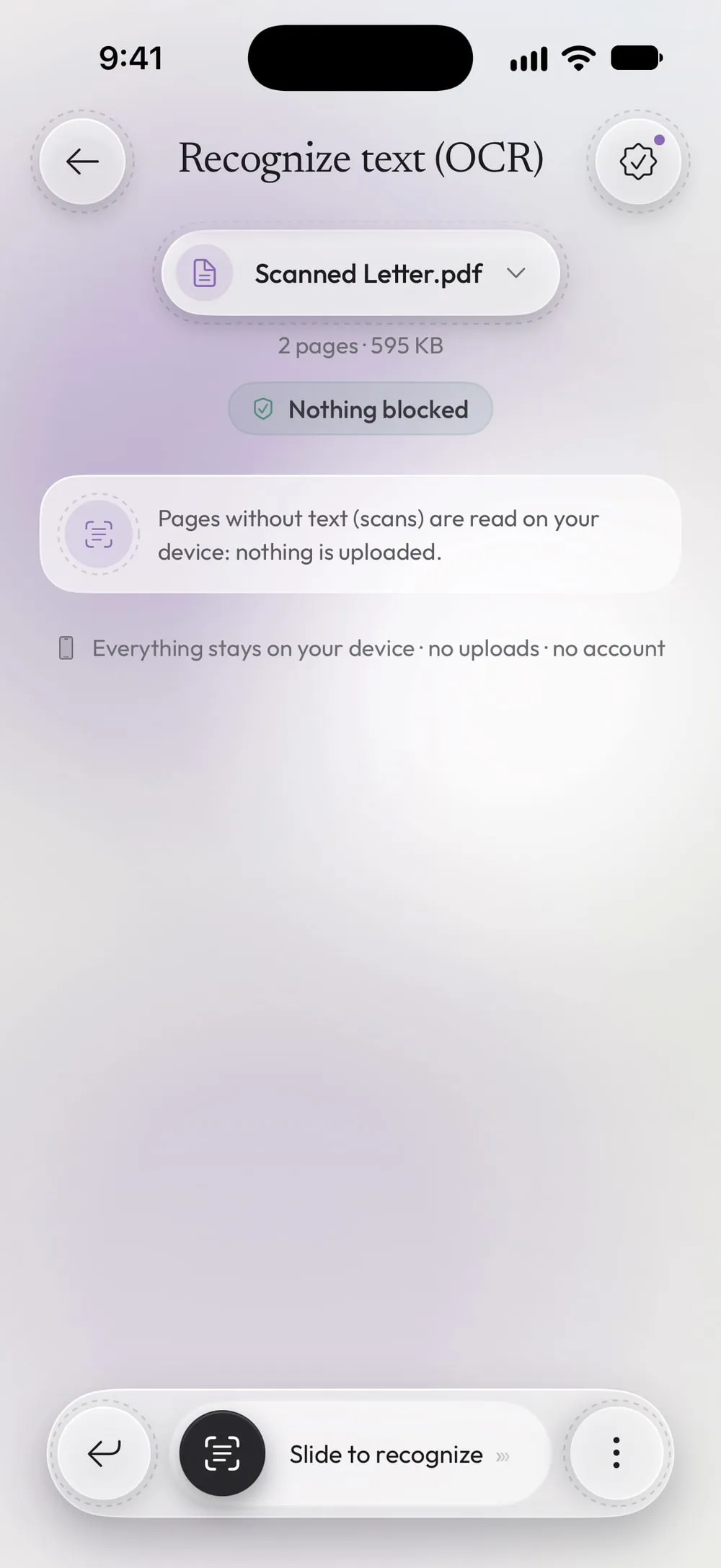
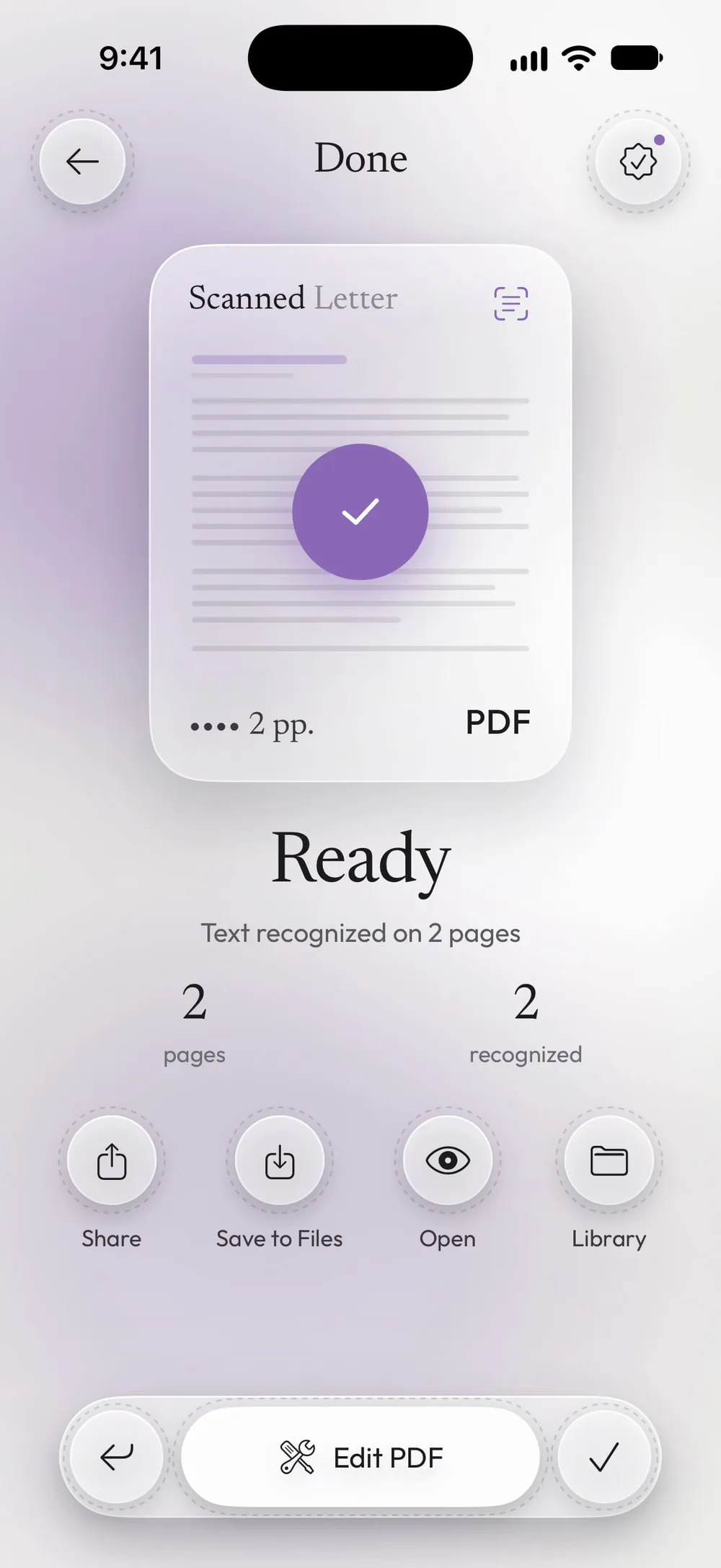
The full flow · 19 s
How to make a scanned PDF searchable with OCR
Step 01 of 03
Open Recognize text (OCR) and choose the PDF
In the Tools tab, tap Recognize text (OCR), then Tap to choose, and pick the scanned PDF from Files.
Step 02 of 03
Check the note and slide
There's nothing to set: Pages without text (scans) are read on your device: nothing is uploaded. Drag Slide to recognize.
Step 03 of 03
Open, share or save the searchable PDF
The result says on how many pages the text was recognized. Tap Open to try selecting a word, then Share or Save to Files.
Steps
-
In the Tools tab, tap Recognize text (OCR), then Tap to choose, and pick the scanned PDF from Files.
-
There's nothing to set: Pages without text (scans) are read on your device: nothing is uploaded. Drag Slide to recognize.
-
The result says on how many pages the text was recognized. Tap Open to try selecting a word, then Share or Save to Files.
Good to know
Only the pages that need it
Pages that already contain text are copied as they are. If the whole PDF already has text, the app tells you that no page needed recognition.
Better scans, better results
Straight, sharp pages with dark text are read best. Crop away dark scanner borders first and check names and numbers in the recognized text.
Languages
The language is detected automatically: there's nothing to choose before you start.
Scanning now?
Scan to PDF can make the text searchable while you scan, with the same on-device recognition.
Questions
Does the PDF look different after OCR?
No. The text is added as an invisible layer over the page image, so the pages look exactly as before.
Is it free?
Recognize text (OCR) is a PRO tool, included in Premium. The app shows the PRO label before you start, never after the work is done.
What about a protected PDF?
The app asks for the password you know. The result keeps the same password unless you choose Remove the password from the result.
Is my PDF uploaded?
No. The text is recognized on your iPhone or iPad.