How to unlock several PDFs at once on iPhone and iPad
Banks, payroll services and insurers often protect every statement with the same password. When you need a whole year of them without typing it twelve times, unlocking them together saves a lot of taps.

You need the password. If you don't know it, the app can't open the file.
Why so many protected PDFs
Banks, employers and insurers protect the documents they email you, usually with a password based on your details. It’s sensible, but when you need to send a year of statements to an accountant, or keep them in one folder, opening each file with the password becomes a chore.
Unlock them together
If you know the password, you can remove it from all the files in one go and keep unlocked copies for your records. Keep them somewhere safe: an unlocked copy can be read by anyone who gets hold of it.
The simplest way to unlock many PDFs on iPhone and iPad
Unlock several PDFs in Unlock my PDF takes all the files you add, uses the password you know on each of them and gives you unlocked copies, ready to share or save together.
The full flow · 36 s
How to unlock several PDFs at once
Step 01 of 04
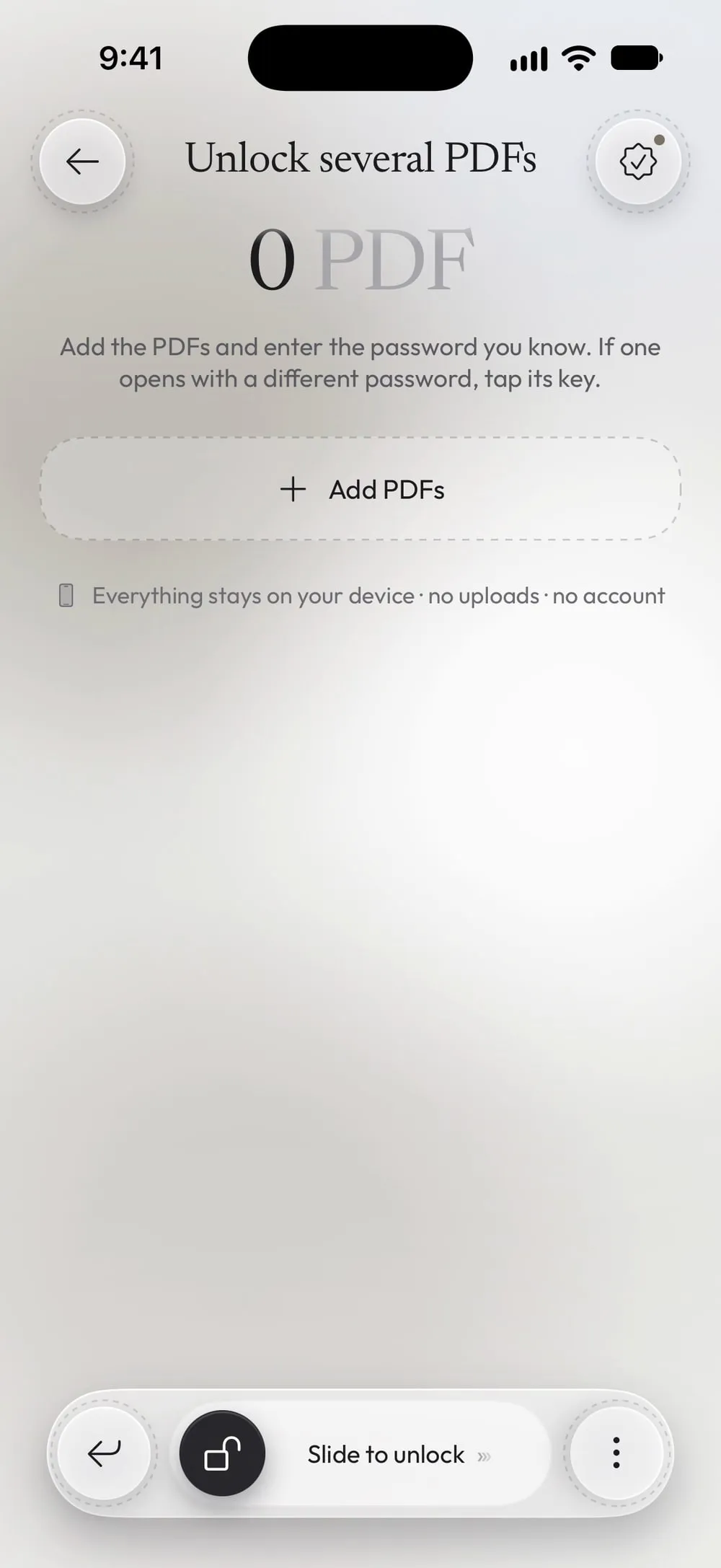
Open Unlock several PDFs
In the Tools tab, tap Unlock several PDFs. Add the PDFs and enter the password you know. If one opens with a different password, tap its key.
Step 02 of 04
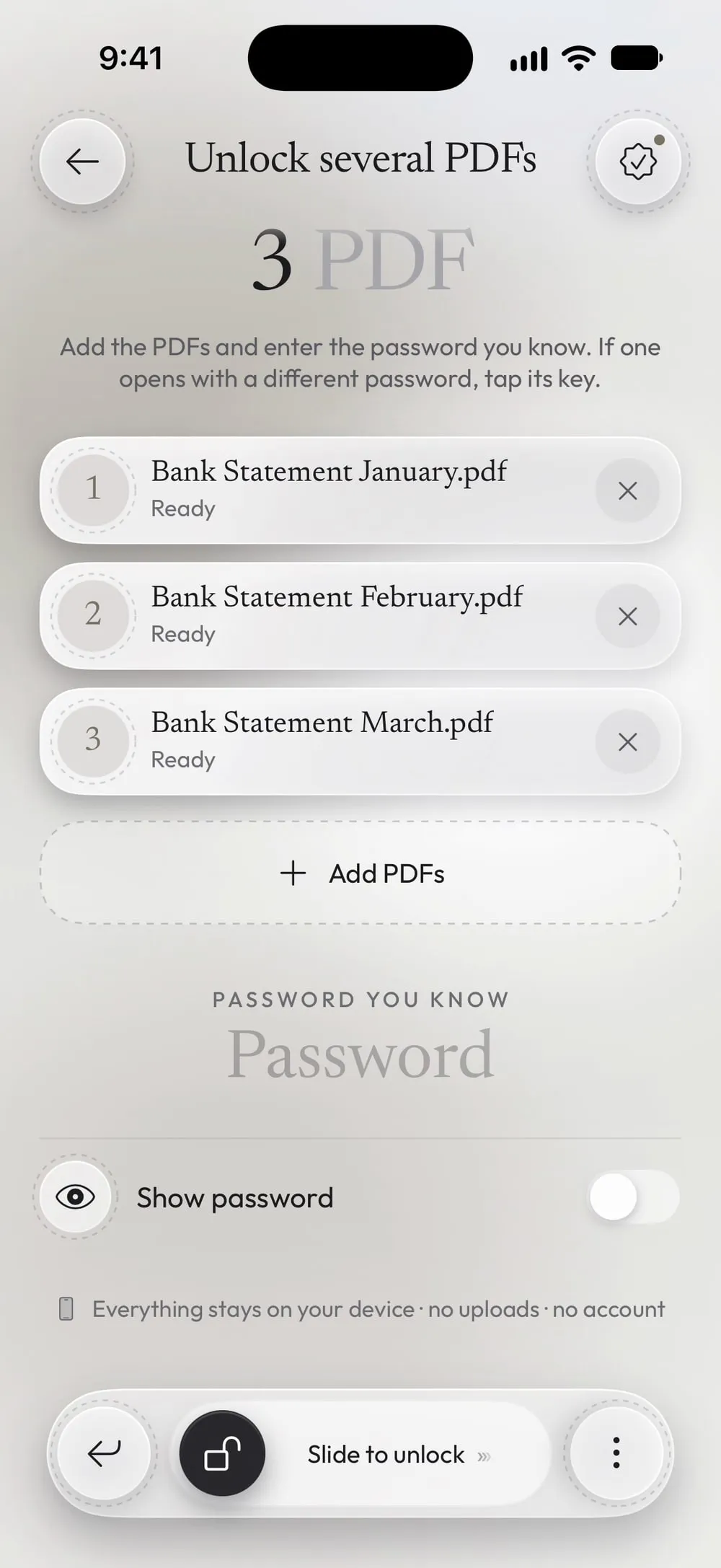
Add the PDFs
Tap Add PDFs, choose Files and select all the statements at once. Each file appears in the list as Ready.
Step 03 of 04
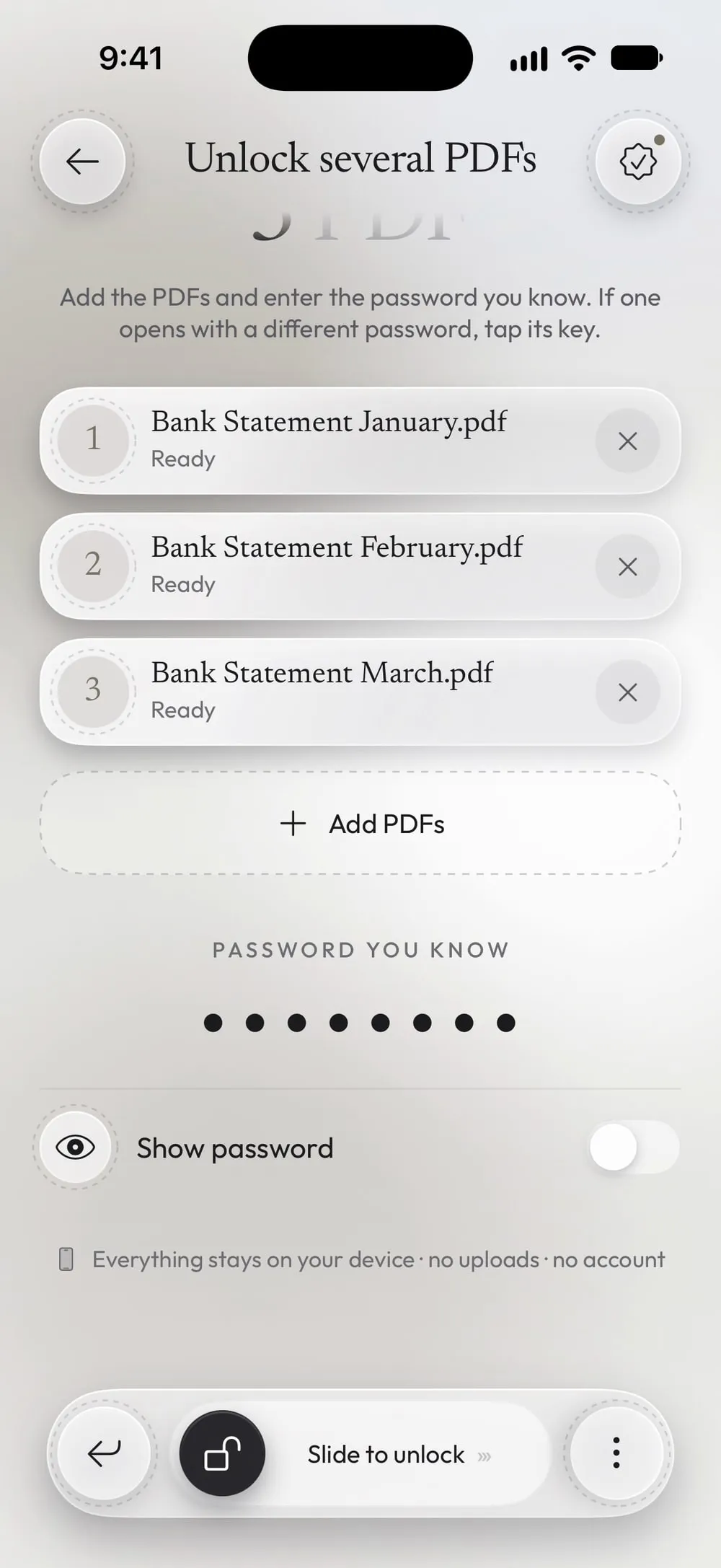
Type the password you know once
Write it in Password you know. If you have saved passwords, the app can try them too, after Face ID.
Step 04 of 04
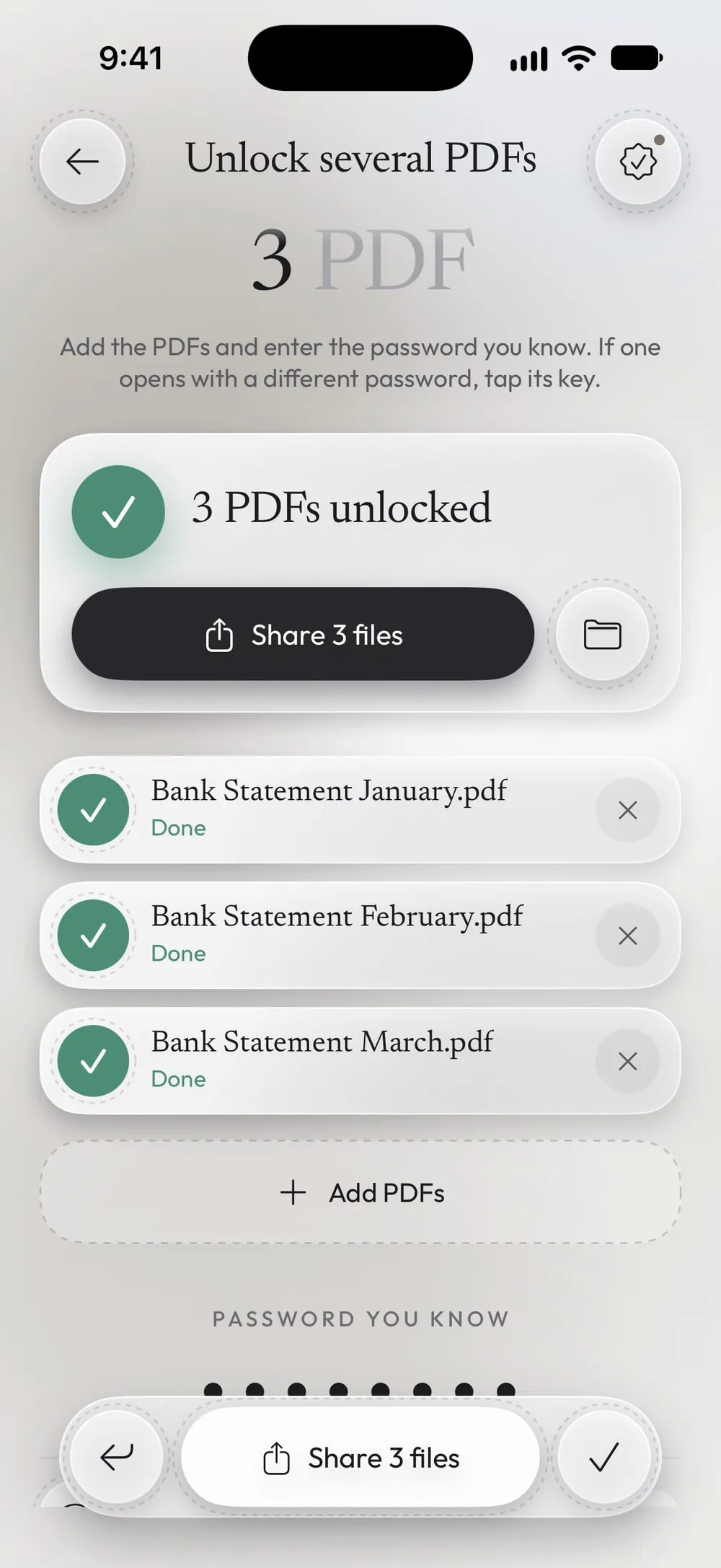
Slide to unlock them all
Drag Slide to unlock. Each file shows Done; share them all together or tap Save to Files.
Steps
-
In the Tools tab, tap Unlock several PDFs. Add the PDFs and enter the password you know. If one opens with a different password, tap its key.
-
Tap Add PDFs, choose Files and select all the statements at once. Each file appears in the list as Ready.
-
Write it in Password you know. If you have saved passwords, the app can try them too, after Face ID.
-
Drag Slide to unlock. Each file shows Done; share them all together or tap Save to Files.
Good to know
One file has a different password
It shows Different password: tap the key. Tap the key next to it, type that file's password and slide again: only the files still locked are processed.
Files that aren't protected
They show Not protected: nothing to unlock and are left as they are.
Find them again later
Every unlocked copy also goes to Library, under Unlocked.
Questions
Do I need the password of every PDF?
Yes. The app removes a password only when you enter it. If you don't know it, the app can't open the file.
How many PDFs can I add?
As many as you need. They're unlocked one after the other, and you can stop at any moment.
Is it free?
Unlock several PDFs is a PRO tool, included in Premium. With the free version you can unlock 3 PDFs a day, one at a time.
Are my statements uploaded?
No. Everything happens on your iPhone or iPad.