How to save PDF passwords with Face ID on iPhone and iPad
Every month the same bank statement or payslip arrives with the same password, and every month you look for it in old emails. Saving it once, behind Face ID, makes the next file open in seconds.

You need the password. If you don't know it, the app can't open the file.
The same password every month
Banks, employers, pension funds and utilities protect the PDFs they send with a password, often built from your details. It’s the same every time, but it’s rarely at hand when the next file arrives.
Saving it safely
A password worth saving should be locked away: on your device only, and opened only by you. Face ID does exactly that, without having to remember yet another password.
The simplest way to remember PDF passwords on iPhone and iPad
With Premium, Unlock my PDF can remember the passwords you type. Next time, Try all saved passwords asks for Face ID, finds the one that opens the PDF and unlocks it.
The full flow · 43 s
How to save PDF passwords with Face ID
Step 01 of 04
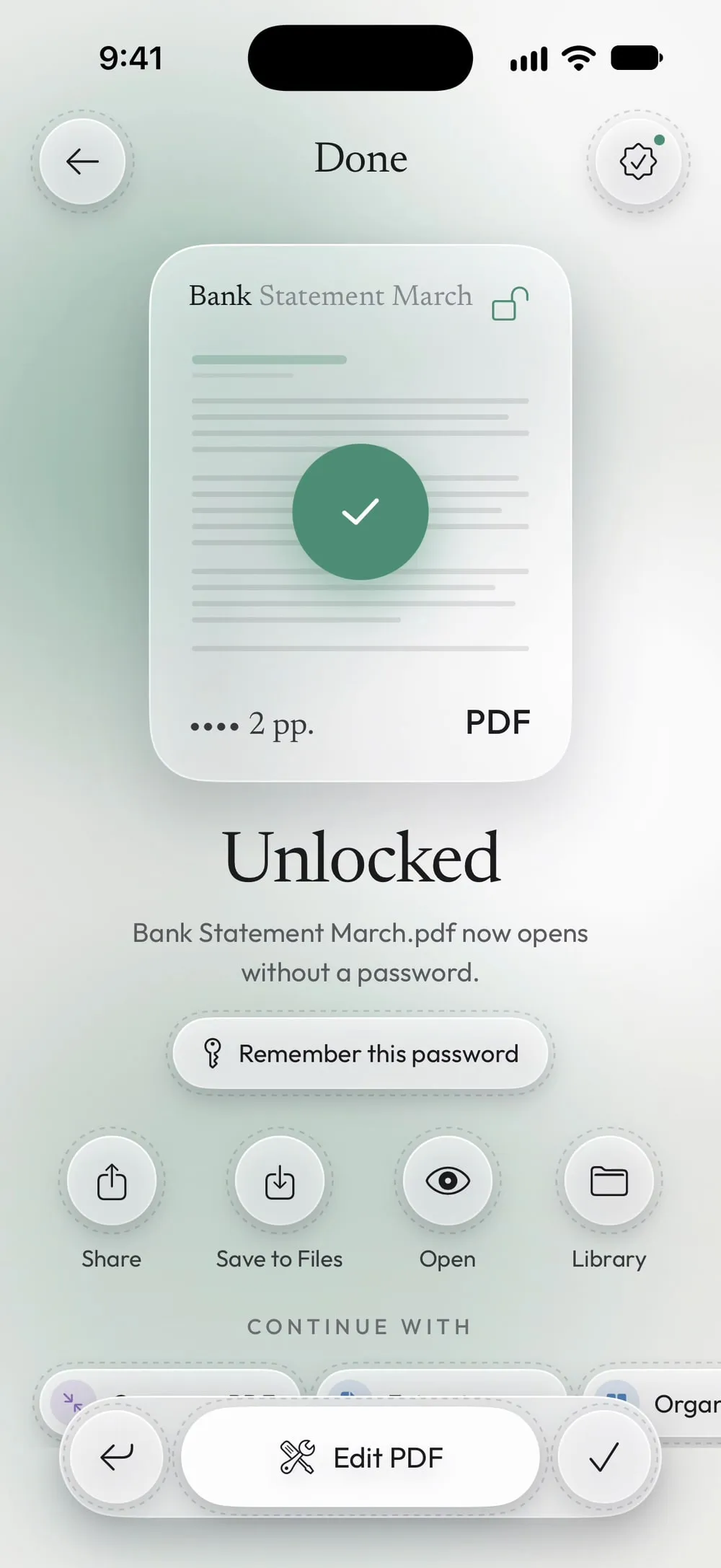
Unlock a PDF with the password you know
In the Unlock tab, choose the PDF, type its password and drag Slide to unlock.
Step 02 of 04
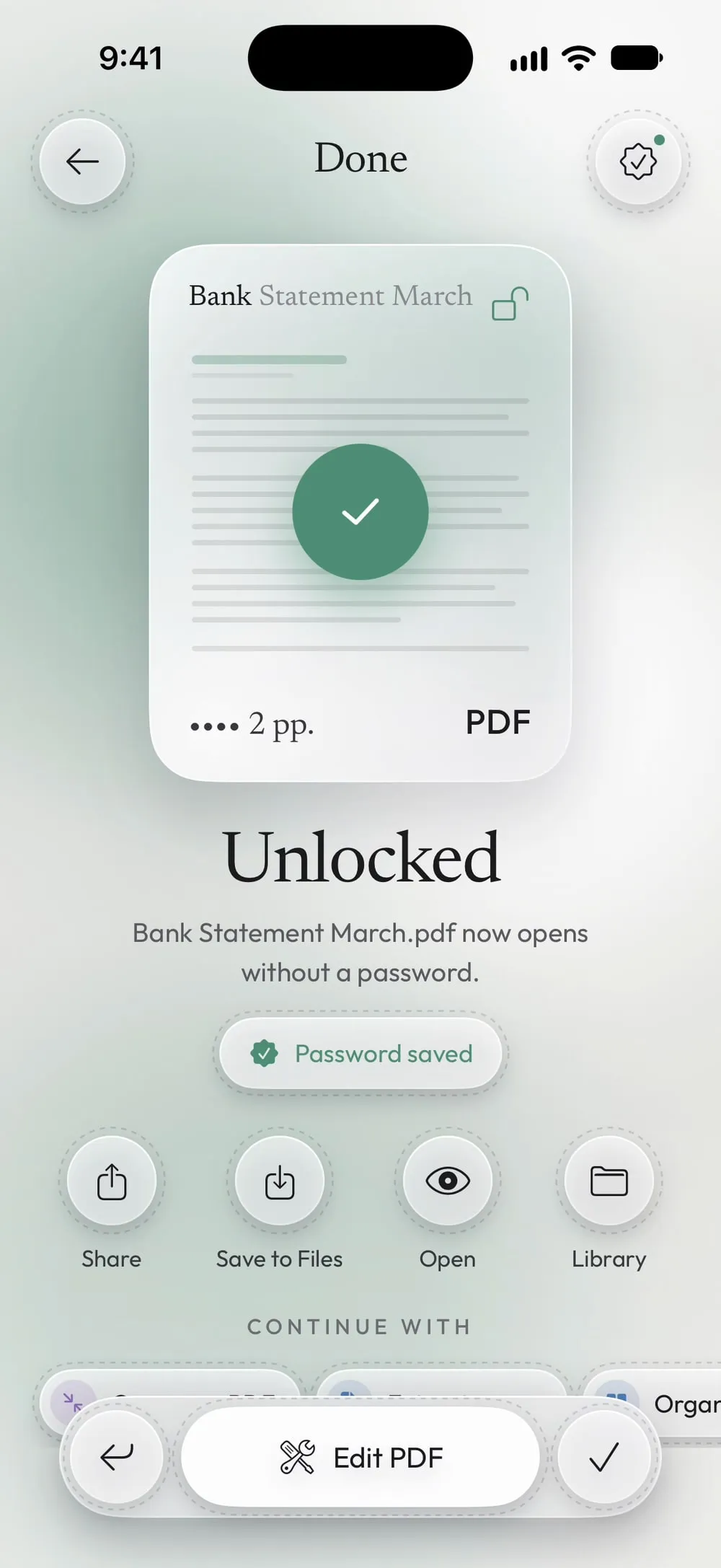
Tap Remember this password
On the result, tap Remember this password. It turns into Password saved: the password is kept on this device, protected by Face ID.
Step 03 of 04
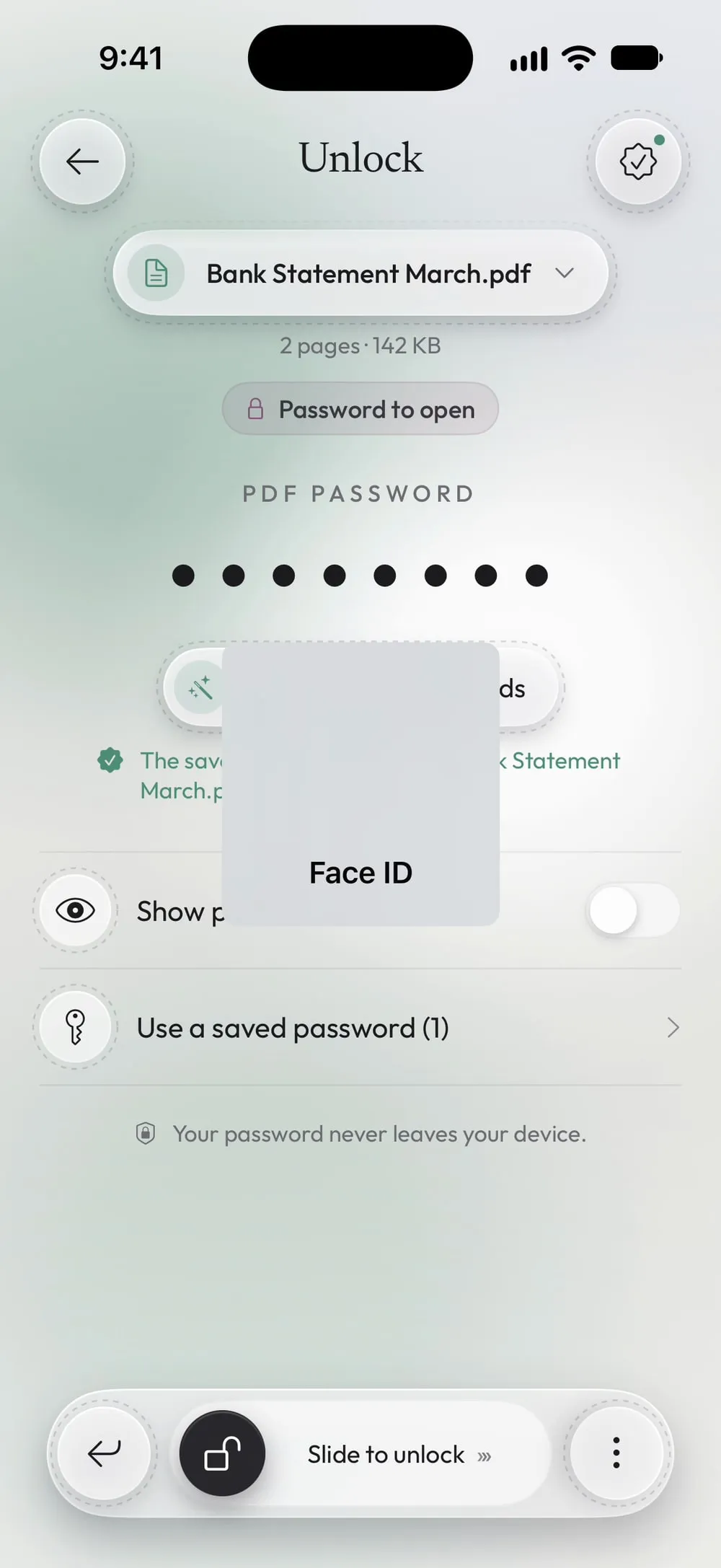
Next time, try your saved passwords
Choose the new PDF and tap Try all saved passwords. Look at your iPhone: the app finds the password that works and unlocks the PDF.
Step 04 of 04
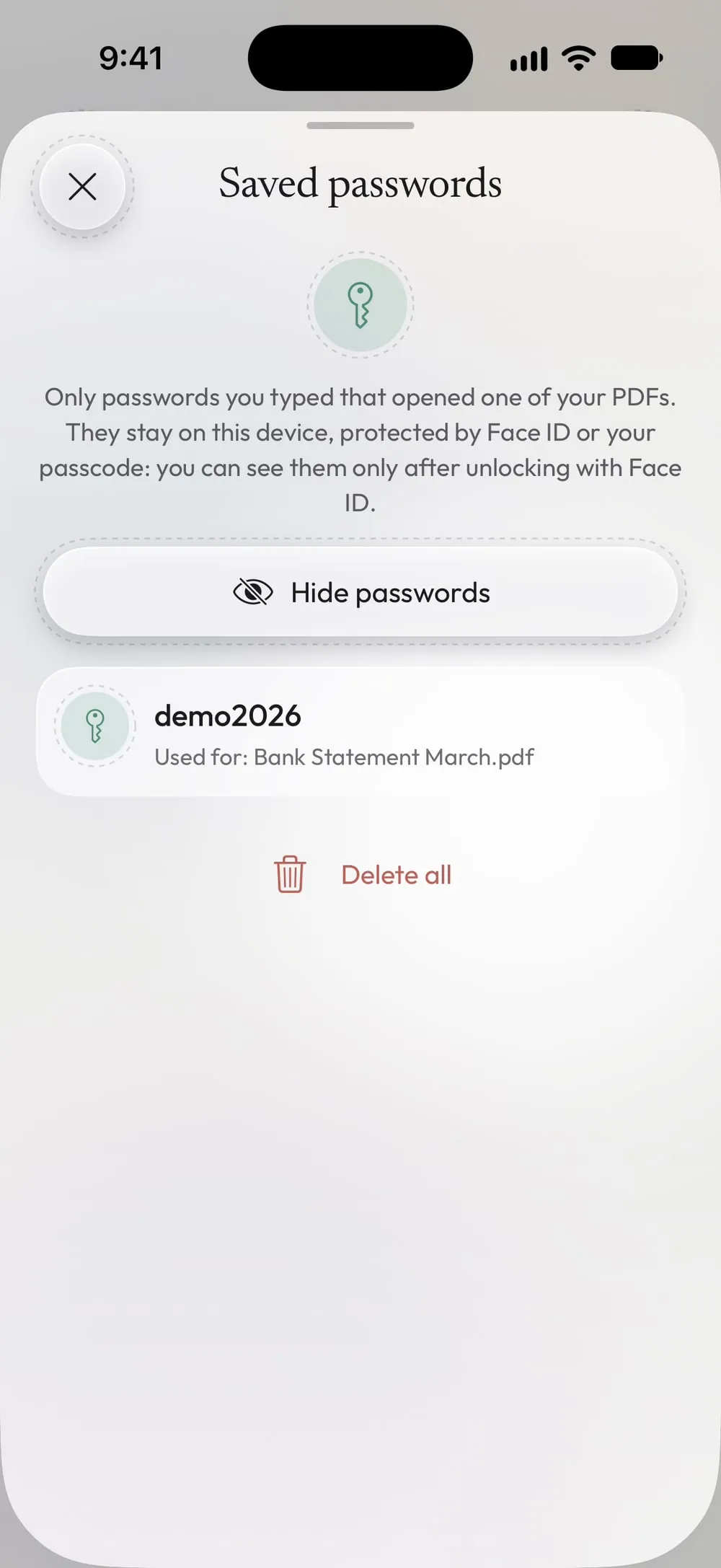
See or delete them in Settings
In Settings, open Saved passwords. Tap Show passwords and confirm with Face ID to see them, or swipe one to delete it.
Steps
-
In the Unlock tab, choose the PDF, type its password and drag Slide to unlock.
-
On the result, tap Remember this password. It turns into Password saved: the password is kept on this device, protected by Face ID.
-
Choose the new PDF and tap Try all saved passwords. Look at your iPhone: the app finds the password that works and unlocks the PDF.
-
In Settings, open Saved passwords. Tap Show passwords and confirm with Face ID to see them, or swipe one to delete it.
Good to know
Choose one password yourself
Use a saved password opens the list after Face ID: each password shows which PDFs it opened, so you can pick it.
Many files at once
Unlock several PDFs can try your saved passwords on every file, with one Face ID for the whole set.
A passcode is needed
Passwords are saved only if your iPhone or iPad has a passcode. When Face ID isn't available, the passcode unlocks them.
Questions
Where are the passwords kept?
In the iPhone or iPad Keychain, only on this device. They aren't synced to other devices or sent anywhere.
Which passwords are saved?
Only the ones you choose to remember, after they opened one of your PDFs.
Is it free?
Saved passwords are included in Premium, together with unlimited unlocks and no ads.
What if I change phone?
Saved passwords stay on the old device. On the new one, unlock a PDF and save its password again.