How to delete pages from a PDF on iPhone and iPad
A blank page left over from a double-sided scan, a cover you don't need, the terms and conditions at the end of an invoice: removing a few pages makes a PDF shorter and easier to read.

Why remove pages from a PDF
Scanners often add blank pages, and many PDFs carry pages nobody needs: covers, ads, legal notes. Removing them makes the file shorter, lighter to send and quicker to read, and avoids sharing pages that weren’t meant for the person receiving it.
What to check first
Make sure you have the right pages before you save, and keep the original if you might need the full document later. Deleting is done on a copy, so the original stays available.
The simplest way to delete PDF pages on iPhone and iPad
Organize pages in Unlock my PDF shows every page as a thumbnail. Tap the pages you want to remove, tap Delete, and save a new PDF without them. Everything happens on your device.
The full flow · 31 s
How to delete pages from a PDF
Step 01 of 04
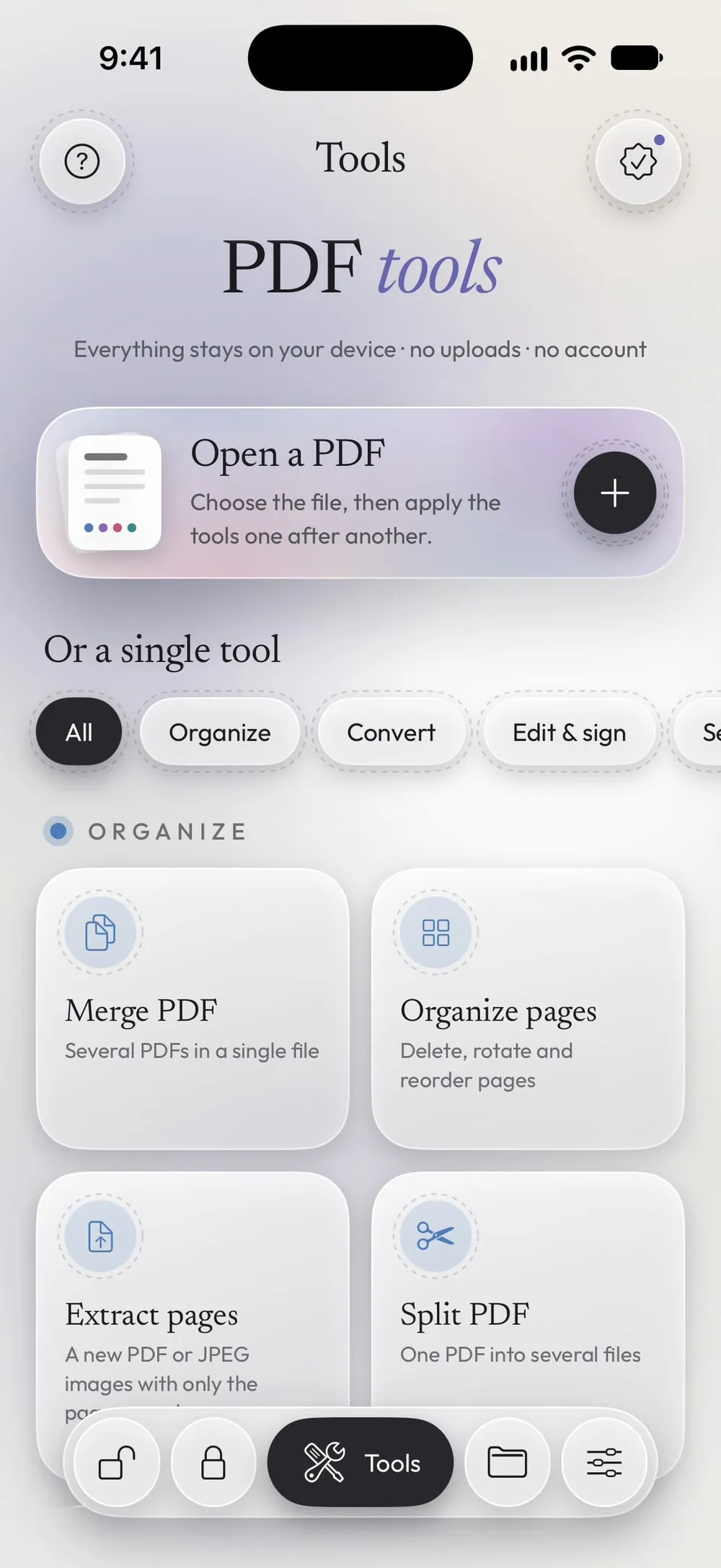
Open Organize pages and choose the PDF
In the Tools tab, tap Organize pages, then Tap to choose, and pick the PDF from Files.
Step 02 of 04
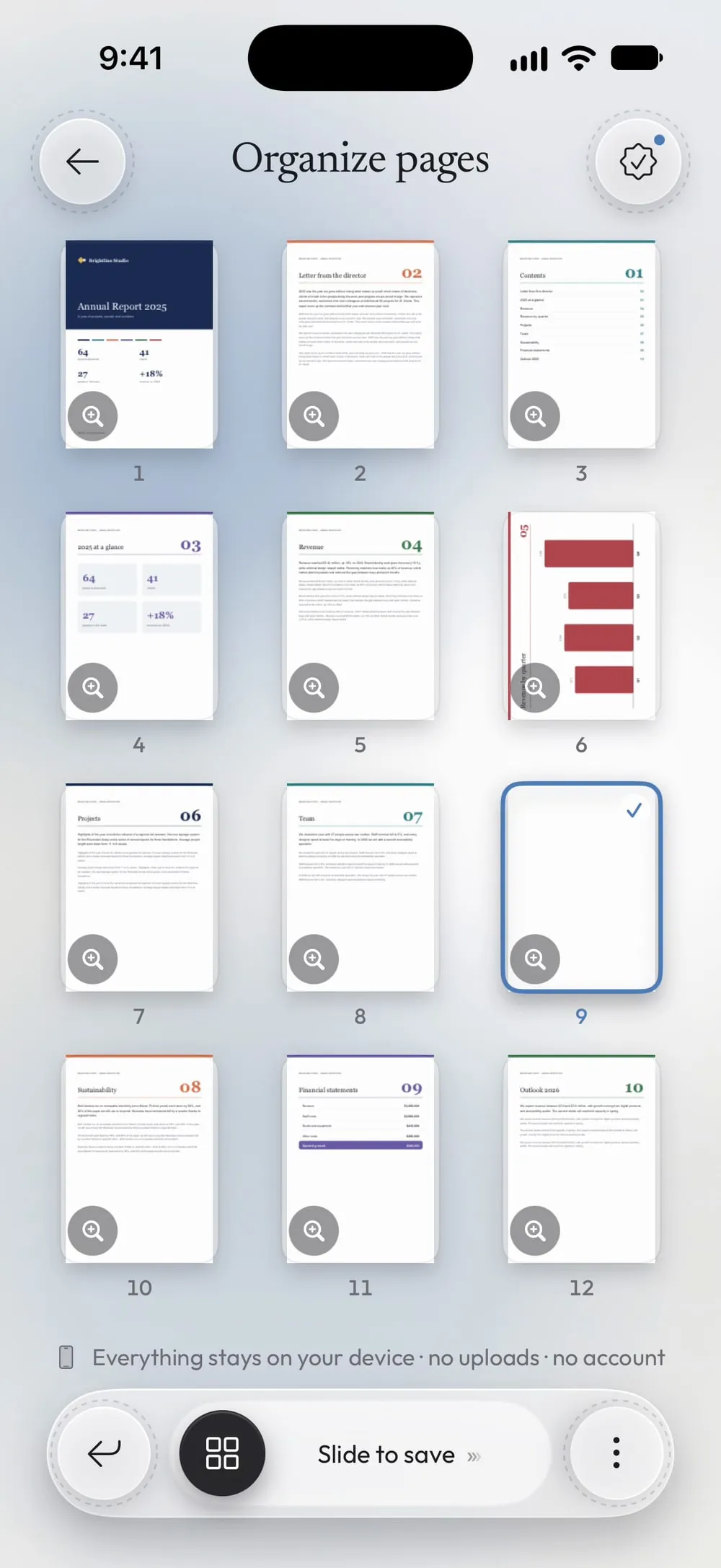
Tap the pages to remove
Every page appears as a thumbnail. Tap a page to select it: it gets a check mark. You can select as many pages as you like, and the count shows how many are selected.
Step 03 of 04
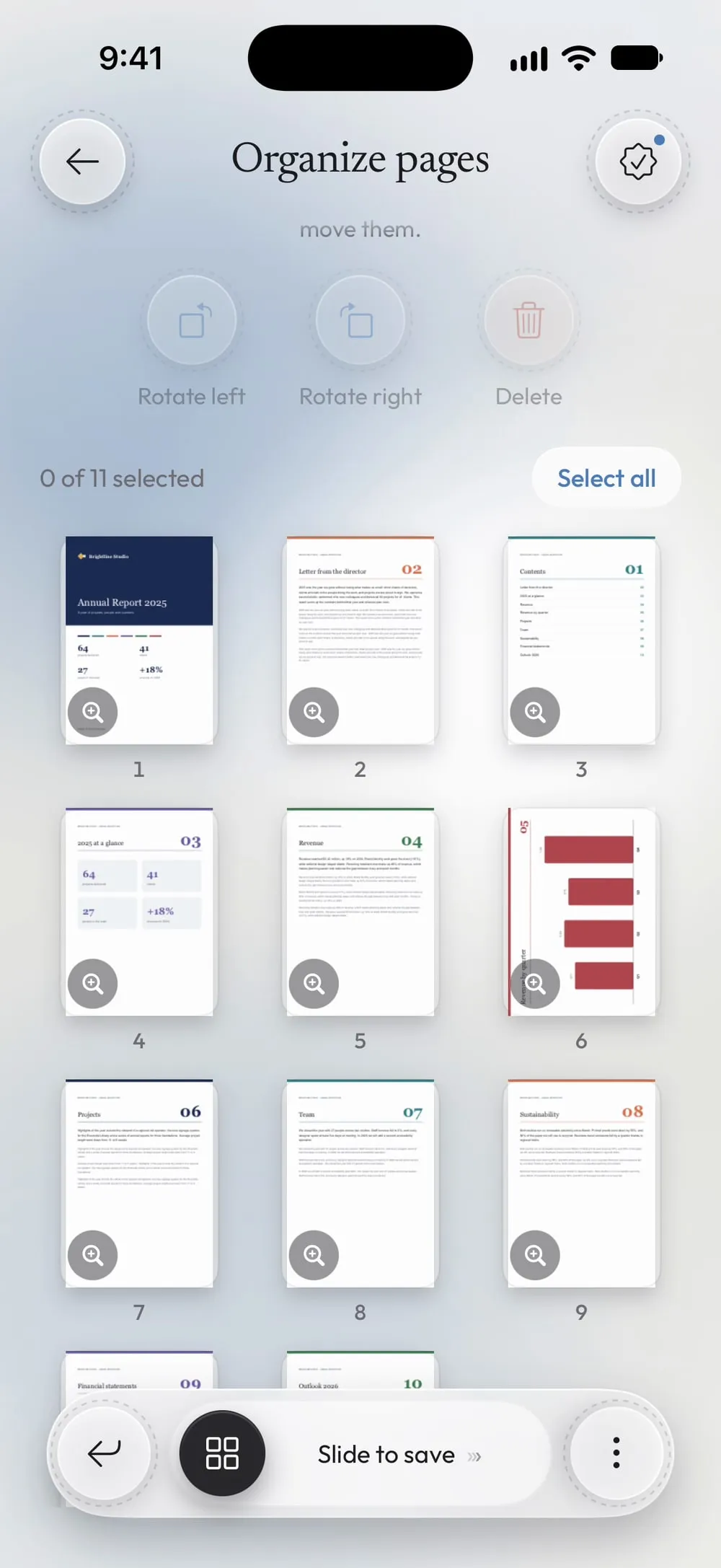
Tap Delete
Tap Delete. The pages disappear from the grid and the others move up. Changed your mind? Close the tool and open the file again: nothing is saved until you slide.
Step 04 of 04
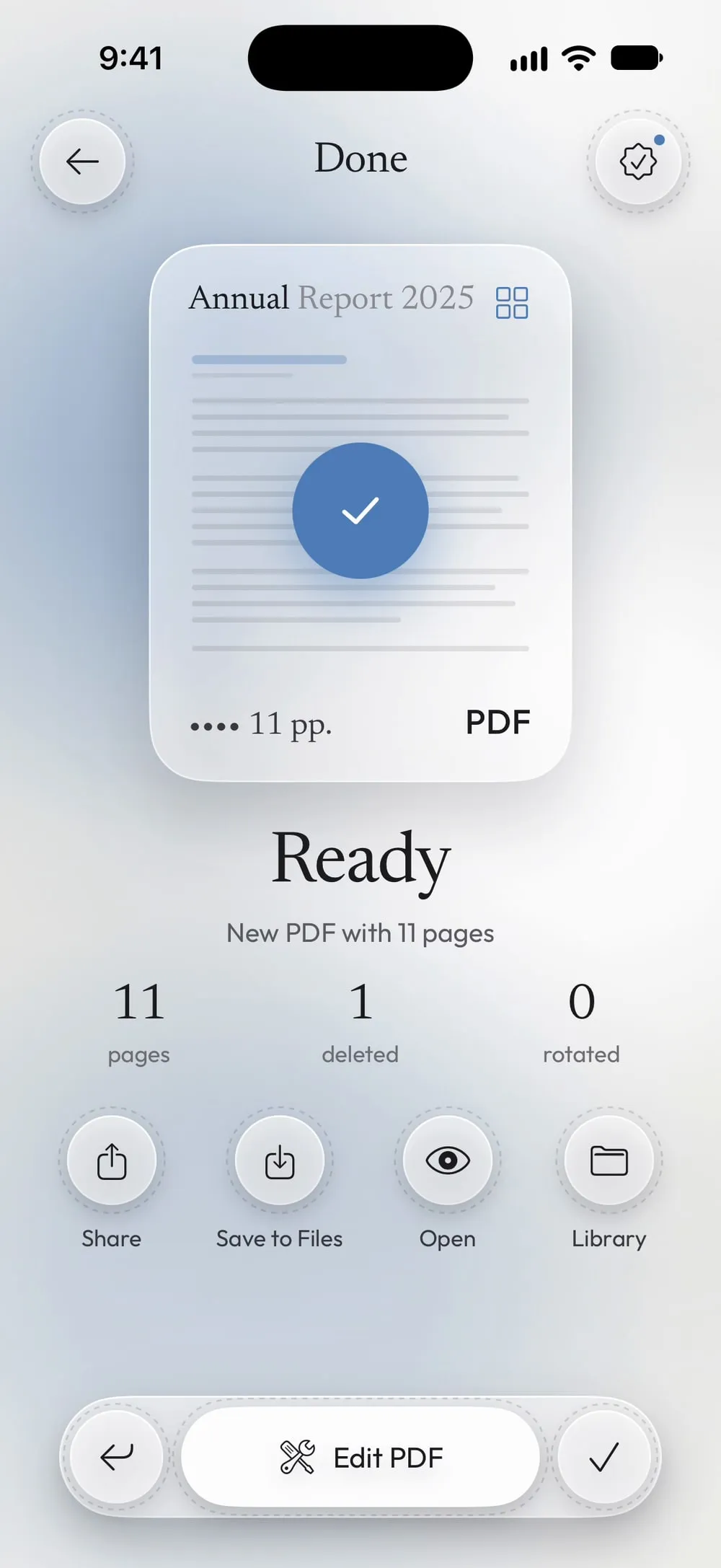
Slide to save the new PDF
Drag Slide to save. You get a new PDF without those pages; share it or tap Save to Files. The original PDF stays as it is.
Steps
-
In the Tools tab, tap Organize pages, then Tap to choose, and pick the PDF from Files.
-
Every page appears as a thumbnail. Tap a page to select it: it gets a check mark. You can select as many pages as you like, and the count shows how many are selected.
-
Tap Delete. The pages disappear from the grid and the others move up. Changed your mind? Close the tool and open the file again: nothing is saved until you slide.
-
Drag Slide to save. You get a new PDF without those pages; share it or tap Save to Files. The original PDF stays as it is.
Good to know
Check before deleting
The magnifier on each thumbnail opens the page full screen, so you can be sure it's the right one before you remove it.
Keep only a few pages
If you want to keep 3 pages out of 40, it's quicker to use Extract pages: you type the pages to keep, such as 4-6, and get a new PDF with only those.
Fix the rest at the same time
In the same screen you can also rotate pages that are sideways and drag pages into a new order before saving.
Protected PDFs
If the PDF has a password, the app asks for the password you know. The new PDF keeps the same password.
Questions
Can I delete every page?
No. At least one page has to stay, so Delete turns off when every page is selected.
Is the original PDF changed?
No. The app saves a new copy with "_organized" at the end of the name; the original stays as it was.
Is it free?
Yes, once a day after a short video. Premium makes it unlimited and removes the ads.
Are my files uploaded?
No. Pages are removed on your iPhone or iPad.