How to reorder the pages of a PDF on iPhone and iPad
Pages scanned in the wrong order, an appendix that should come first, a cover that ended up at the back: moving pages around fixes a PDF without scanning or exporting it again.

When the order is wrong
It happens often with scans: a stack of sheets goes through the scanner in the wrong order, or a page is scanned again later and ends up at the end. It also happens when you merge files and the attachment should come before the letter.
Fix it in the PDF
Moving the pages inside the PDF is quicker than scanning again, and the result is a normal PDF that opens in the right order for everyone.
The simplest way to rearrange PDF pages on iPhone and iPad
Organize pages in Unlock my PDF shows the pages as a grid of thumbnails. Press and hold a page, drag it where it belongs, and save a new PDF in the new order.
The full flow · 25 s
How to reorder the pages of a PDF
Step 01 of 04
Open Organize pages and choose the PDF
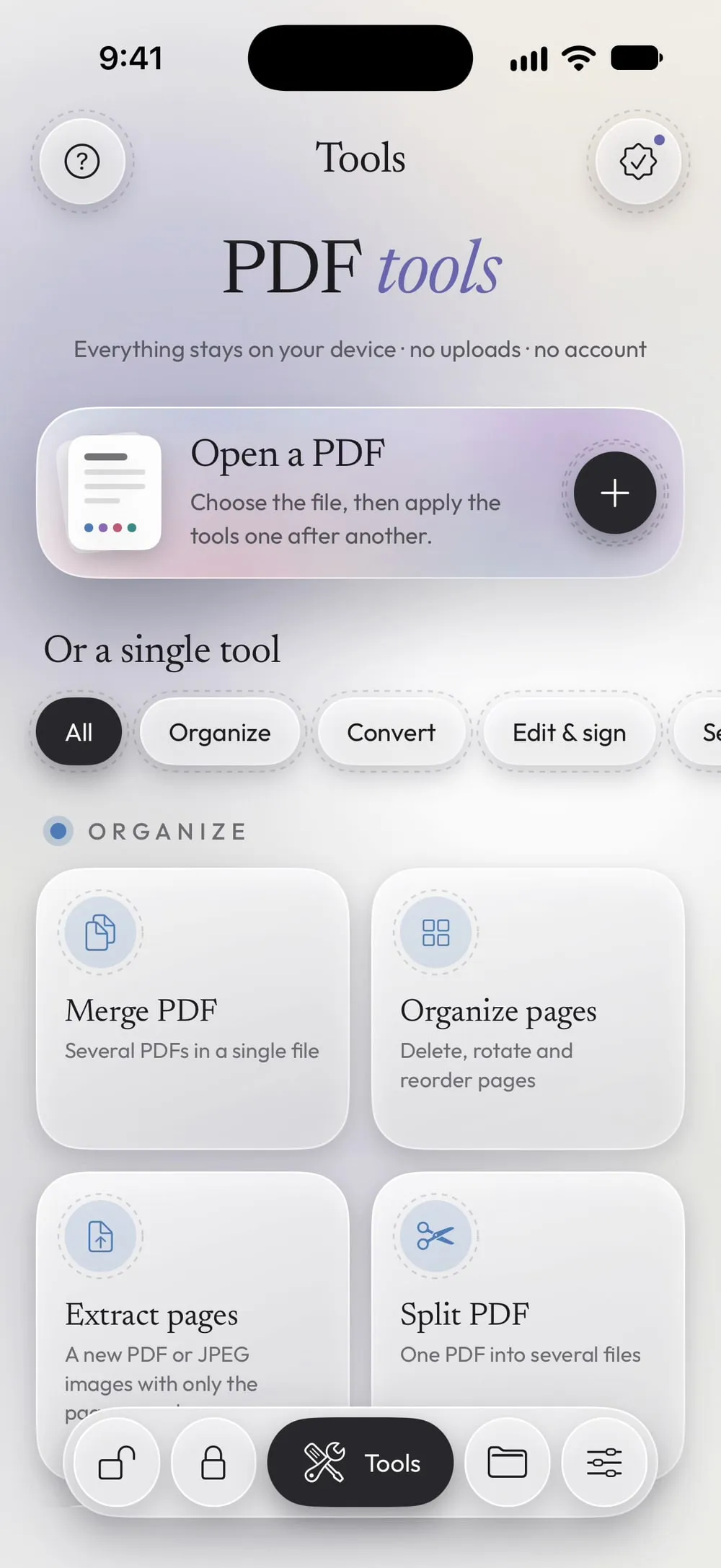
In the Tools tab, tap Organize pages, then Tap to choose, and pick the PDF from Files.
Step 02 of 04
Press and hold the page to move
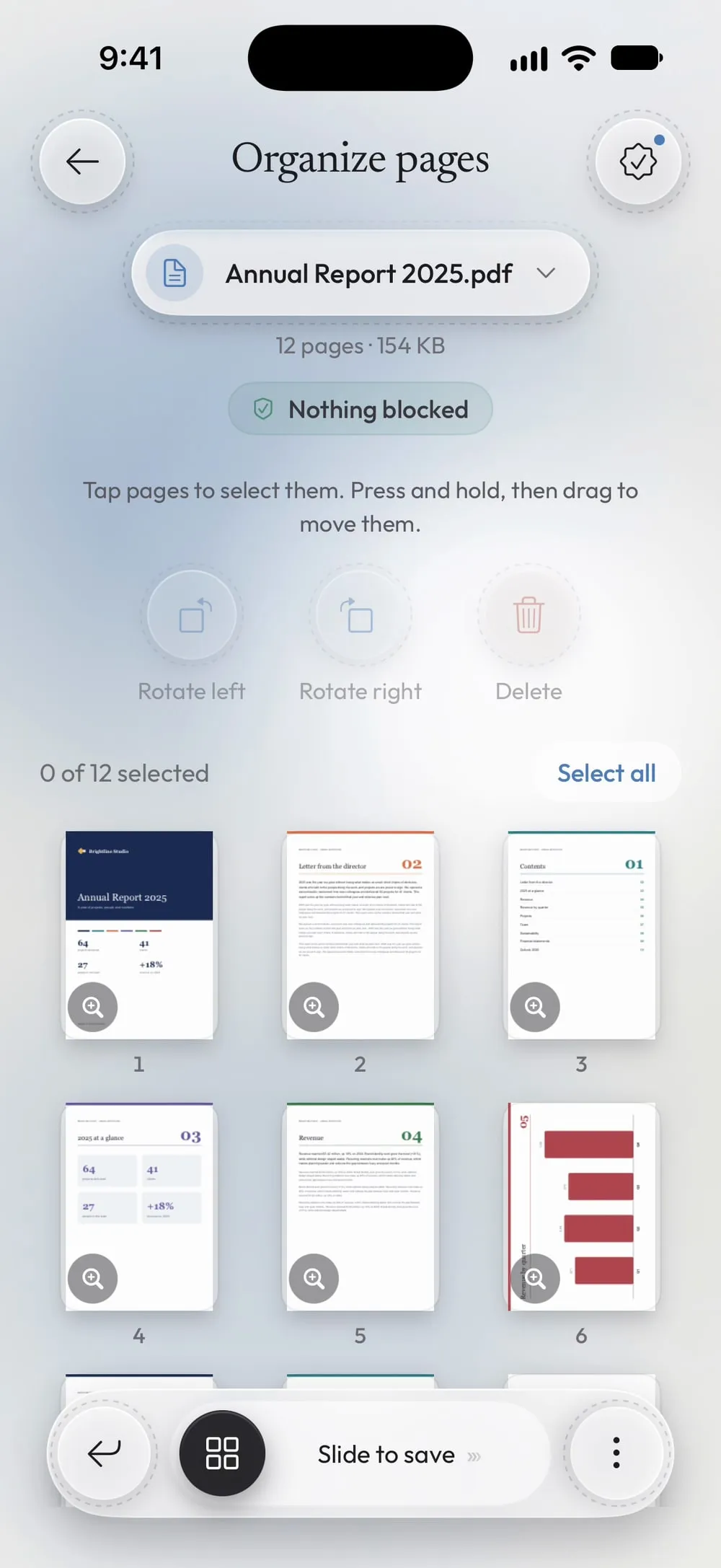
Keep your finger on a thumbnail until it lifts, as the hint says: Tap pages to select them. Press and hold, then drag to move them.
Step 03 of 04
Drag it to its new place
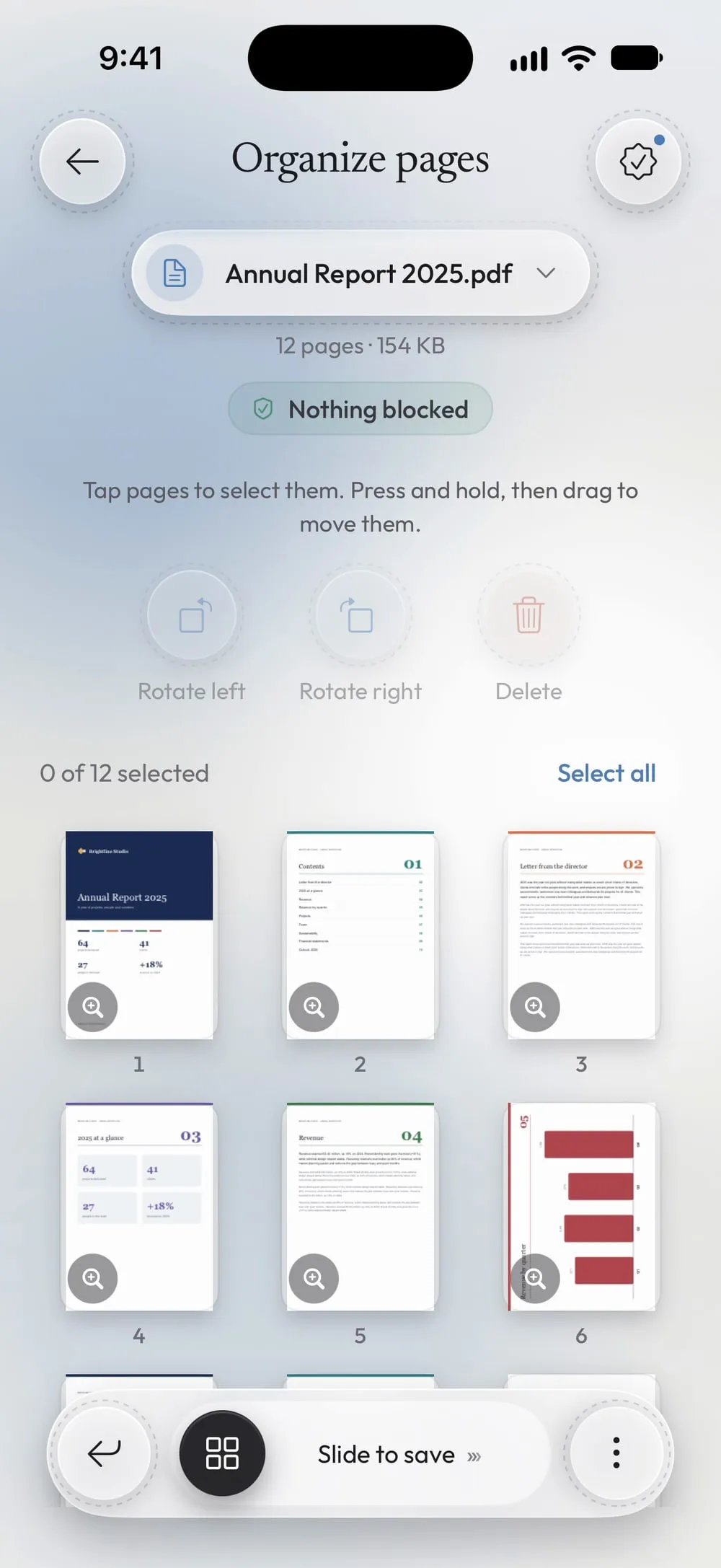
Move the page over the spot where it belongs: the other pages make room. The number under each thumbnail shows its new position.
Step 04 of 04
Slide to save
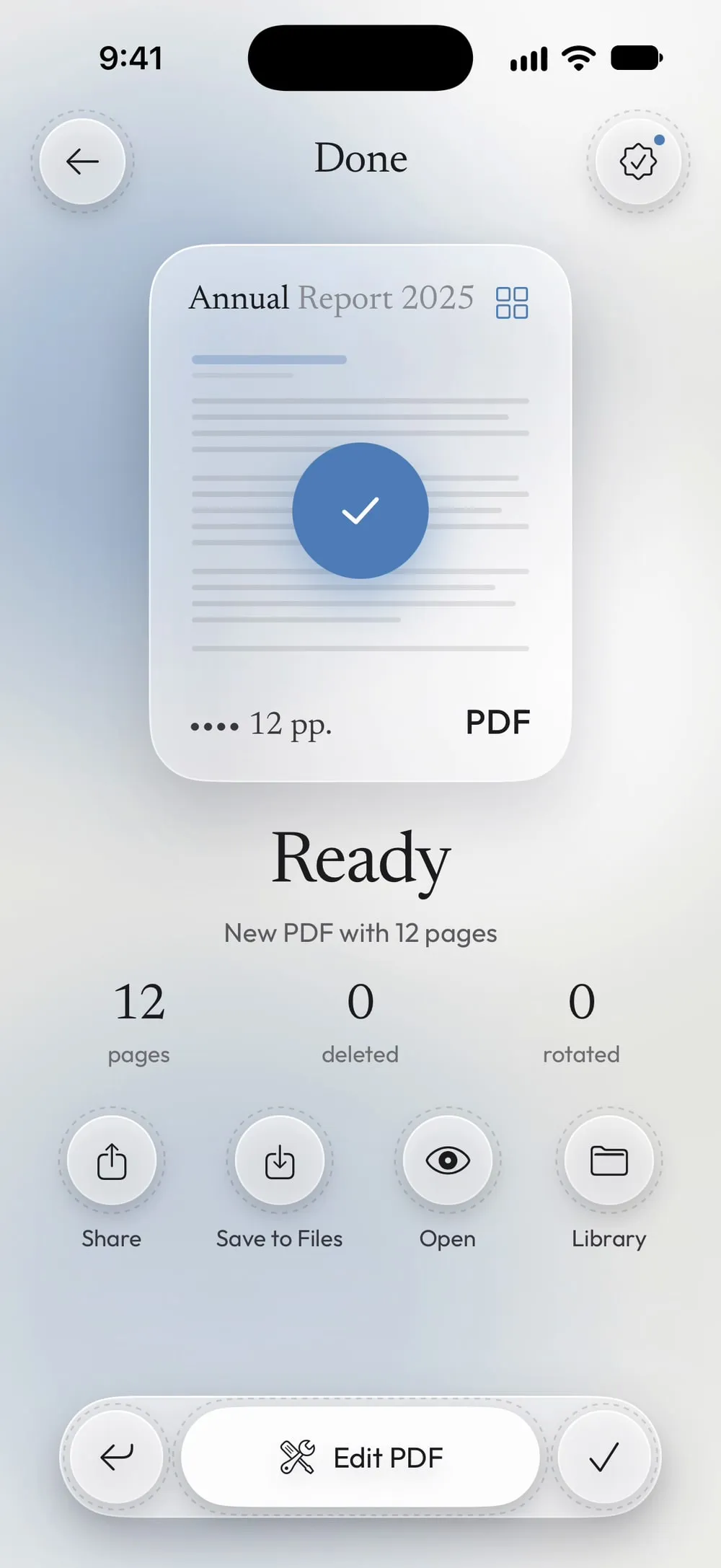
Drag Slide to save. You get a new PDF with the pages in the new order; share it or tap Save to Files. The original stays as it is.
Steps
-
In the Tools tab, tap Organize pages, then Tap to choose, and pick the PDF from Files.
-
Keep your finger on a thumbnail until it lifts, as the hint says: Tap pages to select them. Press and hold, then drag to move them.
-
Move the page over the spot where it belongs: the other pages make room. The number under each thumbnail shows its new position.
-
Drag Slide to save. You get a new PDF with the pages in the new order; share it or tap Save to Files. The original stays as it is.
Good to know
Move a page a long way
To take a page from the end to the start, move it a few places at a time: drag it near the top of the grid, let go, and drag it again.
Check the result
The magnifier on a thumbnail opens the pages full screen in the new order. Swipe to read them one after the other.
Delete and rotate as well
In the same screen you can remove pages and turn sideways ones before saving, all in one new PDF.
Questions
Can I put two PDFs together and then reorder them?
Yes. Merge them first with Merge PDF, which also lets you choose the order of the files, then open the result in Organize pages to move single pages.
Are text and links kept?
Yes. Pages are moved as they are: text stays selectable and links keep working.
Is it free?
Yes, once a day after a short video. Premium makes it unlimited and removes the ads.
Are my files uploaded?
No. Pages are reordered on your iPhone or iPad.