How to fill out a PDF form on iPhone and iPad
Registration forms, applications, school and medical forms often arrive as PDFs. Printing them to write by hand and scanning them back is slow, and the result is hard to read.

Two kinds of PDF forms
Some PDF forms have real fields: boxes you can tap and type into. Others are just documents with blank lines, made to be printed. Both can be filled in on a phone, but the second kind needs fields to be added first.
Before you send it
Check names, dates and numbers, because a typo in a form can cost a week. Keep a copy of what you sent, and lock the answers if the form must not be edited after you’ve filled it in.
The simplest way to fill in a PDF form on iPhone and iPad
Fill form in Unlock my PDF opens the form on your screen: tap a field to type, tick checkboxes and choose from menus. If the PDF has no real fields, the app finds the blank lines and boxes for you.
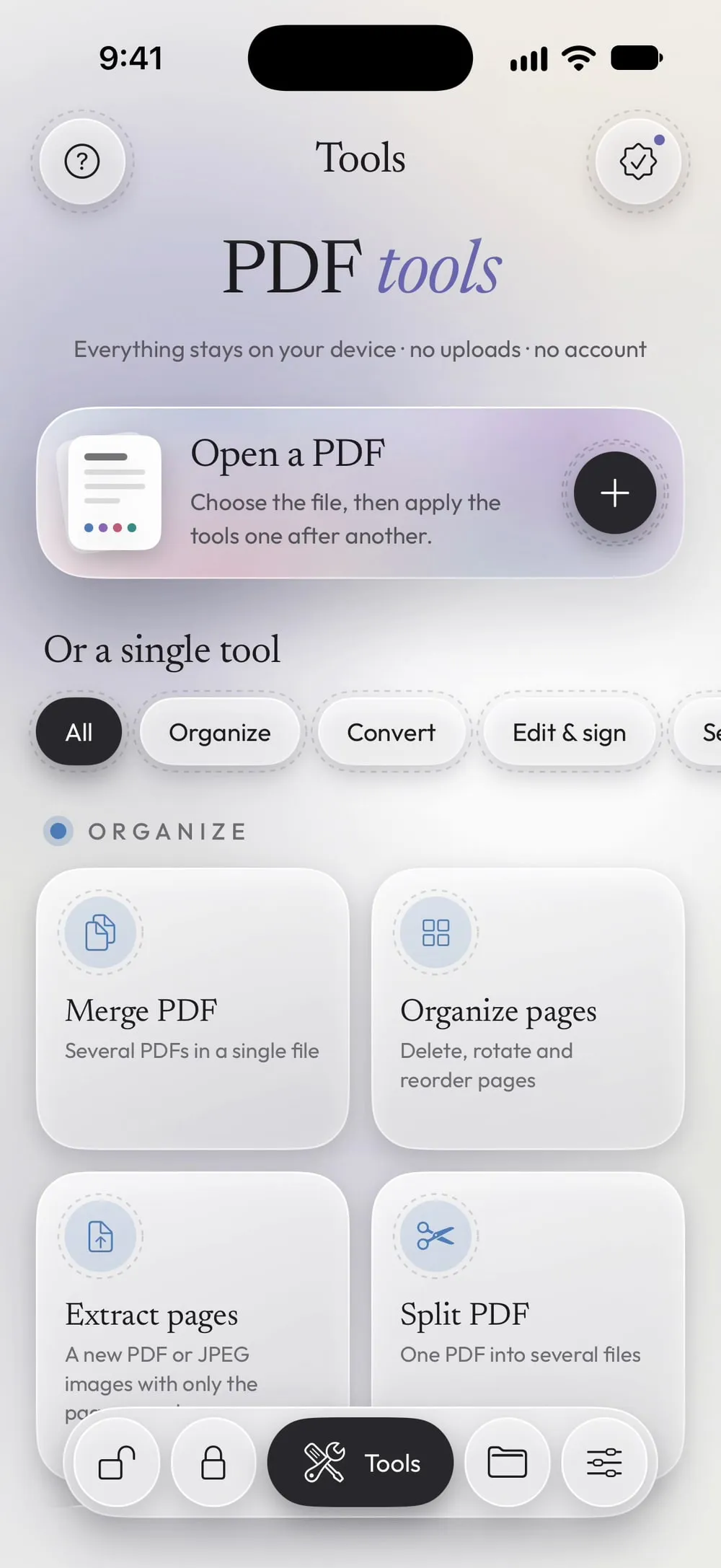
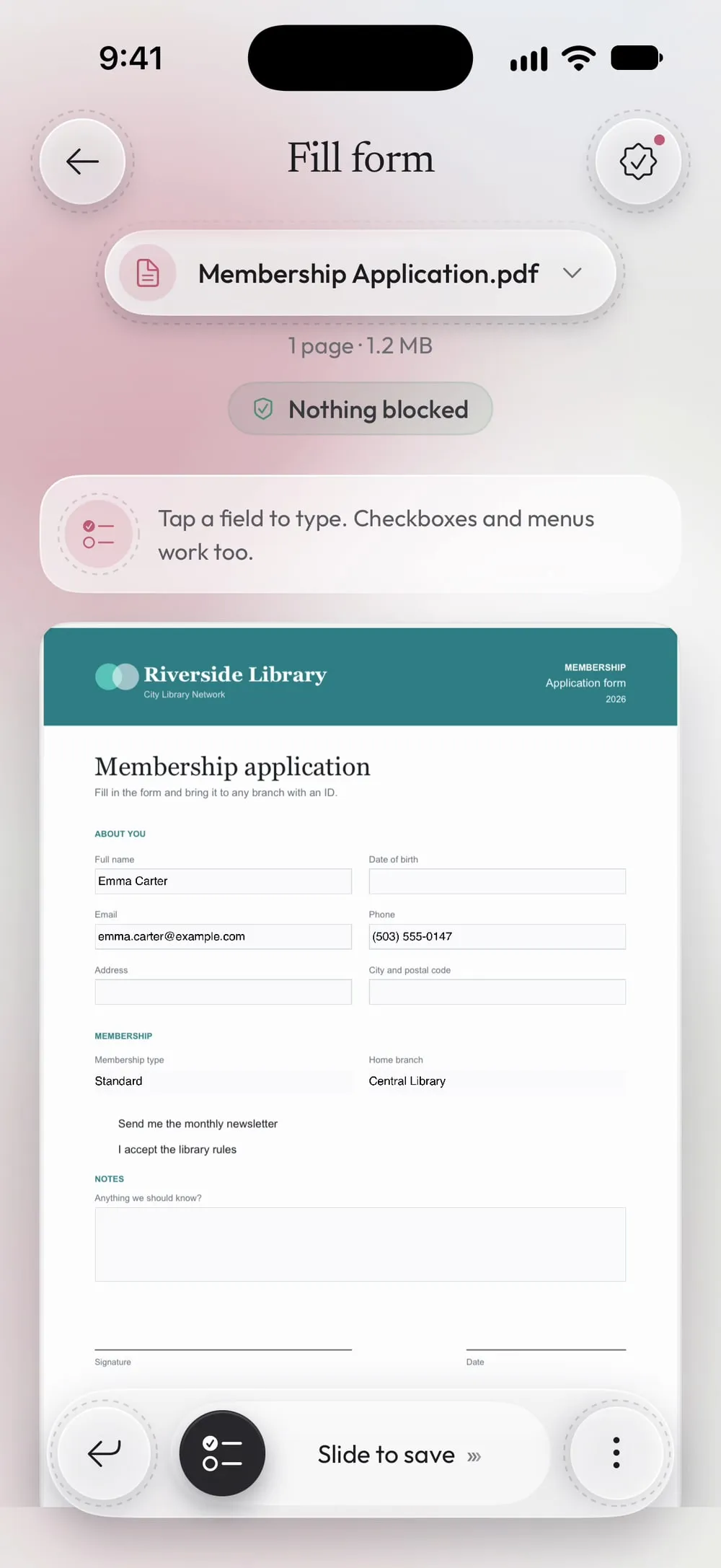
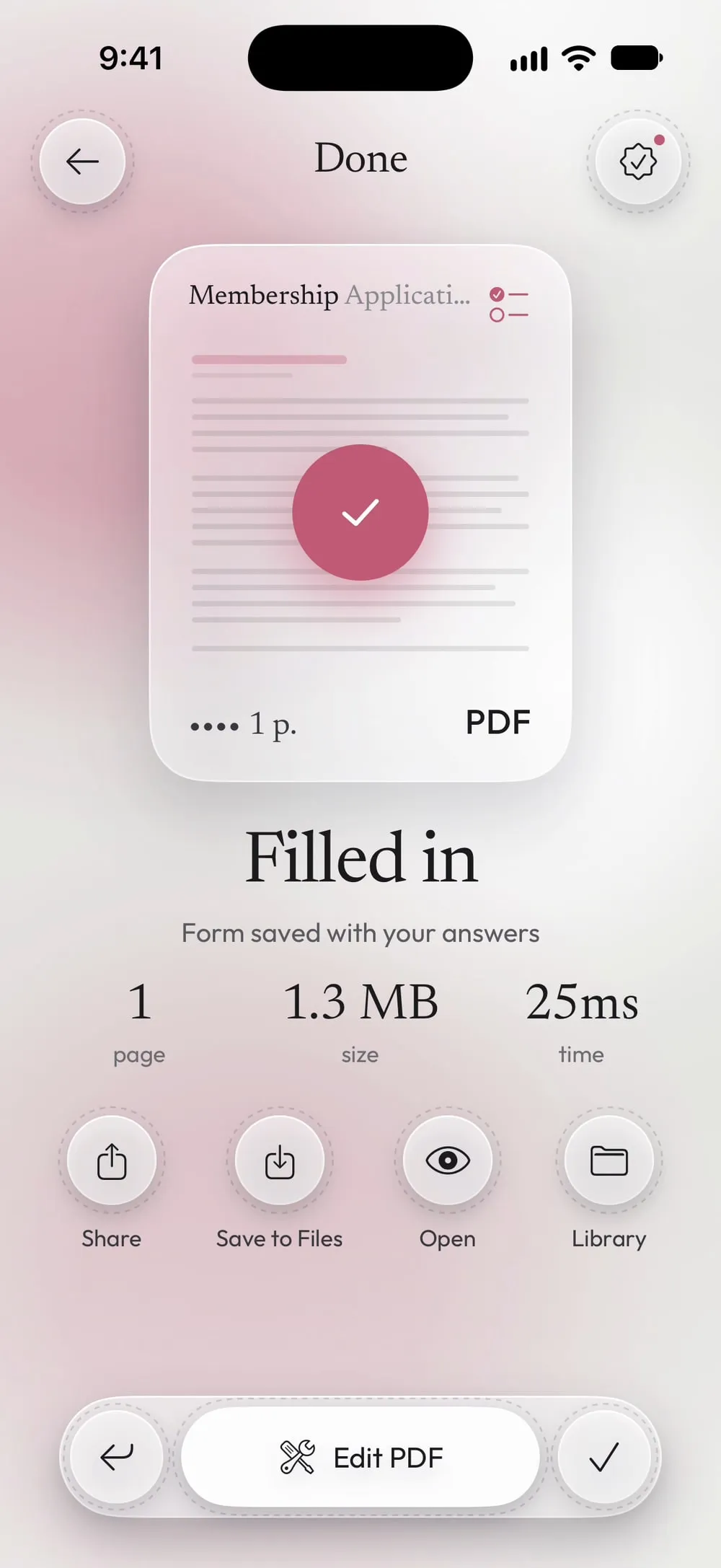
The full flow · 32 s
How to fill out a PDF form
Step 01 of 04
Open Fill form and choose the PDF
In the Tools tab, tap Fill form, then Tap to choose, and pick the form from Files.
Step 02 of 04
Tap a field and type
Tap a field to type. Checkboxes and menus work too. Pinch to zoom on small fields; the page moves so the field stays above the keyboard.
Step 03 of 04
No fields? Let the app find them
If the PDF is a plain document, the app looks for blank lines, dotted lines and empty boxes and turns them into fields, highlighted in blue. If it finds nothing, turn on Tap the page to add a field and tap where you want to write.
Step 04 of 04
Slide to save
Drag Slide to save. Share the filled-in form or tap Save to Files.
Steps
-
In the Tools tab, tap Fill form, then Tap to choose, and pick the form from Files.
-
Tap a field to type. Checkboxes and menus work too. Pinch to zoom on small fields; the page moves so the field stays above the keyboard.
-
If the PDF is a plain document, the app looks for blank lines, dotted lines and empty boxes and turns them into fields, highlighted in blue. If it finds nothing, turn on Tap the page to add a field and tap where you want to write.
-
Drag Slide to save. Share the filled-in form or tap Save to Files.
Good to know
Lock the answers
With Premium, Lock the values (flatten) makes your answers part of the page, so nobody can change them later. Without it, the fields stay editable.
Sign it too
Many forms end with a signature. After saving, open the new PDF in Sign PDF to sign it.
Long answers
Text that's too long for a small field shrinks to fit. For more room, use a notes field or add text with Add text or image.
Questions
What kinds of fields work?
Text fields, multi-line notes, checkboxes and menus. Fields created by the app for forms without fields are text fields.
Can the person I send it to change my answers?
If you leave the fields editable, yes. Turn on Lock the values (flatten) (Premium) to lock them.
Is it free?
Yes, once a day after a short video. Premium makes it unlimited, removes the ads and adds the option to lock the answers.
Is my form uploaded?
No. You fill in the form on your iPhone or iPad.