How to flatten a PDF on iPhone and iPad
A filled-in form whose answers someone could still change, comments that disappear in some apps, highlights that don't print: flattening turns all of them into a normal part of the page.

What flattening means
A PDF can have layers on top of the page: form fields you can type into, highlights, sticky notes, drawings. They’re useful while you work, but they can be edited or removed by anyone, and some apps show them differently or not at all.
When to do it
Flatten a form after you’ve filled it in and before you send it, or a document with comments when the review is finished. Everything you see stays exactly where it is; it just can’t be changed any more.
The simplest way to flatten a PDF on iPhone and iPad
Flatten in Unlock my PDF finds the form fields and annotations in a PDF and makes them part of the page. The result looks the same everywhere, and the answers and notes can no longer be edited.
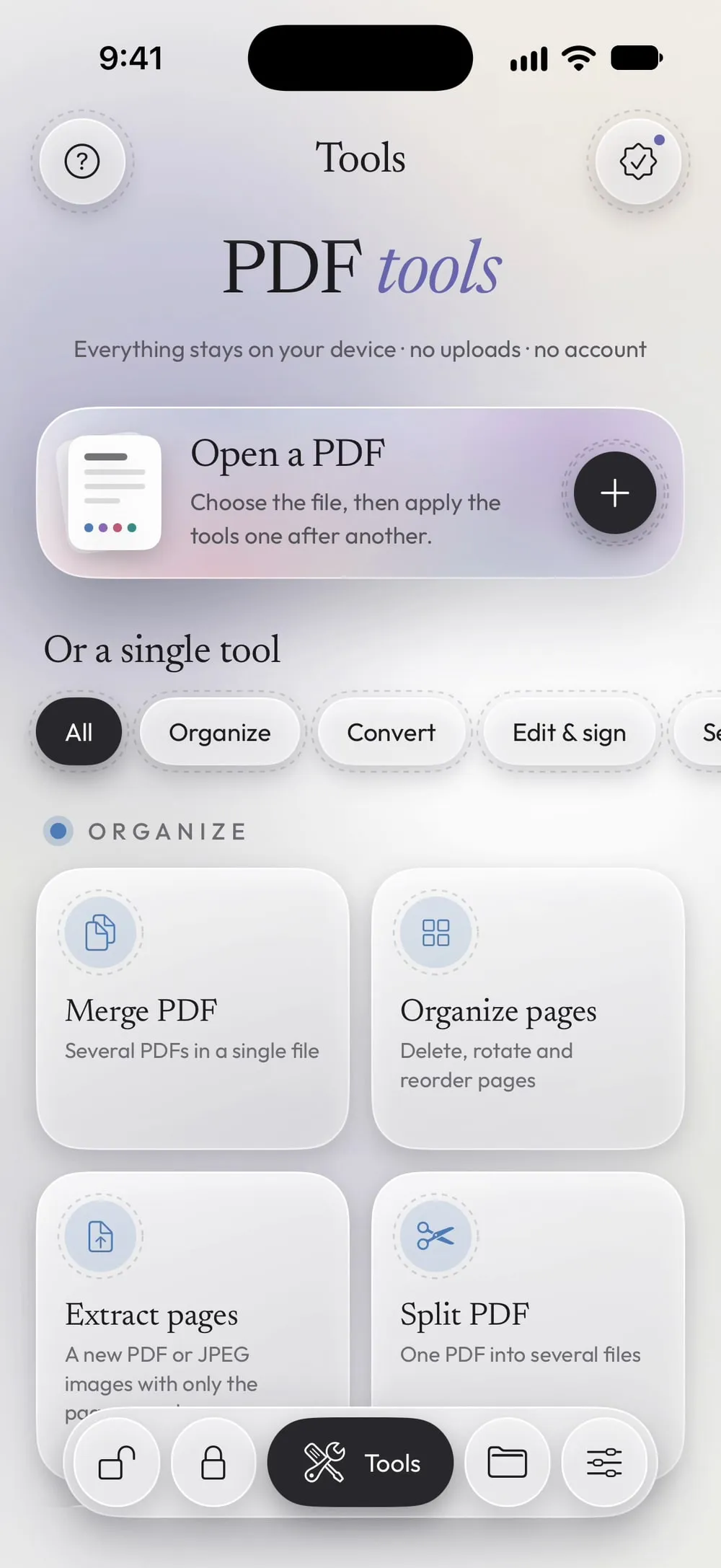
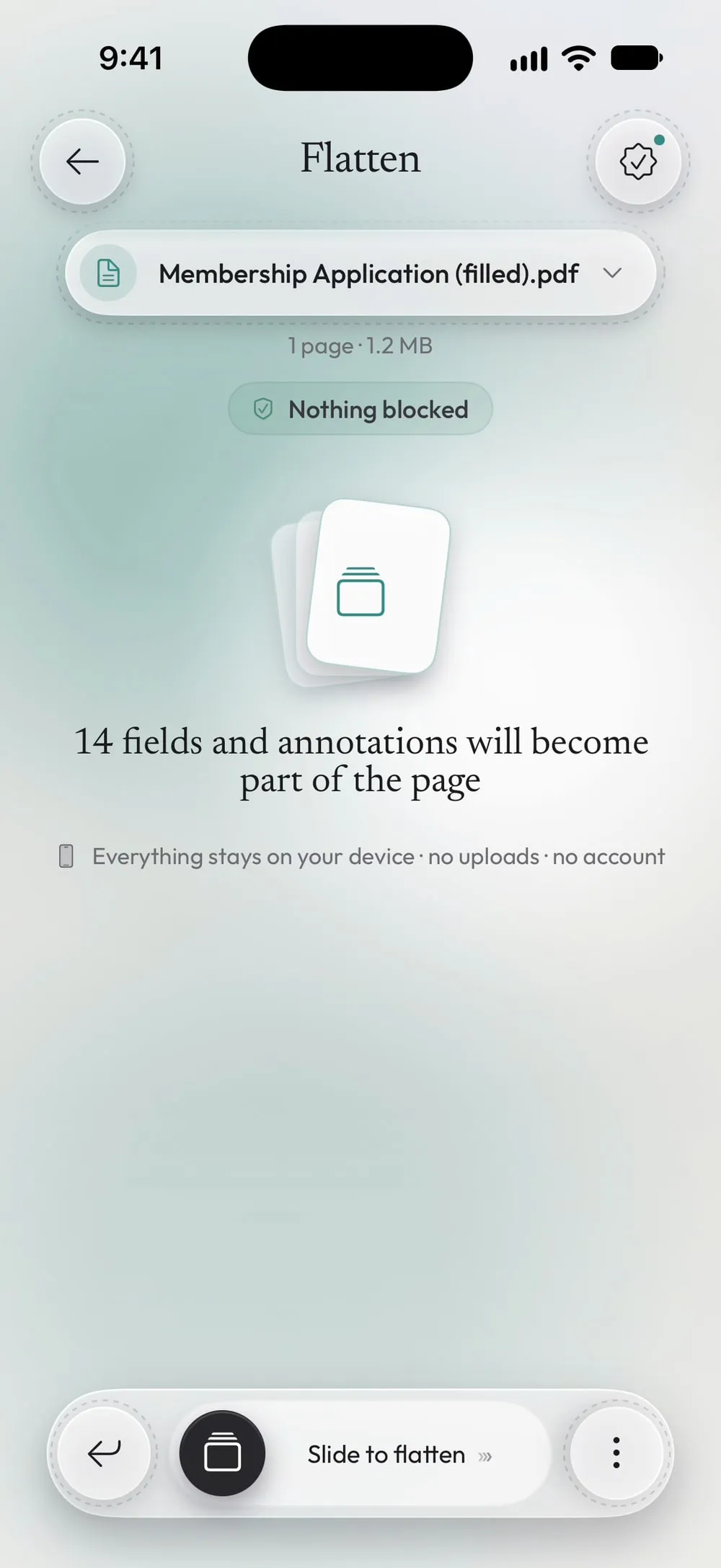
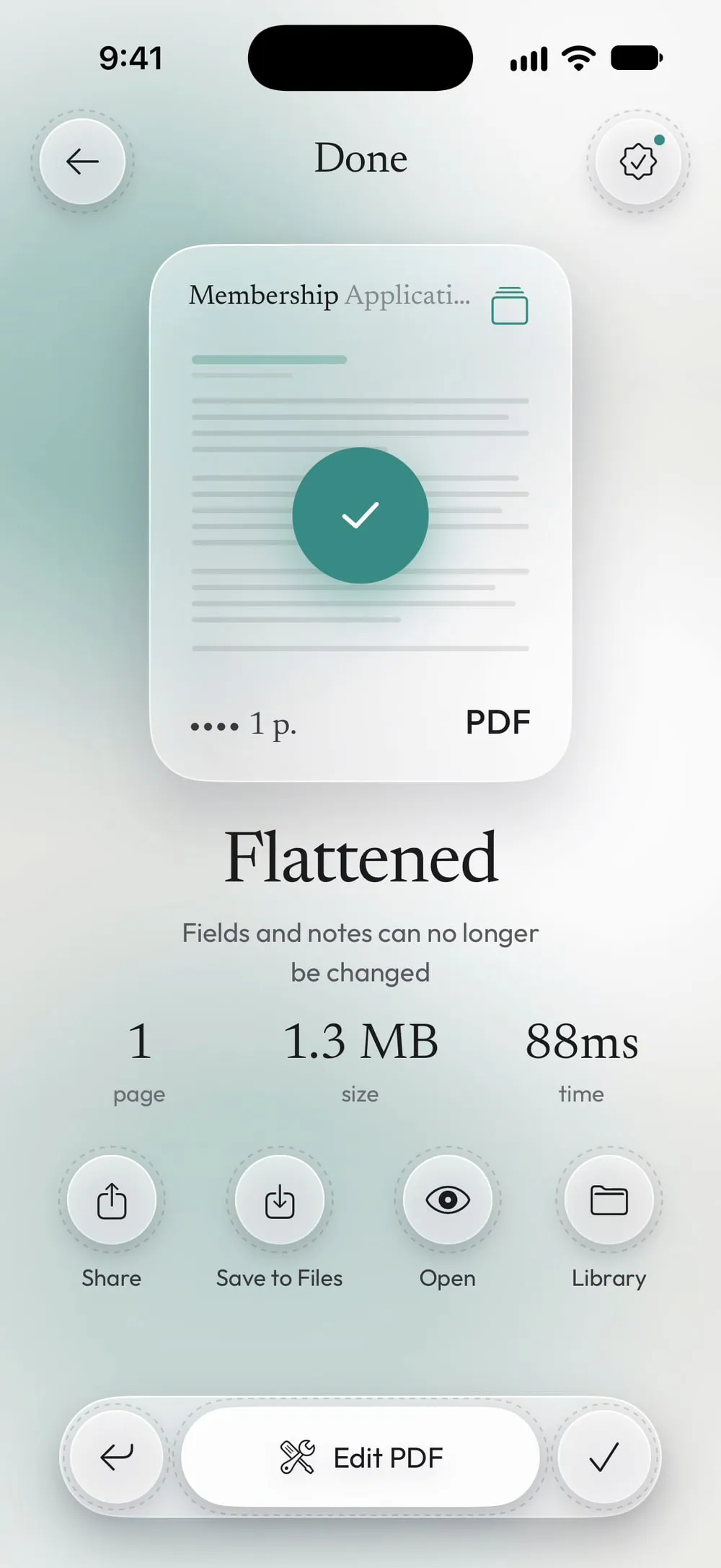
The full flow · 21 s
How to flatten a PDF
Step 01 of 03
Open Flatten and choose the PDF
In the Tools tab, tap Flatten, then Tap to choose, and pick the PDF from Files.
Step 02 of 03
See what will be flattened
The app counts the form fields and annotations it found: answers, highlights, notes and drawings. If there's nothing to flatten, it tells you.
Step 03 of 03
Slide to flatten
Drag Slide to flatten. Share the new PDF or tap Save to Files. The original stays editable.
Steps
-
In the Tools tab, tap Flatten, then Tap to choose, and pick the PDF from Files.
-
The app counts the form fields and annotations it found: answers, highlights, notes and drawings. If there's nothing to flatten, it tells you.
-
Drag Slide to flatten. Share the new PDF or tap Save to Files. The original stays editable.
Good to know
Fill in first, then flatten
Flatten a form only when it's complete: after that, the answers can't be changed. Keep the editable original in case you need to correct something.
Fill and lock in one go
Fill form has the option Lock the values (flatten), which does the same thing as you save your answers.
Links
Links count as annotations too, and they don't survive flattening. If the PDF has links that need to keep working, check the result.
Questions
Does the page become an image?
No. Each page is redrawn with its fields and notes inside it; the text stays sharp and selectable.
Why flatten a PDF?
So that answers and comments look the same in every app and printer, and nobody can change them after you send the file.
Is it free?
Flatten is a PRO tool, included in Premium. The app shows the PRO label before you start, never after the work is done.
Are my files uploaded?
No. The PDF is flattened on your iPhone or iPad.