How to sign a PDF on iPhone and iPad
A rental contract, a school permission slip, a delivery note: many documents still need a signature, and printing, signing and scanning them again takes far longer than it should.

Signing without a printer
Printing a document only to sign it, then scanning or photographing it again, produces a heavy, crooked file. Signing the PDF directly gives you a clean copy, ready to send back in a minute.
What to check before you sign
Read the whole document first, and sign only where you’re asked to. Keep an unsigned copy for your records. If the PDF already has a certified digital signature, any change makes that signature invalid, so check with the sender first.
The simplest way to sign a PDF on iPhone and iPad
Sign PDF in Unlock my PDF lets you draw your signature with your finger, place it where it belongs, on one page or on all of them, and save a signed copy. Your signature is kept only on your device for next time.
The full flow · 33 s
How to sign a PDF
Step 01 of 05
Open Sign PDF and choose the document
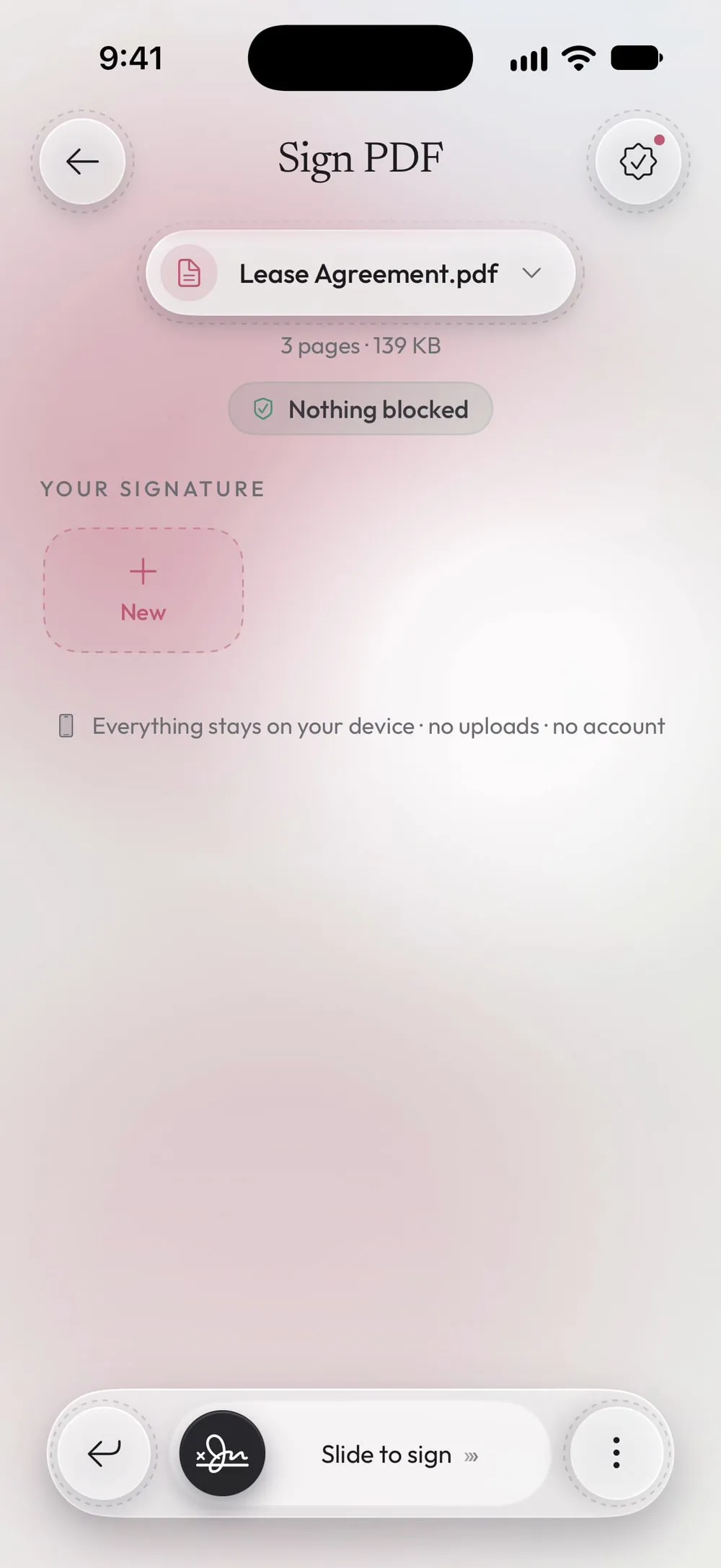
In the Tools tab, tap Sign PDF, then Tap to choose, and pick the PDF from Files.
Step 02 of 05
Draw your signature
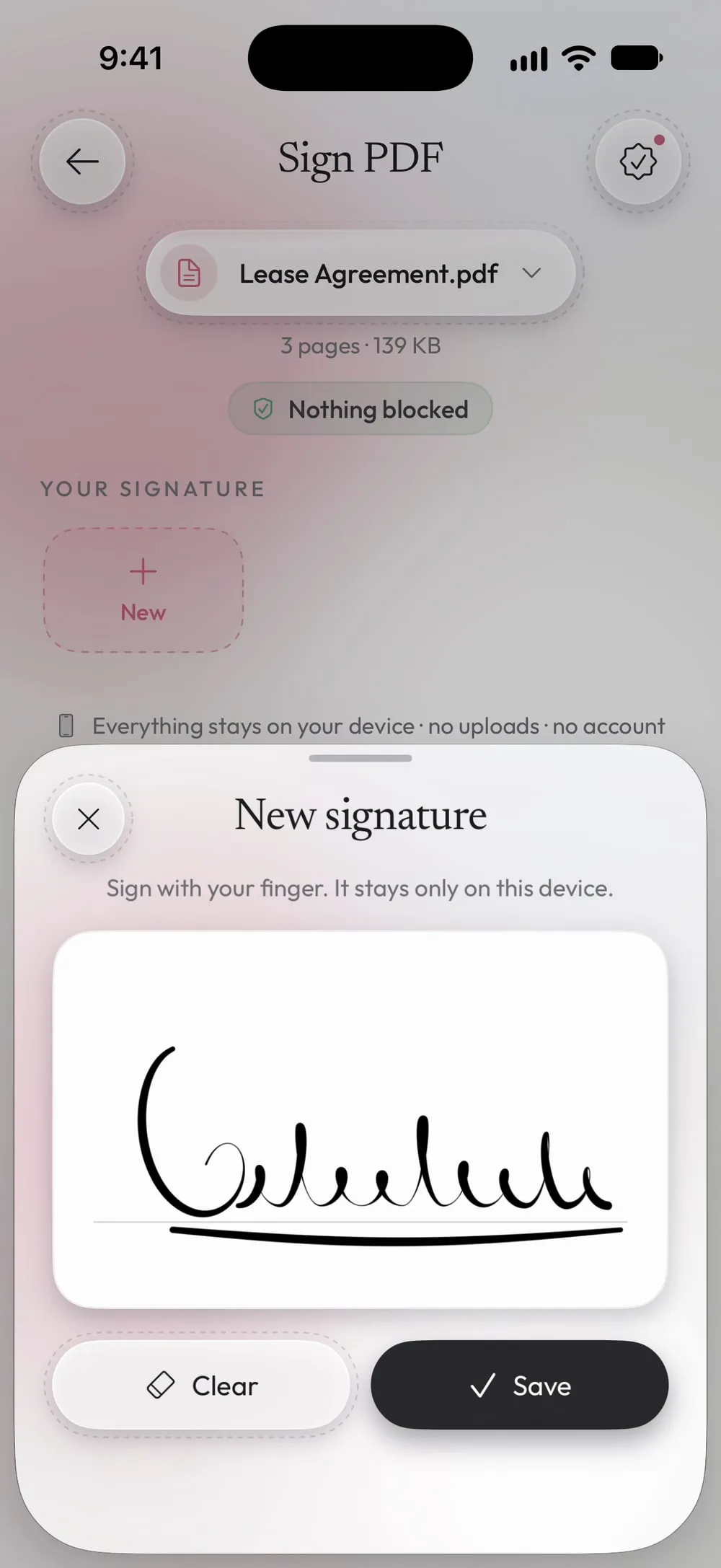
Under Your signature, tap + New. Sign with your finger in the white pad, then tap Save. Clear lets you try again.
Step 03 of 05
Place it on the page
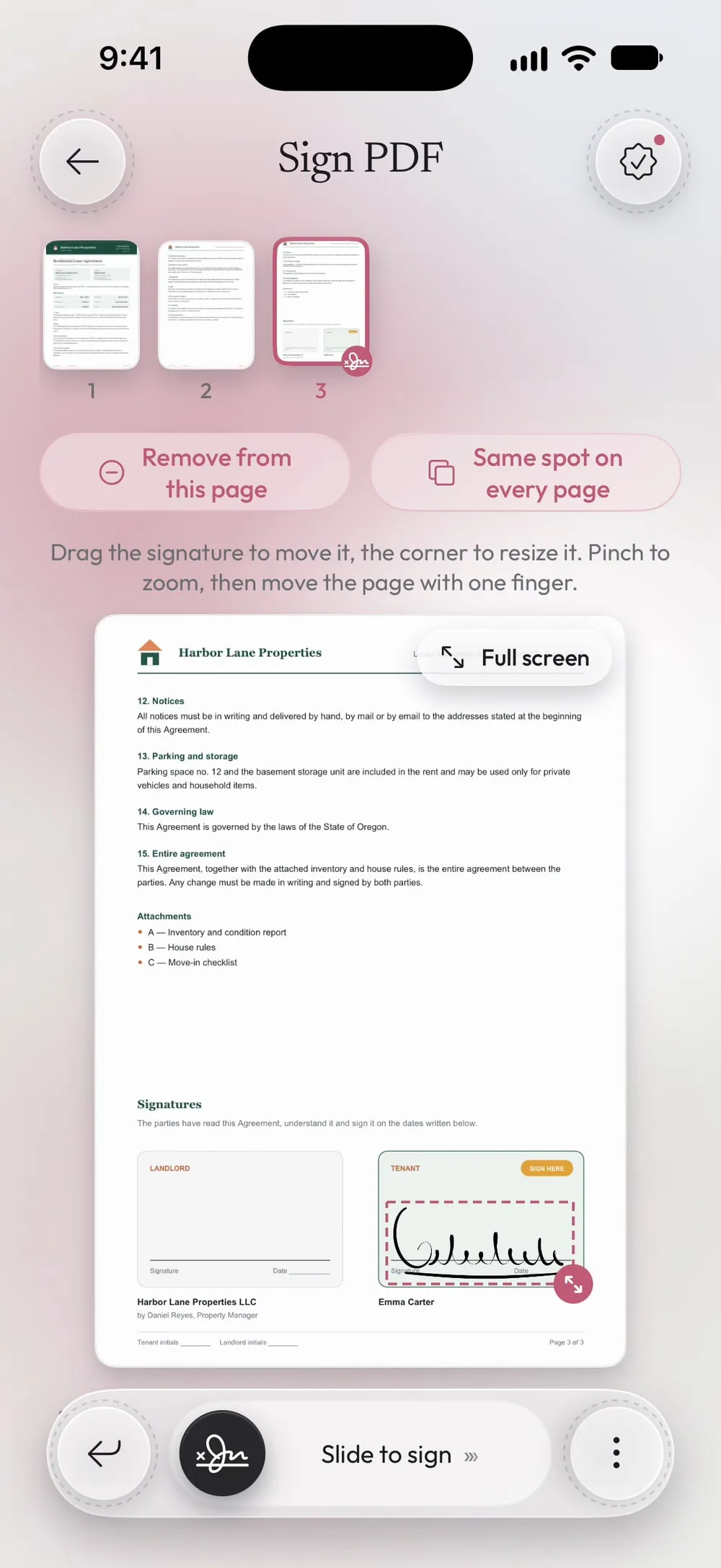
The signature appears on the last page, bottom right. Drag it onto the signature line and pull the corner to make it bigger or smaller. Full screen gives you a larger page for precise work.
Step 04 of 05
Choose the pages to sign
Tap a page in the strip and Sign this page to sign it too, or Same spot on every page to put the signature in the same spot on every page.
Step 05 of 05
Slide to sign
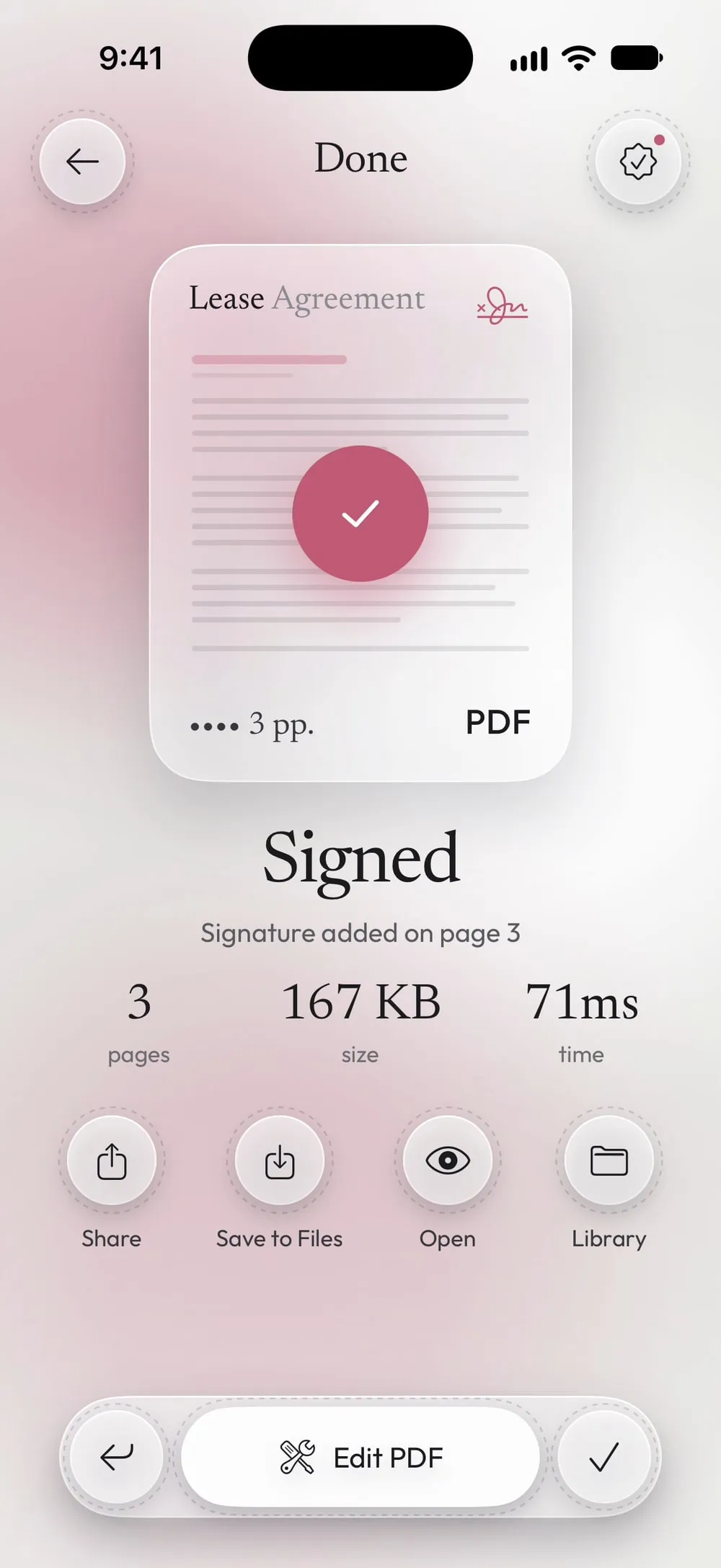
Drag Slide to sign. Share the signed PDF or tap Save to Files. The original stays unsigned.
Steps
-
In the Tools tab, tap Sign PDF, then Tap to choose, and pick the PDF from Files.
-
Under Your signature, tap + New. Sign with your finger in the white pad, then tap Save. Clear lets you try again.
-
The signature appears on the last page, bottom right. Drag it onto the signature line and pull the corner to make it bigger or smaller. Full screen gives you a larger page for precise work.
-
Tap a page in the strip and Sign this page to sign it too, or Same spot on every page to put the signature in the same spot on every page.
-
Drag Slide to sign. Share the signed PDF or tap Save to Files. The original stays unsigned.
Good to know
Your signatures are saved
The app keeps up to three signatures, only on this device, so next time you just tap one. Press and hold a signature to delete it.
Zoom in for small lines
Pinch to zoom on the page, then move it with one finger. The signature keeps its proportions when you resize it.
Initials on every page
For contracts that ask for initials on each page, draw your initials as a second signature and use Same spot on every page.
Questions
Is it a legally valid signature?
It's a handwritten signature drawn into the page, like signing on paper. Whether that's enough depends on the document: some contracts require a certified digital signature, which is a different thing.
Can someone move my signature afterwards?
It's drawn into the page of the new PDF, so it can't simply be dragged away like a sticker.
Is it free?
Yes, once a day after a short video. Premium makes it unlimited and removes the ads.
Is my signature uploaded?
No. Sign with your finger. It stays only on this device.