How to add text or an image to a PDF on iPhone and iPad
A "received on" date, a reference number, a short note for a colleague, a company logo or an "approved" stamp: small additions like these are often all a PDF needs before you send it on.

Writing on a PDF
A PDF is made to look the same everywhere, which also makes it hard to change. Adding a small note, a date or a logo doesn’t need an editor: it’s enough to place new text or a picture on top of the page and save a new copy.
Keep it readable
Put additions in a margin or an empty area, so they don’t cover what’s already written. If the note is important, make it large enough to read when the page is printed.
The simplest way to write on a PDF on iPhone and iPad
Add text or image in Unlock my PDF puts a line of text or a picture on the page you choose. You drag it into place, resize it and save a new PDF.
The full flow · 32 s
How to add text or an image to a PDF
Step 01 of 04
Open Add text or image and choose the PDF
In the Tools tab, tap Add text or image, then Tap to choose, and pick the PDF from Files.
Step 02 of 04
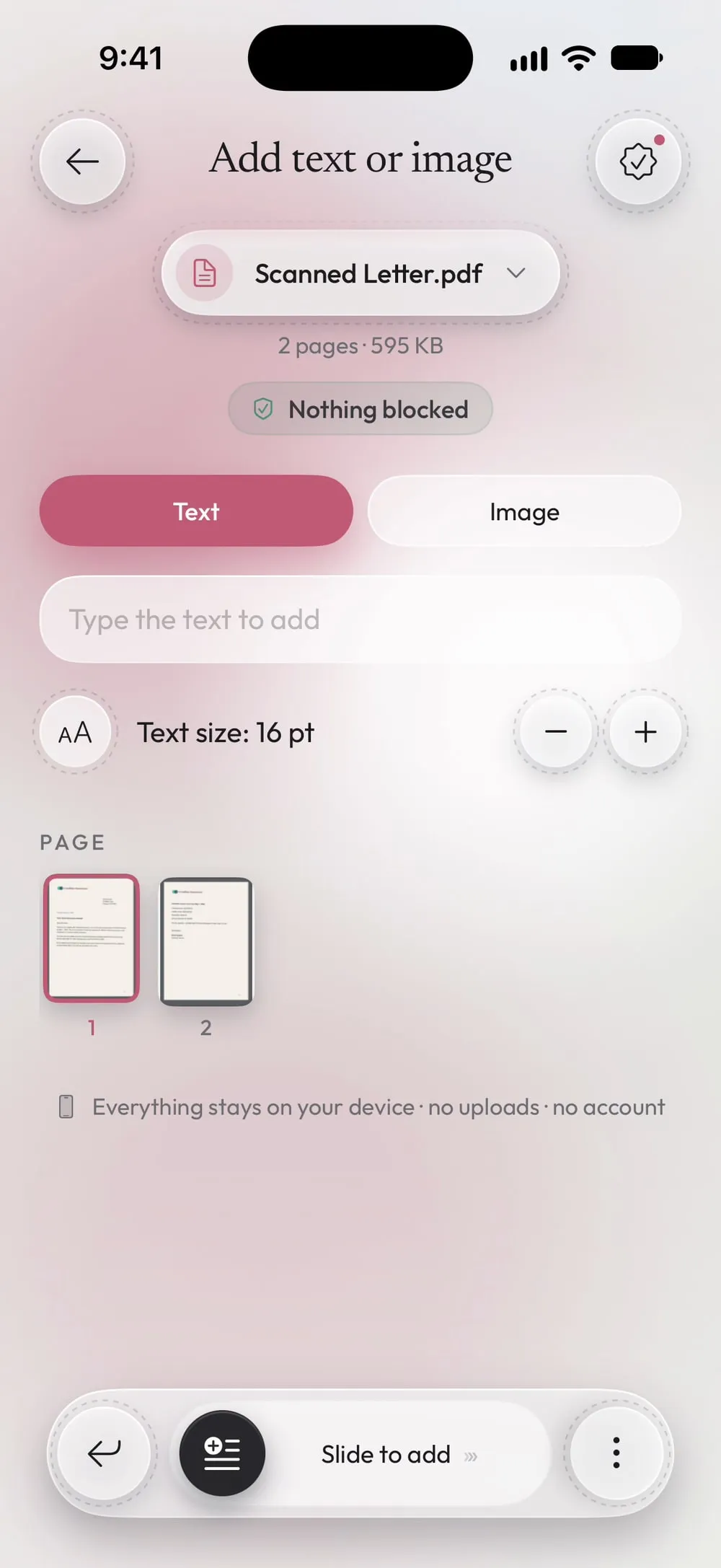
Type the text or choose an image
With Text selected, write in the field and set the size with the − and + buttons. With Image, tap Choose an image and pick a picture from Photos.
Step 03 of 04
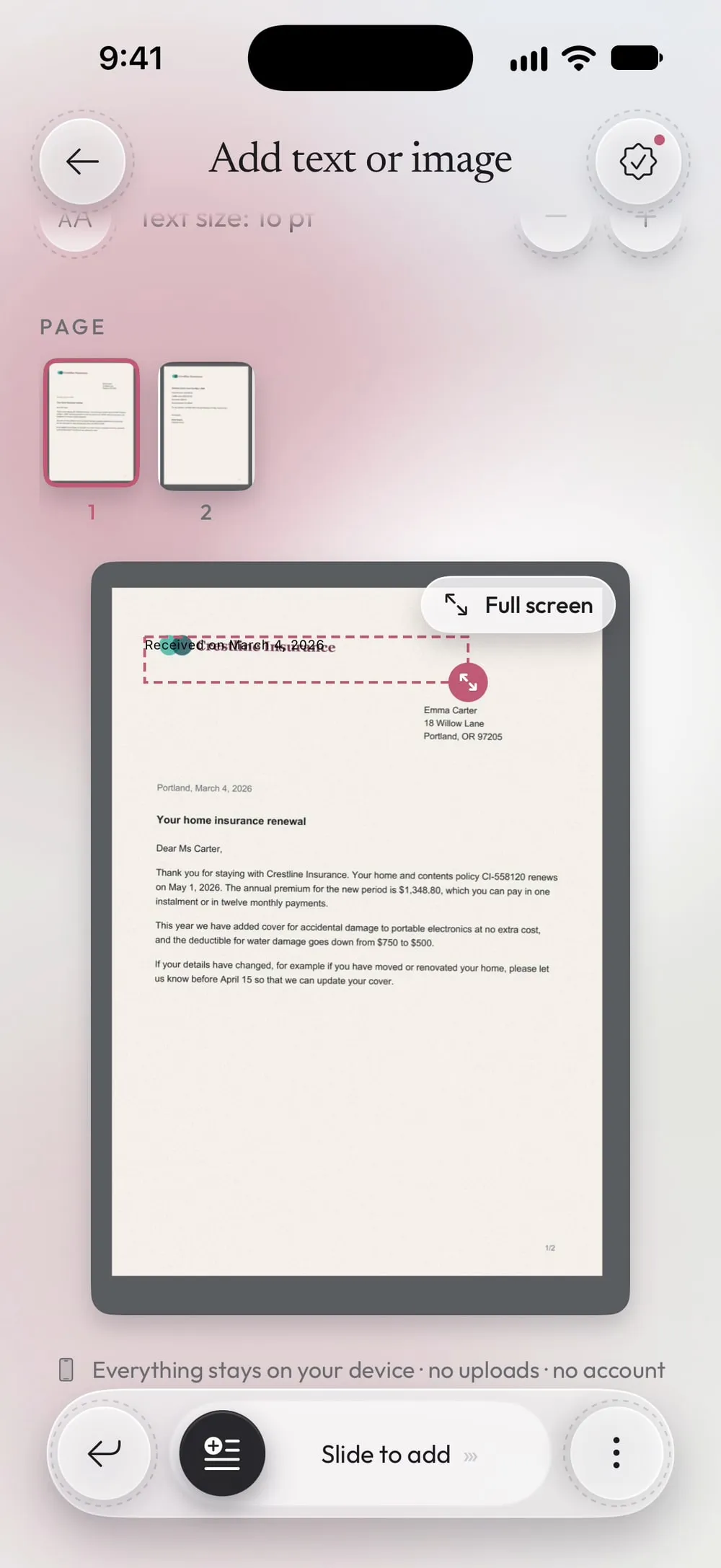
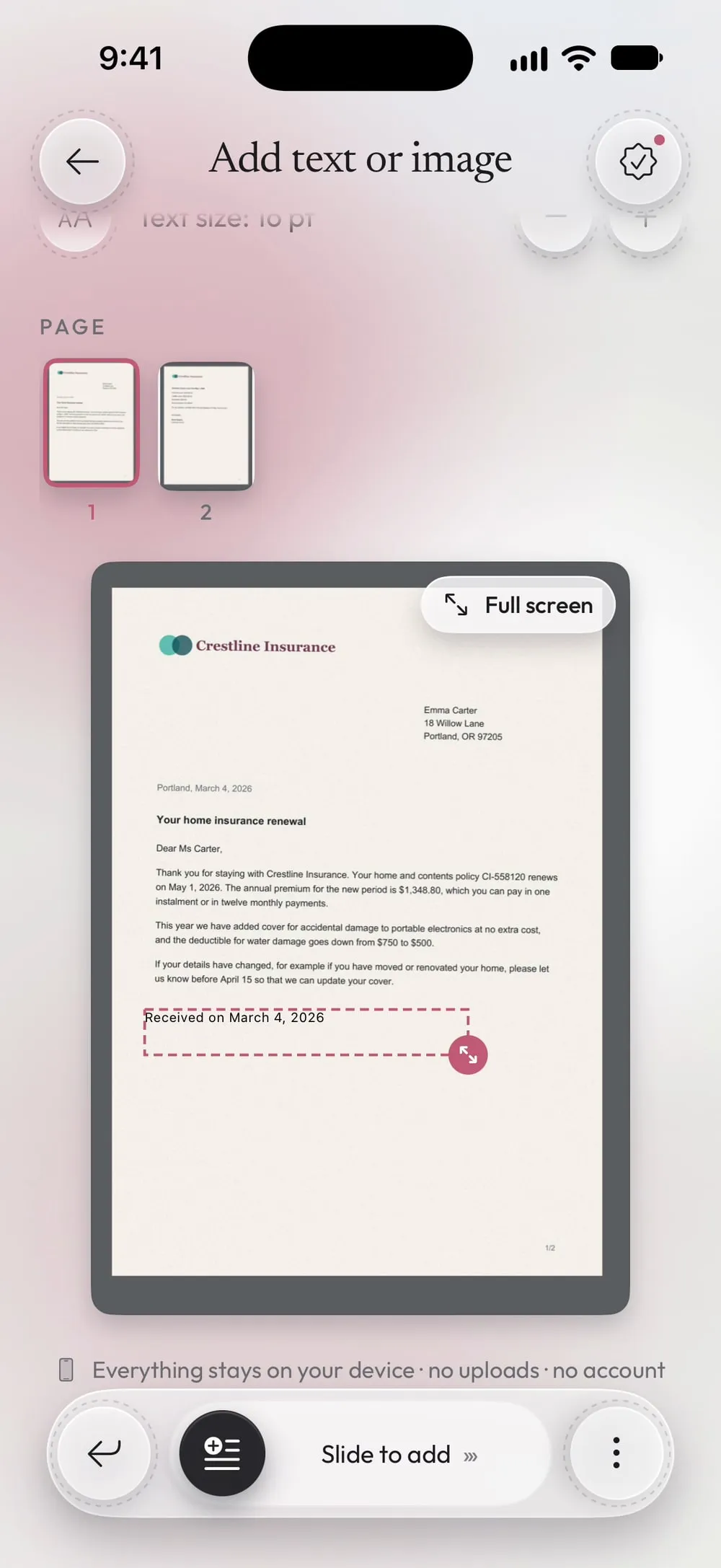
Choose the page and move it into place
Tap the page in the strip. Drag the box where you want it and pull its corner to make it bigger. Pinch to zoom for precise work.
Step 04 of 04
Slide to add
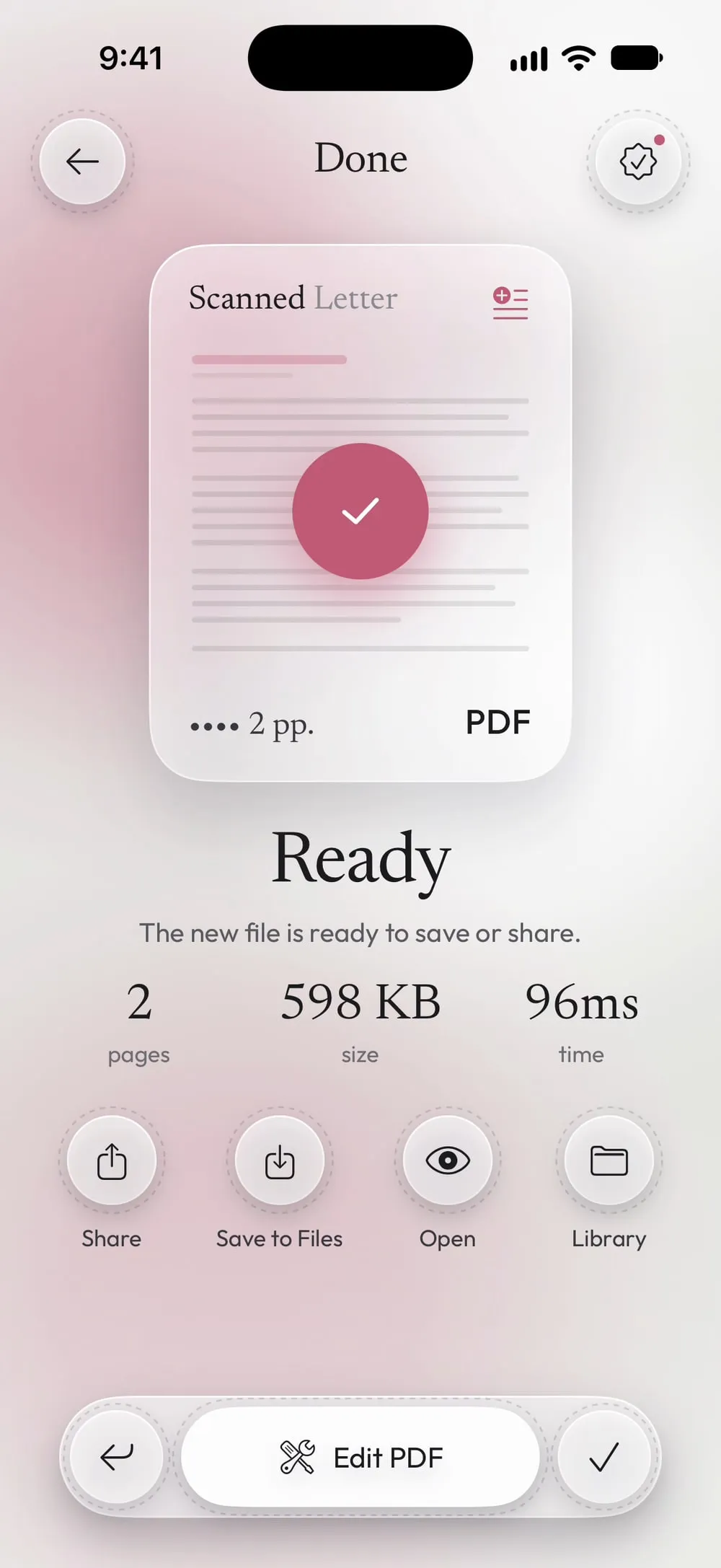
Drag Slide to add. Share the new PDF or tap Save to Files. The original stays as it is.
Steps
-
In the Tools tab, tap Add text or image, then Tap to choose, and pick the PDF from Files.
-
With Text selected, write in the field and set the size with the − and + buttons. With Image, tap Choose an image and pick a picture from Photos.
-
Tap the page in the strip. Drag the box where you want it and pull its corner to make it bigger. Pinch to zoom for precise work.
-
Drag Slide to add. Share the new PDF or tap Save to Files. The original stays as it is.
Good to know
Stamps and logos
A PNG with a transparent background, such as a logo or a stamp, sits on the page without a white box around it.
Text stays text
The text you add is real text in the PDF: it can be selected and searched like the rest of the page.
Several additions
Each time you add one item. For a second note or another page, open the new PDF in the tool again.
Questions
Can I change the font or the color?
The text is black, in a clear sans-serif font, sized from 8 to 48 points. For signatures, use Sign PDF.
Can I edit the text that's already in the PDF?
No. Add text or image adds new text on top of the page; it doesn't change what's already written.
Is it free?
Yes, once a day after a short video. Premium makes it unlimited and removes the ads.
Are my files uploaded?
No. Text and images are added on your iPhone or iPad.