How to open a protected PDF attachment on iPhone and iPad
A bank statement in Mail, a payslip in a chat, a document in Files: protected PDFs ask for the password every time you open them. Sending the attachment straight to the right app saves you from saving it somewhere first.

You need the password. If you don't know it, the app can't open the file.
Why attachments are protected
Banks, employers and public offices protect the PDFs they email, so that a forwarded message or a lost phone doesn’t expose your details. The password is usually in another letter or message, or built from your personal data.
Sending a file to another app
Every iPhone and iPad app that shows a document has a Share button. Through it, a PDF can be handed to another app, which receives its own copy and can work on it, while the original stays where it was.
The simplest way to open a protected attachment on iPhone and iPad
From the app that shows the PDF, tap Share and choose Unlock my PDF. The app opens with the file already loaded: type the password you know and save an unlocked copy.
The full flow · 36 s
How to open a protected PDF attachment
Step 01 of 04
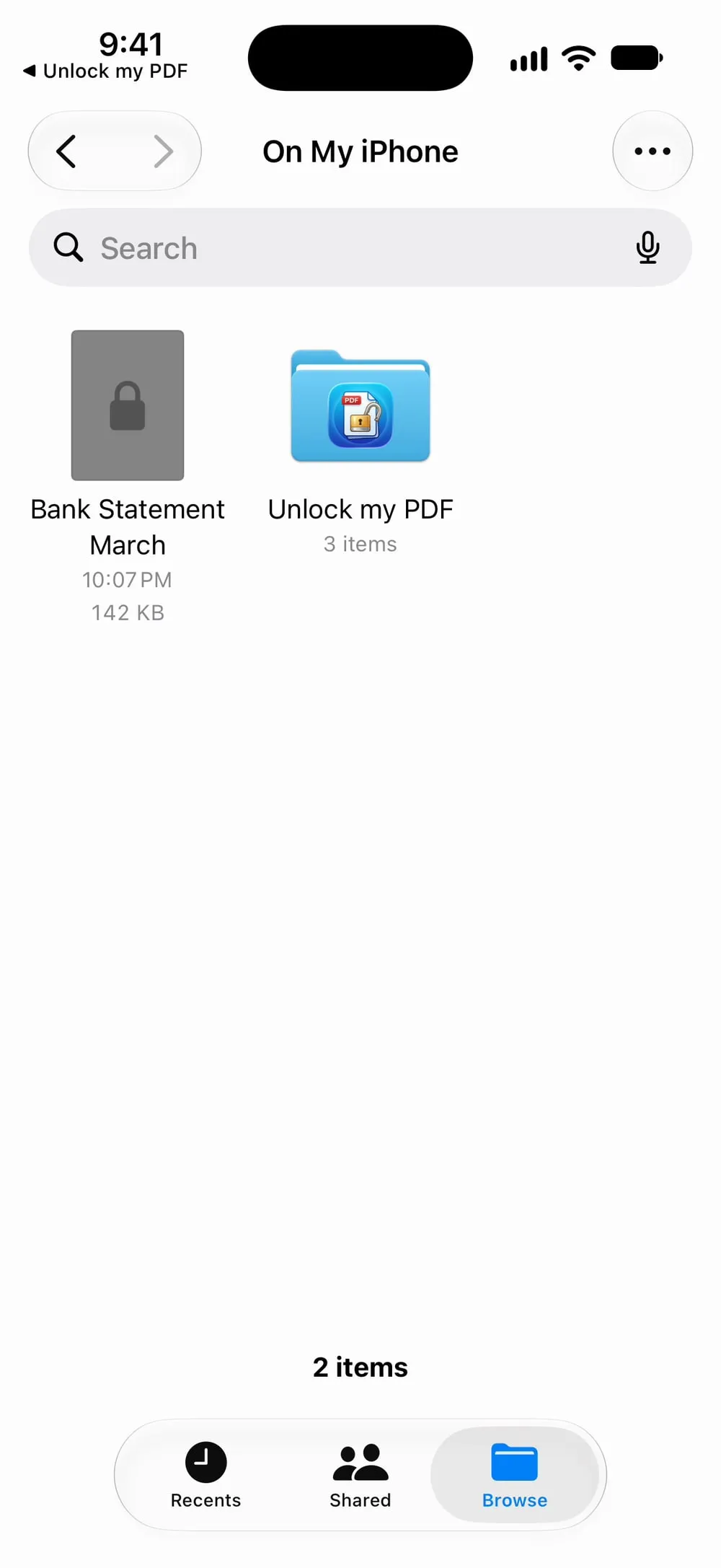
Find the PDF and tap Share
In Mail, open the attachment or touch and hold it. In Files, touch and hold the PDF. In a chat, open the document. Then tap Share.
Step 02 of 04
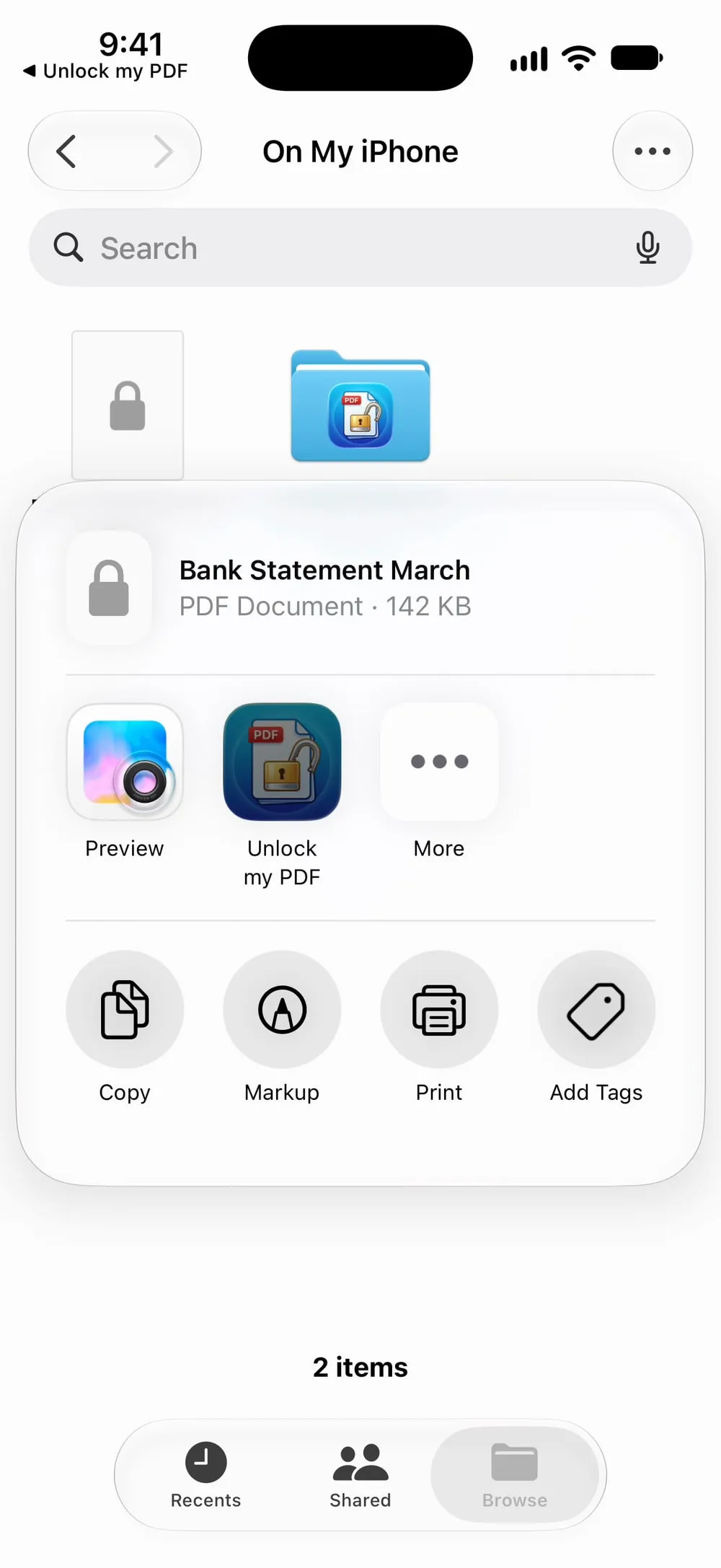
Choose Unlock my PDF
In the row of apps, tap Unlock my PDF. If you don't see it, swipe the row to the end and tap More.
Step 03 of 04
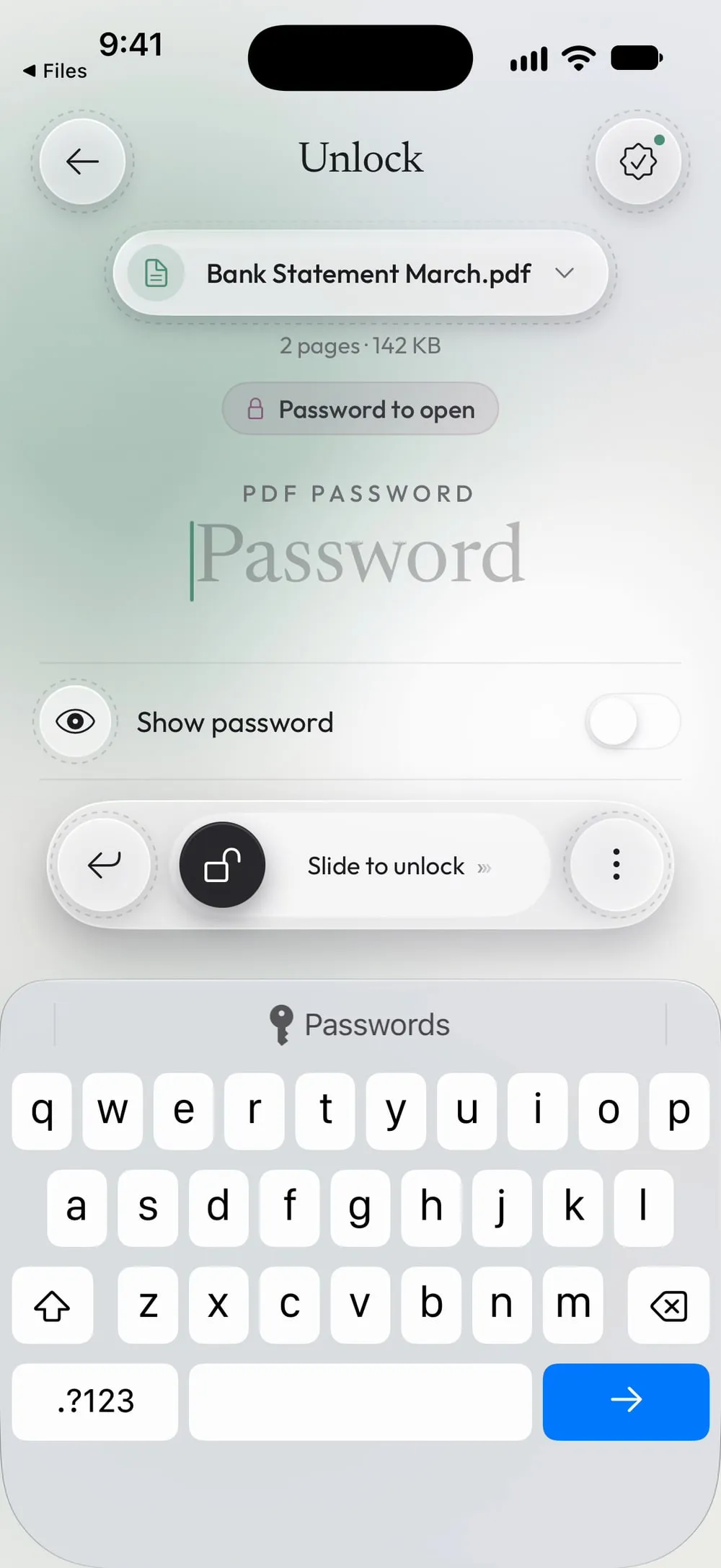
Type the password you know
The app opens on Unlock with the PDF loaded and the keyboard ready. Type the password and drag Slide to unlock.
Step 04 of 04
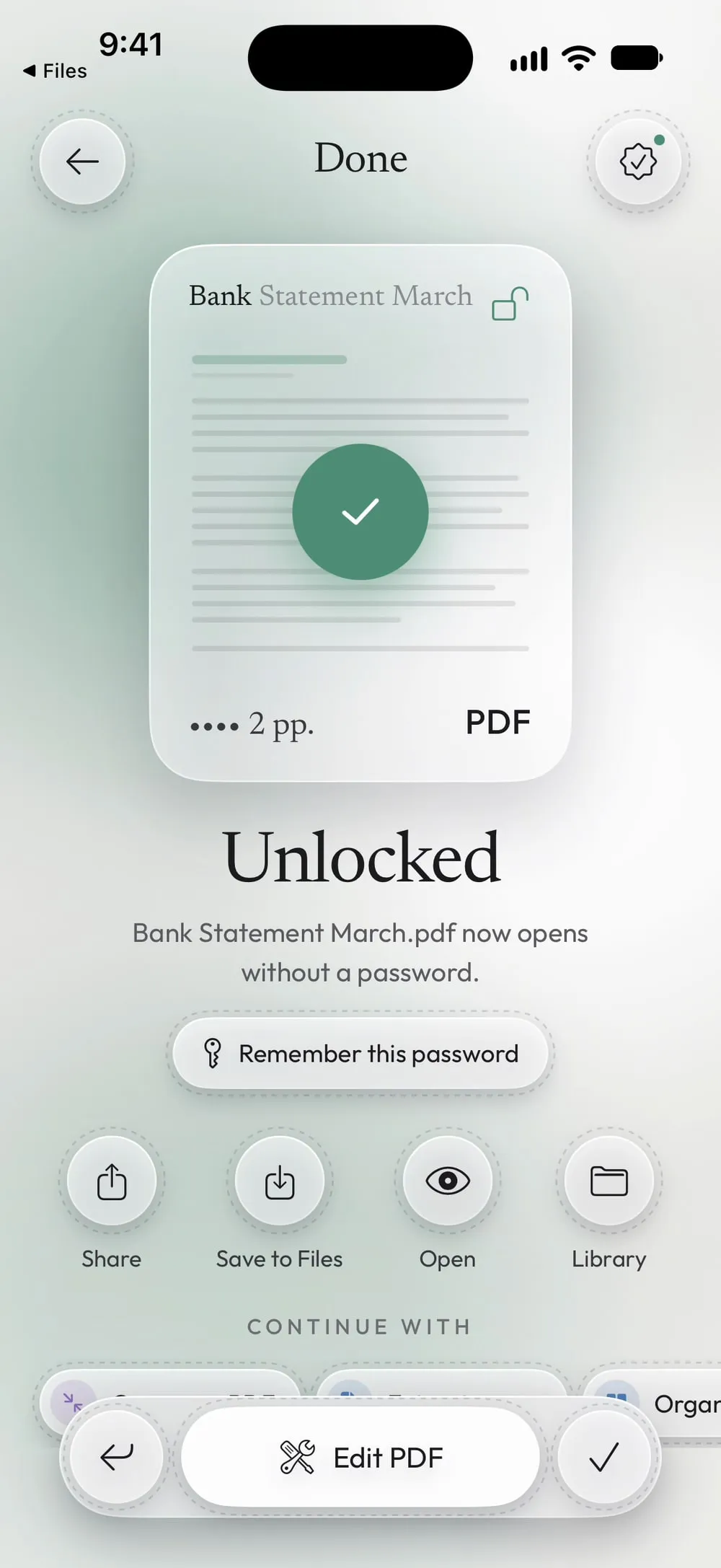
Keep the unlocked copy
Tap Save to Files to keep it, or Share to send it on. The attachment in Mail stays as it was.
Steps
-
In Mail, open the attachment or touch and hold it. In Files, touch and hold the PDF. In a chat, open the document. Then tap Share.
-
In the row of apps, tap Unlock my PDF. If you don't see it, swipe the row to the end and tap More.
-
The app opens on Unlock with the PDF loaded and the keyboard ready. Type the password and drag Slide to unlock.
-
Tap Save to Files to keep it, or Share to send it on. The attachment in Mail stays as it was.
Good to know
PDFs without a password
A PDF that isn't protected opens on Protect instead, ready to get a password.
Put the app first in the list
In the share sheet, tap More, then Edit, and add Unlock my PDF to Favorites: it will be one of the first apps every time.
Many attachments
For a set of statements with the same password, save them to Files and use Unlock several PDFs.
Questions
Does it work from WhatsApp, Gmail or Outlook?
Yes, from every app that can share a PDF: open the document there, tap Share and choose Unlock my PDF.
Is the original attachment changed?
No. The app works on a copy; the email or the file you shared from stays as it was.
Is it free?
Yes: 3 unlocks a day for free, with ads. Premium makes them unlimited and removes the ads.
Is the PDF uploaded?
No. The file goes from the other app to Unlock my PDF on your device, and the password is removed there.