How to block printing and copying of a PDF on iPhone and iPad
Sometimes you want people to read a document but not print it, copy its text or change its pages: a draft contract, course material, a price list. PDF permissions are made for exactly that.

Two kinds of PDF passwords
A PDF can have a password to open it and an owner password. The first decides who can read the file. The second decides what readers can do: print it, copy its text, change its pages, fill in its forms.
When to restrict instead of lock
Restrict a PDF when you want it to be read freely but not reused: a draft you don’t want printed, notes you don’t want copied, a document whose pages must stay as they are. Some apps ignore these limits, so don’t rely on them alone for secrets.
The simplest way to restrict a PDF on iPhone and iPad
Permissions in Unlock my PDF turns off printing, copying text or editing pages, and locks those choices with an owner password. The PDF opens normally; only the actions you turn off are blocked.
The full flow · 25 s
How to block printing and copying of a PDF
Step 01 of 04
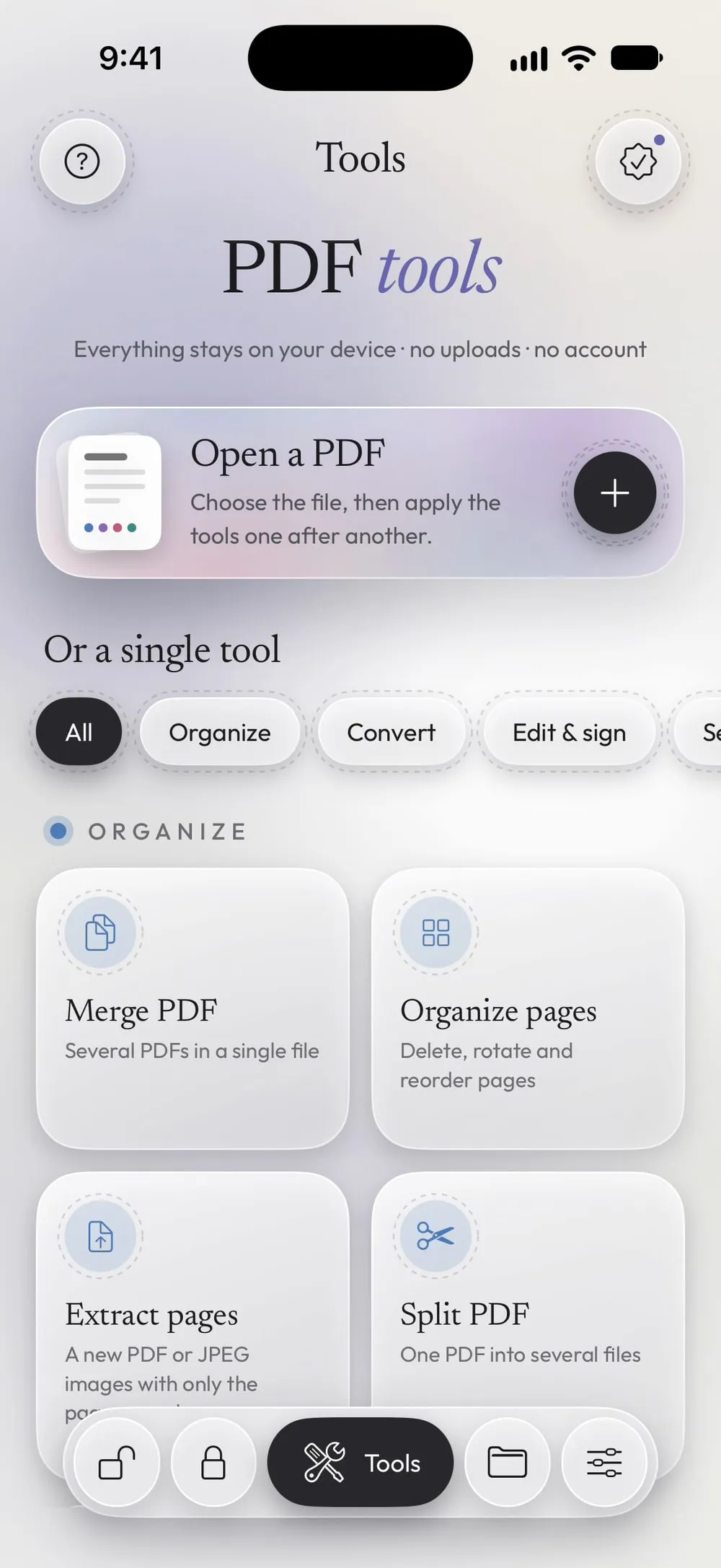
Open Permissions and choose the PDF
In the Tools tab, tap Permissions, then Tap to choose, and pick the PDF from Files.
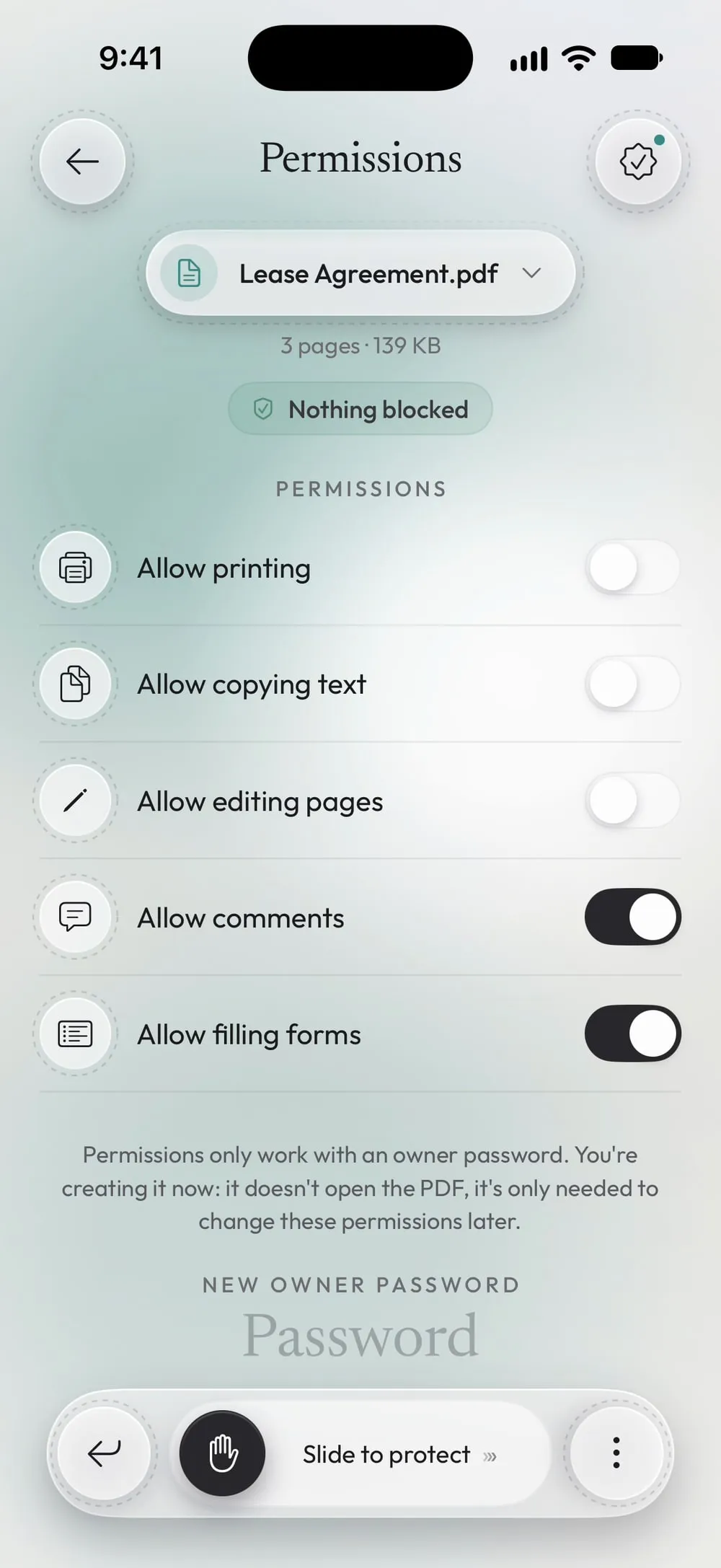
Step 02 of 04
Choose what's allowed
Allow printing, Allow copying text and Allow editing pages start off; Allow comments and Allow filling forms start on. Change any of them with its switch.
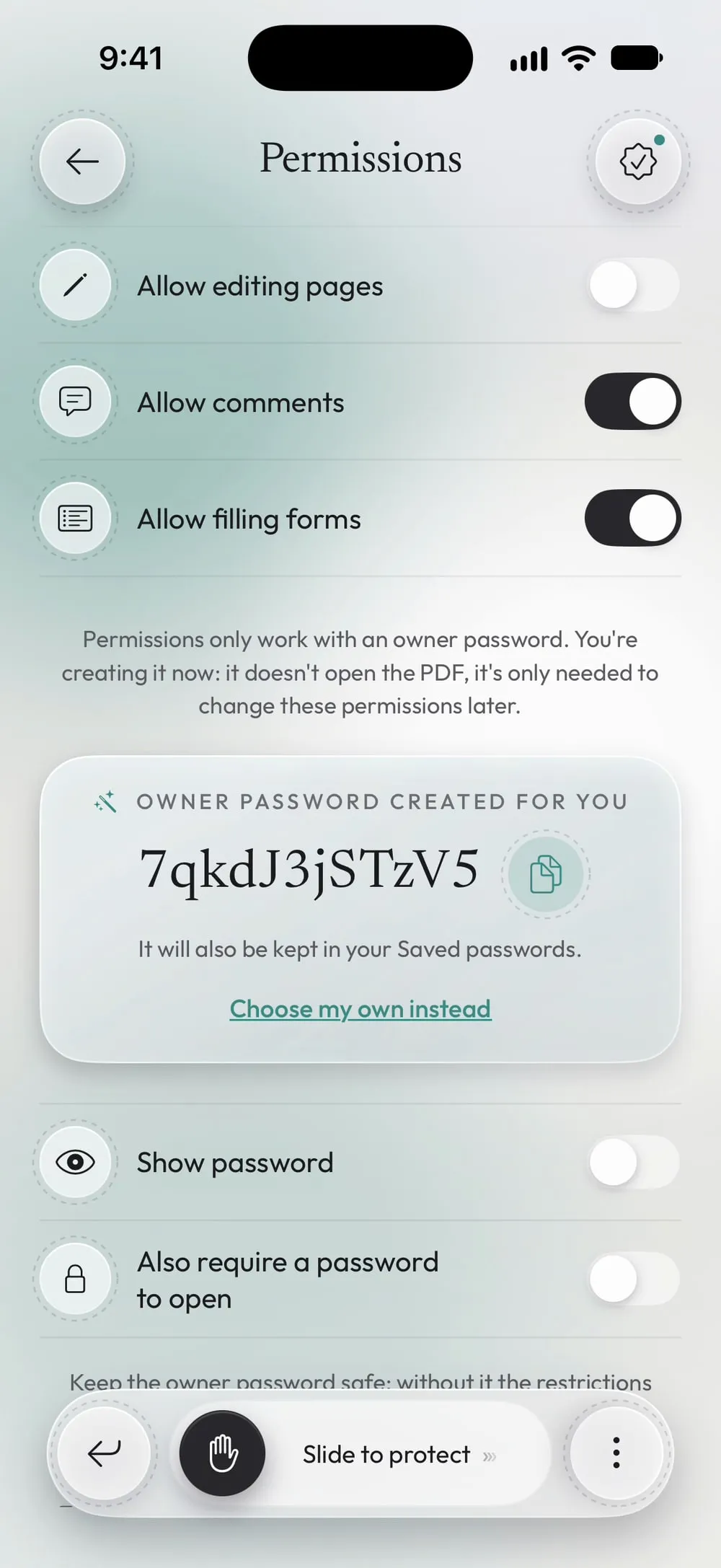
Step 03 of 04
Create the owner password
Permissions only work with an owner password. You're creating it now: it doesn't open the PDF, it's only needed to change these permissions later. Type it twice, or tap Generate one for me and copy the one the app creates.
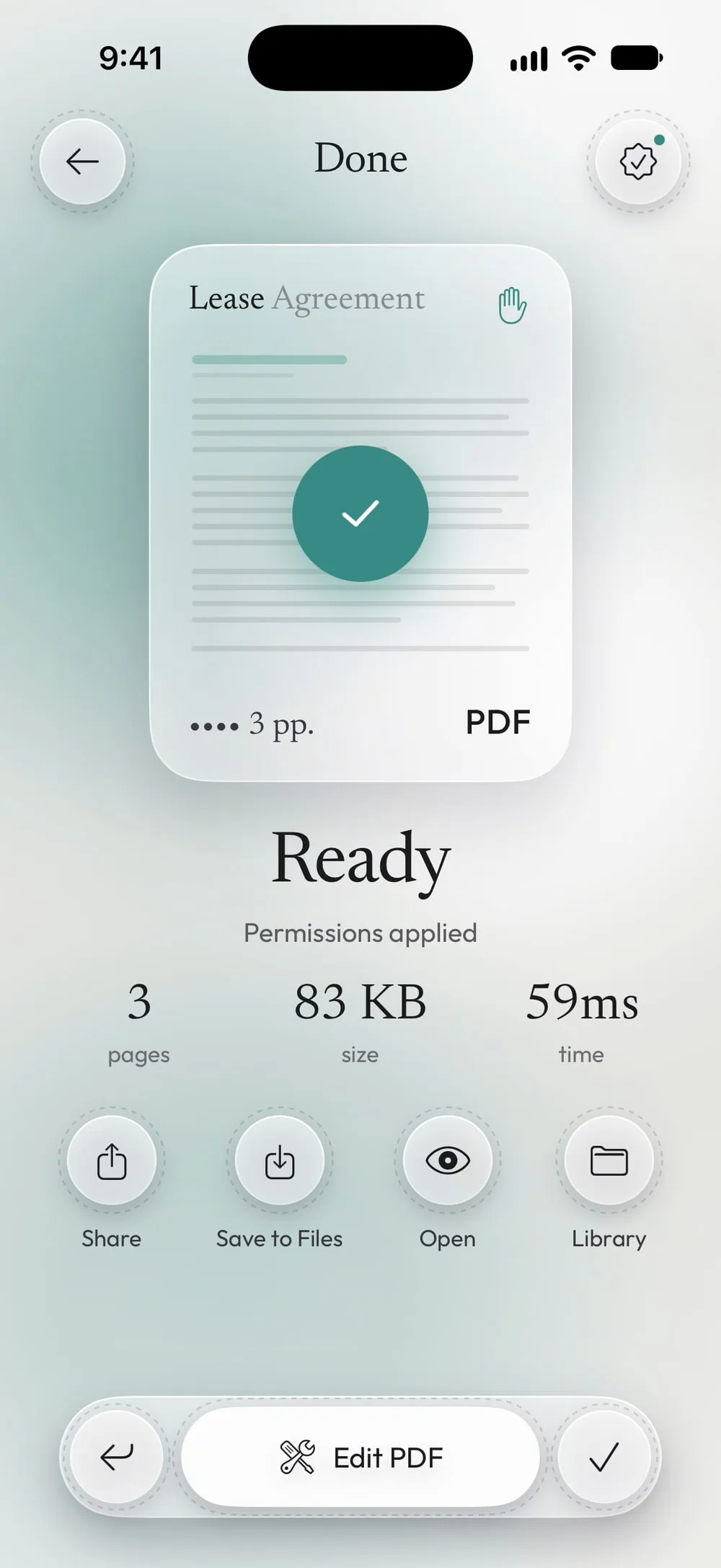
Step 04 of 04
Slide to apply
Drag Slide to protect. Share the restricted PDF or tap Save to Files.
Steps
-
In the Tools tab, tap Permissions, then Tap to choose, and pick the PDF from Files.
-
Allow printing, Allow copying text and Allow editing pages start off; Allow comments and Allow filling forms start on. Change any of them with its switch.
-
Permissions only work with an owner password. You're creating it now: it doesn't open the PDF, it's only needed to change these permissions later. Type it twice, or tap Generate one for me and copy the one the app creates.
-
Drag Slide to protect. Share the restricted PDF or tap Save to Files.
Good to know
Keep the owner password
Keep the owner password safe: without it the restrictions can't be removed. Some PDF apps may ignore these restrictions.
Also require a password to open
Turn on Also require a password to open if only some people should be able to read the PDF at all. That password must be different from the owner's.
Change them later
To lift the restrictions, open the PDF in Permissions again and choose Remove the restrictions with the owner password you know.
Questions
Can people still open the PDF?
Yes. Without a password to open, anyone can read it; only printing, copying or editing are blocked, depending on your choices.
Do restrictions work in every app?
Most PDF apps respect them, but not all. For information that must stay private, add a password to open, or share only what's needed.
Is it free?
Permissions is a PRO tool, included in Premium. The app shows the PRO label before you start, never after the work is done.
Are my files uploaded?
No. The permissions are set on your iPhone or iPad.