How to rotate PDF pages on iPhone and iPad
A scanned page that came out sideways, a landscape chart in a portrait report, a whole document upside down: rotating a page only on screen doesn't help, because it opens the wrong way again next time.

Why pages end up sideways
Scanners and phone cameras guess which way a sheet is facing, and they don’t always get it right. Landscape pages, such as tables and charts, are also often saved inside portrait documents. The page looks fine to whoever made it, and sideways to everyone else.
Rotate it in the file
Most PDF readers let you turn the page on screen, but that change isn’t saved: the next person who opens the file sees it sideways again. To fix it for good, the rotation has to be saved in the PDF itself.
The simplest way to rotate PDF pages on iPhone and iPad
Organize pages in Unlock my PDF rotates the pages you choose by 90 degrees, left or right, and saves the PDF with the new orientation, so it opens the right way in every app.
The full flow · 30 s
How to rotate PDF pages
Step 01 of 04
Open Organize pages and choose the PDF
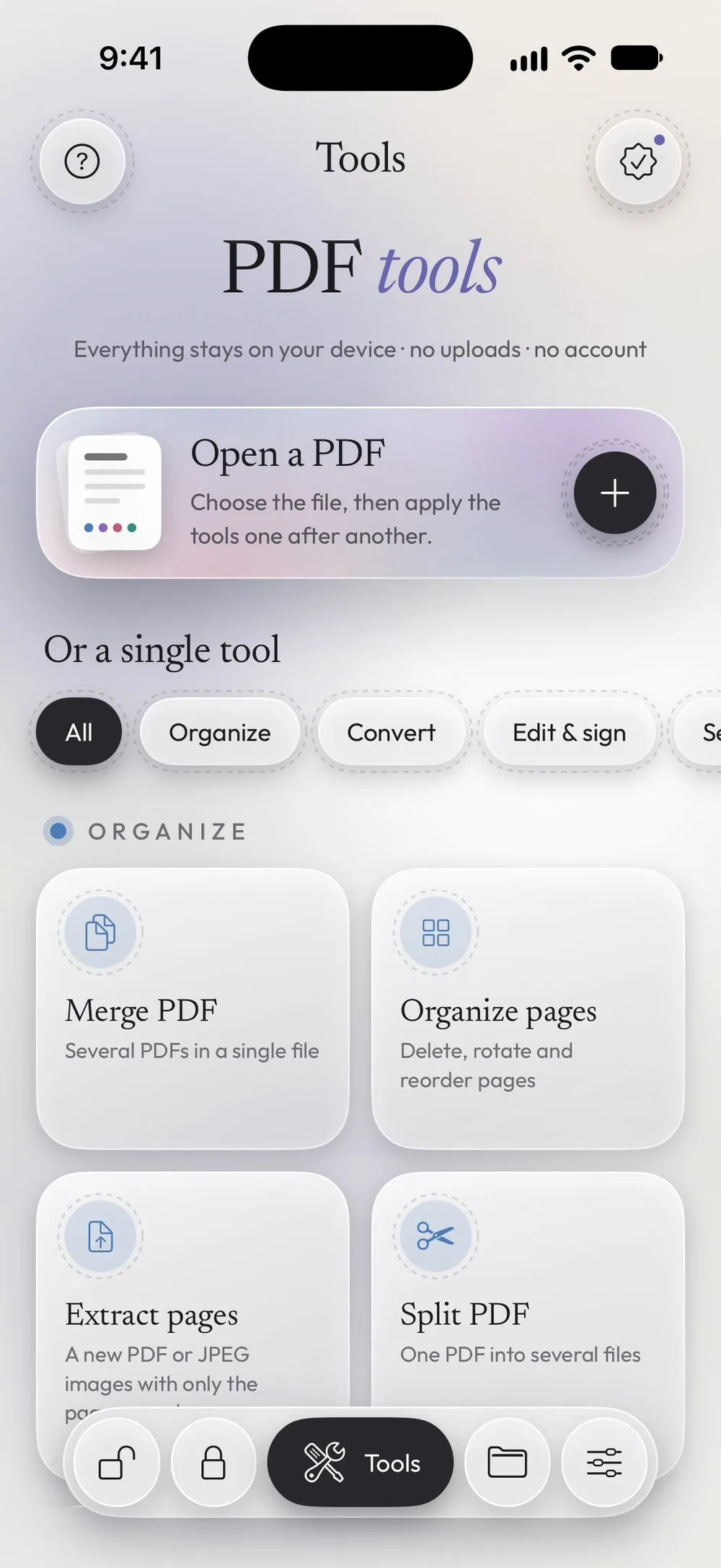
In the Tools tab, tap Organize pages, then Tap to choose, and pick the PDF from Files.
Step 02 of 04
Tap the pages that are the wrong way
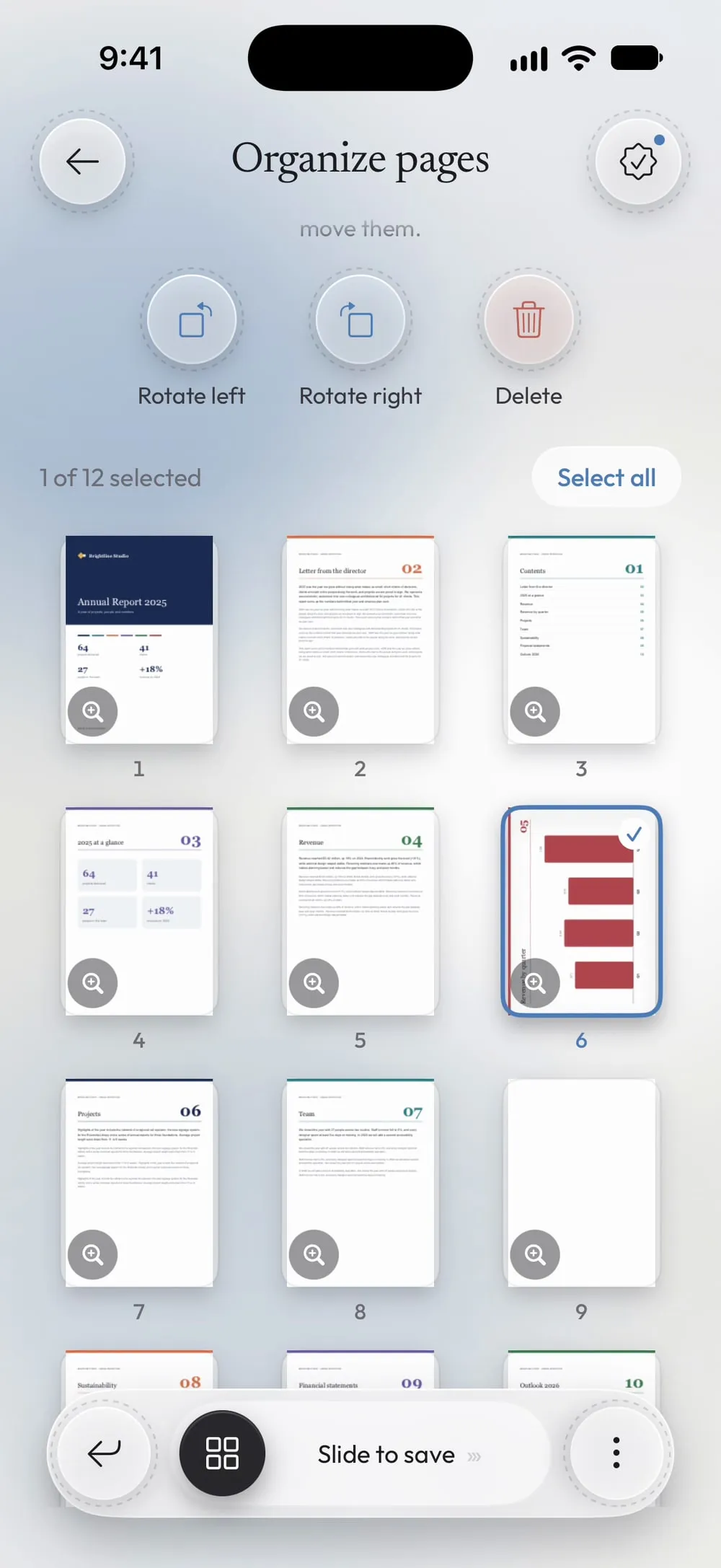
Tap a thumbnail to select it. To turn the whole document, tap Select all.
Step 03 of 04
Rotate left or right
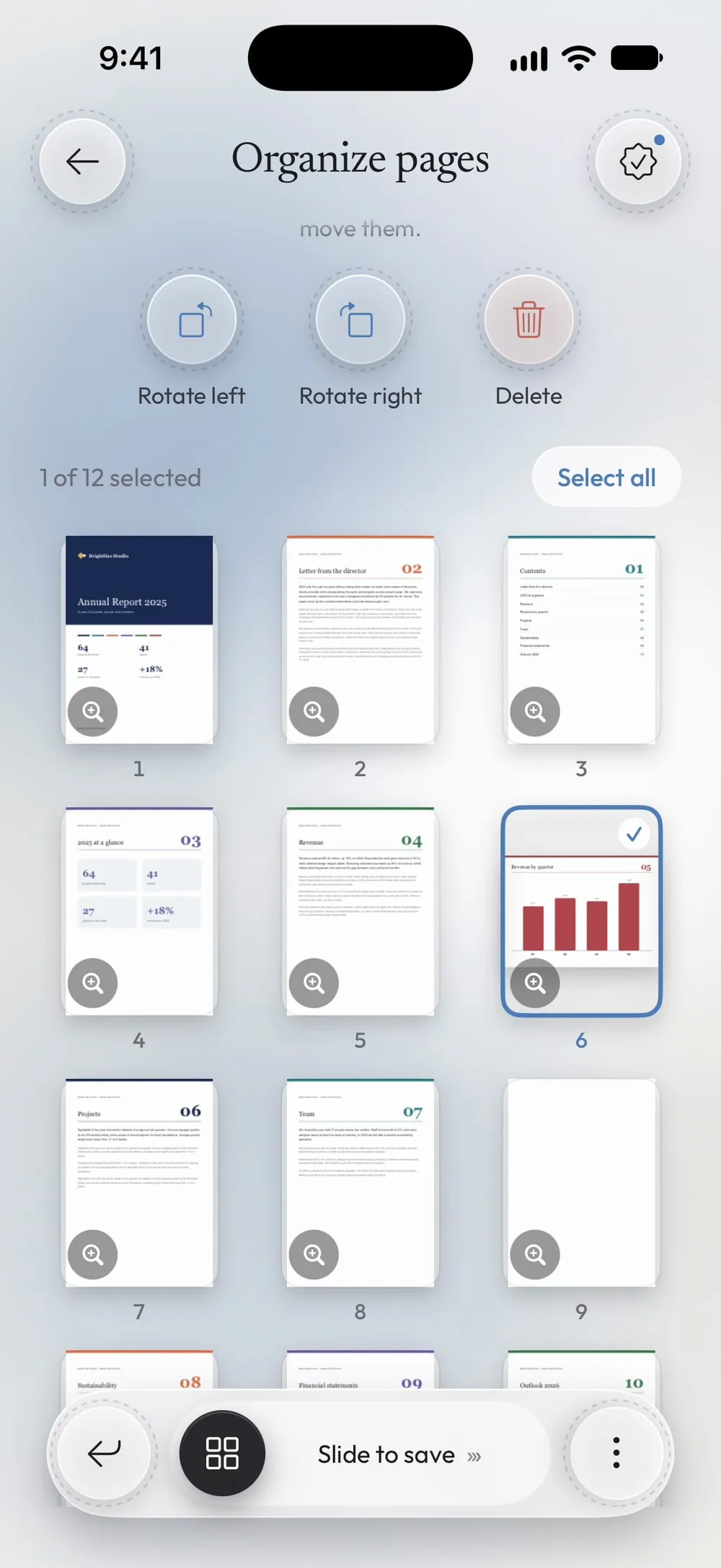
Tap Rotate right or Rotate left: each tap turns the selected pages by 90 degrees, and the thumbnails show the result straight away. Tap twice to turn a page upside down.
Step 04 of 04
Slide to save
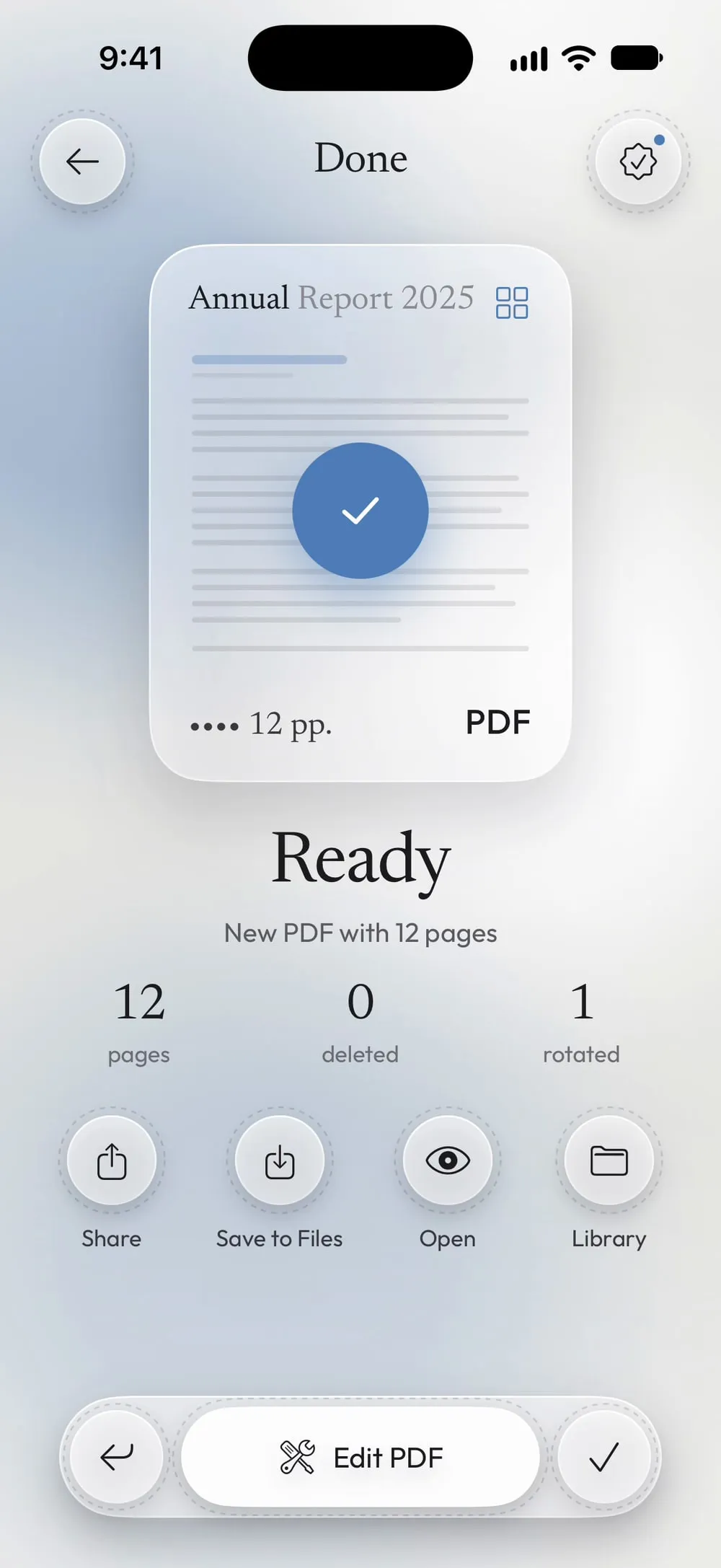
Drag Slide to save. The new PDF keeps the rotation in every app; share it or tap Save to Files.
Steps
-
In the Tools tab, tap Organize pages, then Tap to choose, and pick the PDF from Files.
-
Tap a thumbnail to select it. To turn the whole document, tap Select all.
-
Tap Rotate right or Rotate left: each tap turns the selected pages by 90 degrees, and the thumbnails show the result straight away. Tap twice to turn a page upside down.
-
Drag Slide to save. The new PDF keeps the rotation in every app; share it or tap Save to Files.
Good to know
See the page large
The magnifier on a thumbnail opens the page full screen, already rotated, so you can check that the text reads the right way.
Nothing is lost
Rotating doesn't redraw the page: text stays selectable, links keep working and the quality doesn't change.
Landscape pages
A wide table or chart is easier to read in landscape. Rotate only that page and leave the others as they are.
Questions
Can I rotate only one page?
Yes. Only the pages you select are rotated; the others stay as they are.
Will the PDF stay rotated in other apps?
Yes. The rotation is saved in the new PDF, so it opens the right way in Mail, in Files and in other PDF readers.
Is it free?
Yes, once a day after a short video. Premium makes it unlimited and removes the ads.
Are my files uploaded?
No. Pages are rotated on your iPhone or iPad.