How to compress a PDF under an exact size on iPhone and iPad
Upload forms often say "maximum 2 MB", and an email can bounce over 10 MB. Guessing the right compression level takes several tries: it's easier to say the size you need and let the app reach it.

Why size limits are a problem
Government portals, job applications, school platforms and insurance claims often accept files up to a fixed size, such as 1 or 2 MB. Scans and PDFs with photos easily go over, and the upload simply fails.
Compressing to a target
Usual compression asks you to choose a level and hope. Compressing to a target works the other way: you say the maximum size and the compression is adjusted until the file fits, keeping as much quality as the size allows.
The simplest way to compress a PDF to a size on iPhone and iPad
Compress PDF in Unlock my PDF has the option Under an exact size: choose 1, 2, 5 or 10 MB, and the app picks the level that gets the PDF under that size, keeping it as sharp as it can.
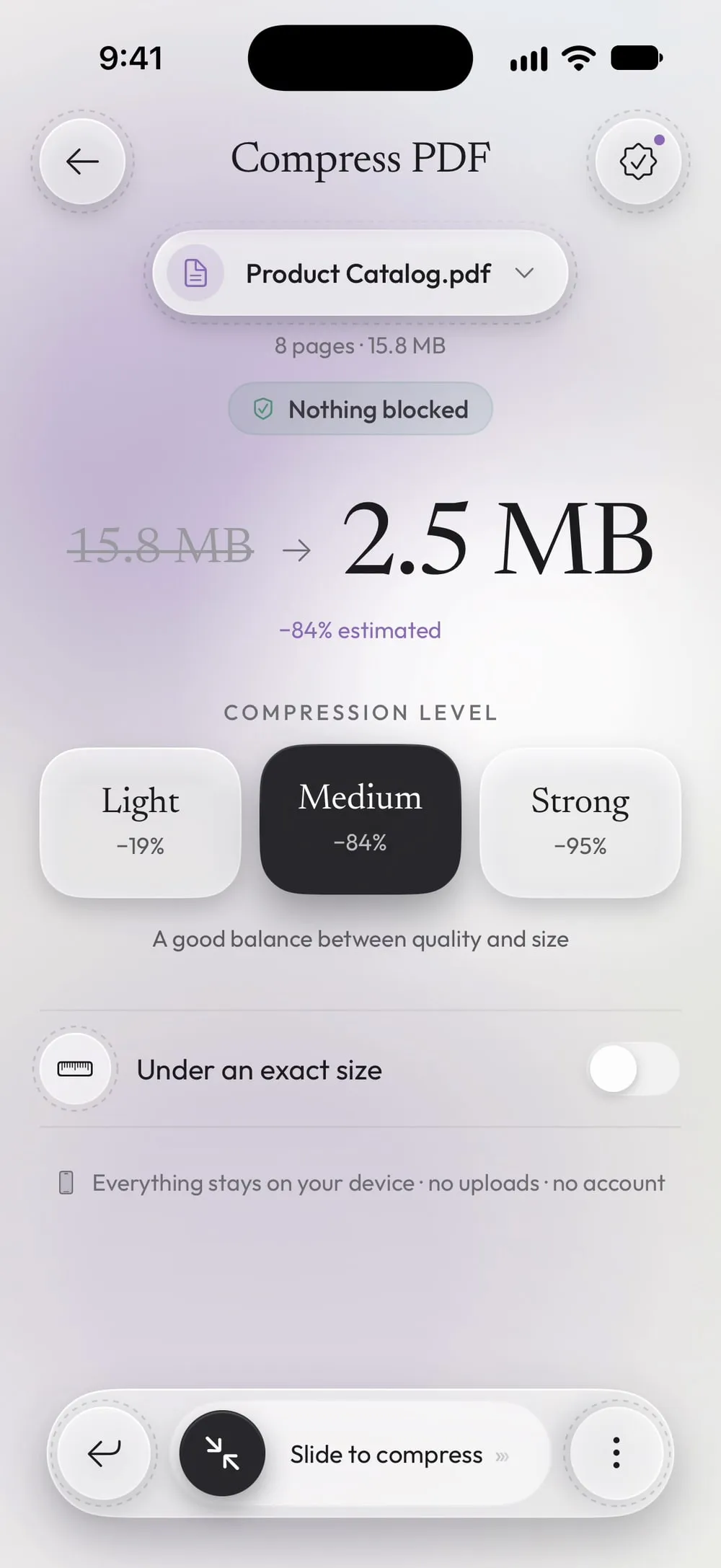
The full flow · 26 s
How to compress a PDF under an exact size
Step 01 of 04
Open Compress PDF and choose the PDF
In the Tools tab, tap Compress PDF, then Tap to choose, and pick the PDF from Files.
Step 02 of 04
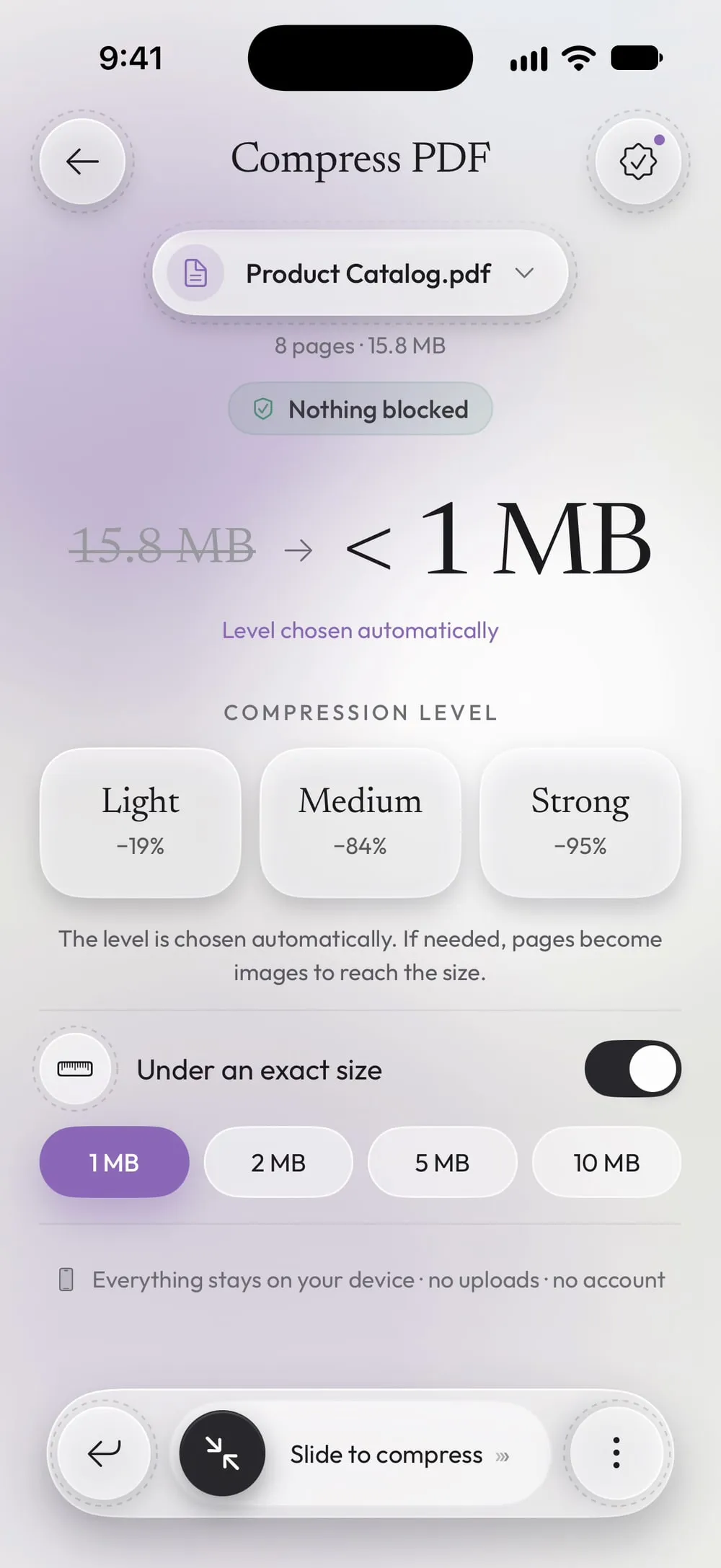
Turn on Under an exact size
Tap Under an exact size. The level cards step aside: The level is chosen automatically. If needed, pages become images to reach the size.
Step 03 of 04
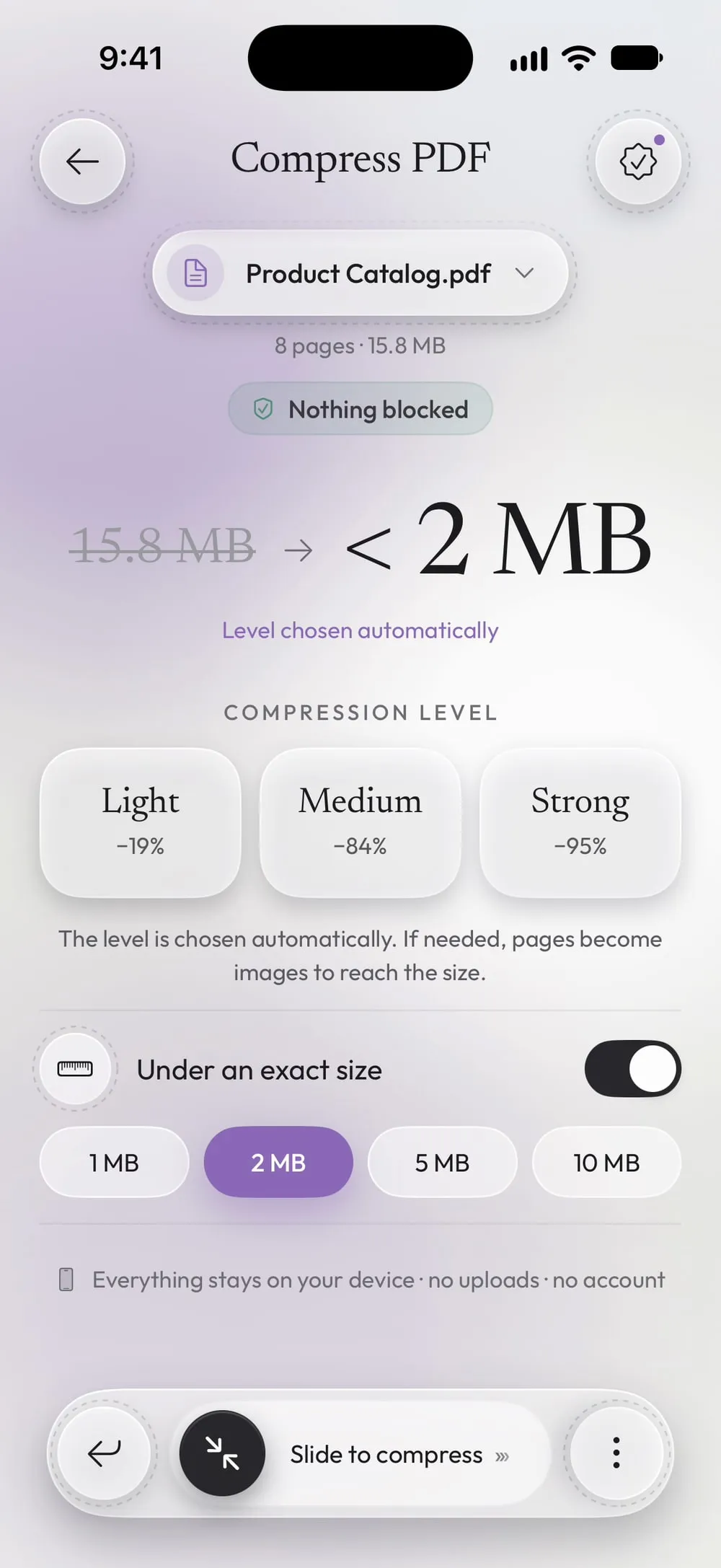
Choose the size
Tap 1 MB, 2 MB, 5 MB or 10 MB: the limit of the form or email you're sending to.
Step 04 of 04
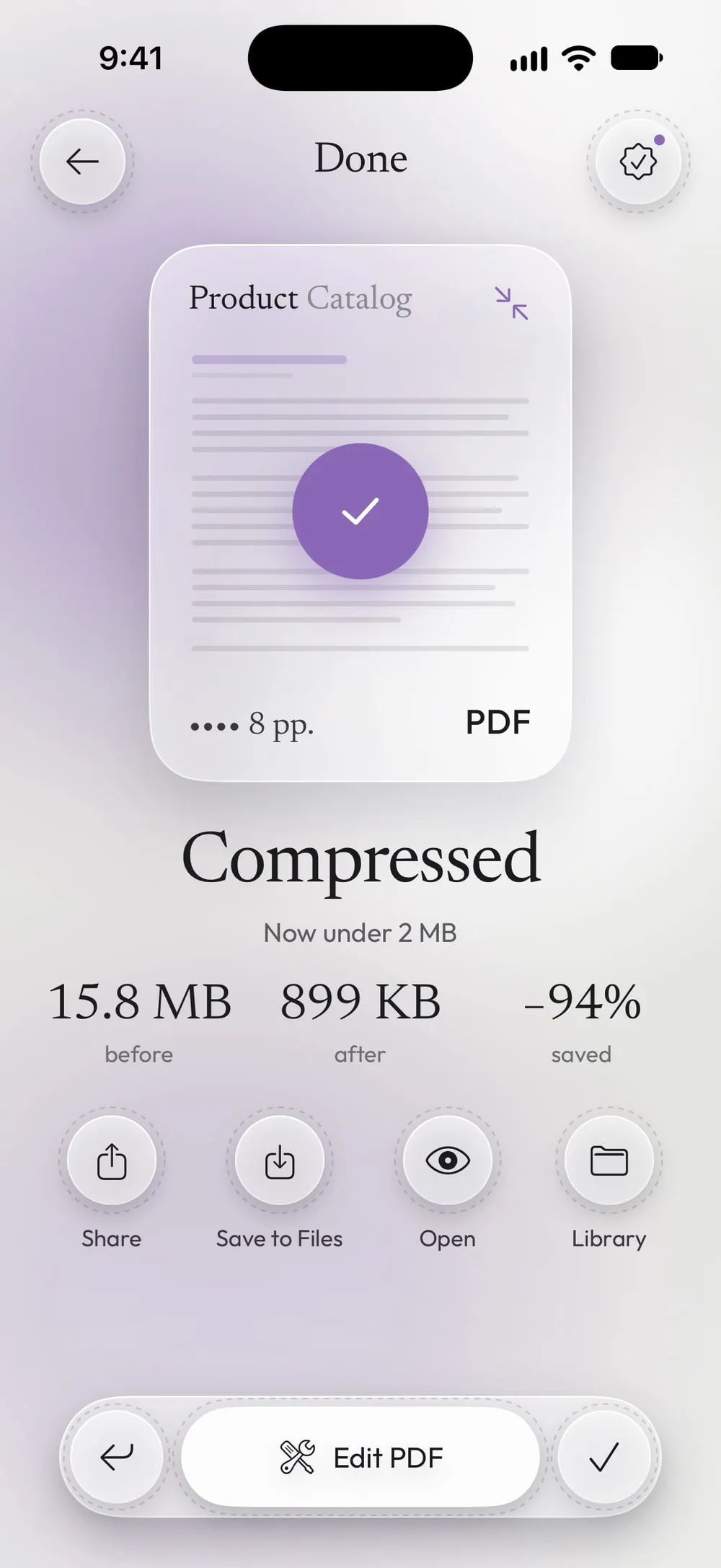
Slide to compress
Drag Slide to compress. The result shows the size before and after, and whether the PDF is now under the size you chose.
Steps
-
In the Tools tab, tap Compress PDF, then Tap to choose, and pick the PDF from Files.
-
Tap Under an exact size. The level cards step aside: The level is chosen automatically. If needed, pages become images to reach the size.
-
Tap 1 MB, 2 MB, 5 MB or 10 MB: the limit of the form or email you're sending to.
-
Drag Slide to compress. The result shows the size before and after, and whether the PDF is now under the size you chose.
Good to know
Start from the limit
Pick the size the website asks for, not a smaller one: the closer the target, the sharper the pages stay.
Text may become an image
To reach a small size the app first tries a normal compression, which keeps the text. If that isn't enough, pages become images: they look the same, but the text can no longer be selected.
When it can't get there
A very long PDF full of photos may not fit in 1 MB. The app then gives you the lightest version it can and says so. Splitting the PDF in two can help.
Questions
Is the option free?
Under an exact size is included in Premium. The normal compression levels are free once a day after a short video.
Does 1 MB mean exactly 1 MB?
The result is under the size you choose, often a little less, never more when the target is reached.
Is the original changed?
No. You get a new PDF ending in "_compressed"; the original stays as it is.
Are my files uploaded?
No. The PDF is compressed on your iPhone or iPad.