How to use Shortcuts and Siri with PDFs on iPhone and iPad
If you do the same thing with PDFs every week, such as removing the password from a statement, compressing a scan or merging invoices, a shortcut can do it for you in one tap, from the share sheet or with your voice.

Why automate PDF tasks
Repeated tasks are where mistakes and wasted minutes add up: the same password every month, the same compression before every upload, the same files merged every week. The Shortcuts app on iPhone and iPad can chain these steps and run them in one tap.
What a shortcut can do with a PDF
A shortcut receives a file, from the share sheet or a folder, passes it through one or more actions and saves or sends the result. With the right actions, the whole job runs without opening a single app.
The simplest way to automate PDFs on iPhone and iPad
Unlock my PDF adds four actions to the Shortcuts app: Unlock PDF, Protect PDF, Compress PDF and Merge PDFs. They work in the background and return the new file to the next step of your shortcut.
The full flow · 20 s
How to use Shortcuts and Siri with PDFs
Step 01 of 04
Create a shortcut
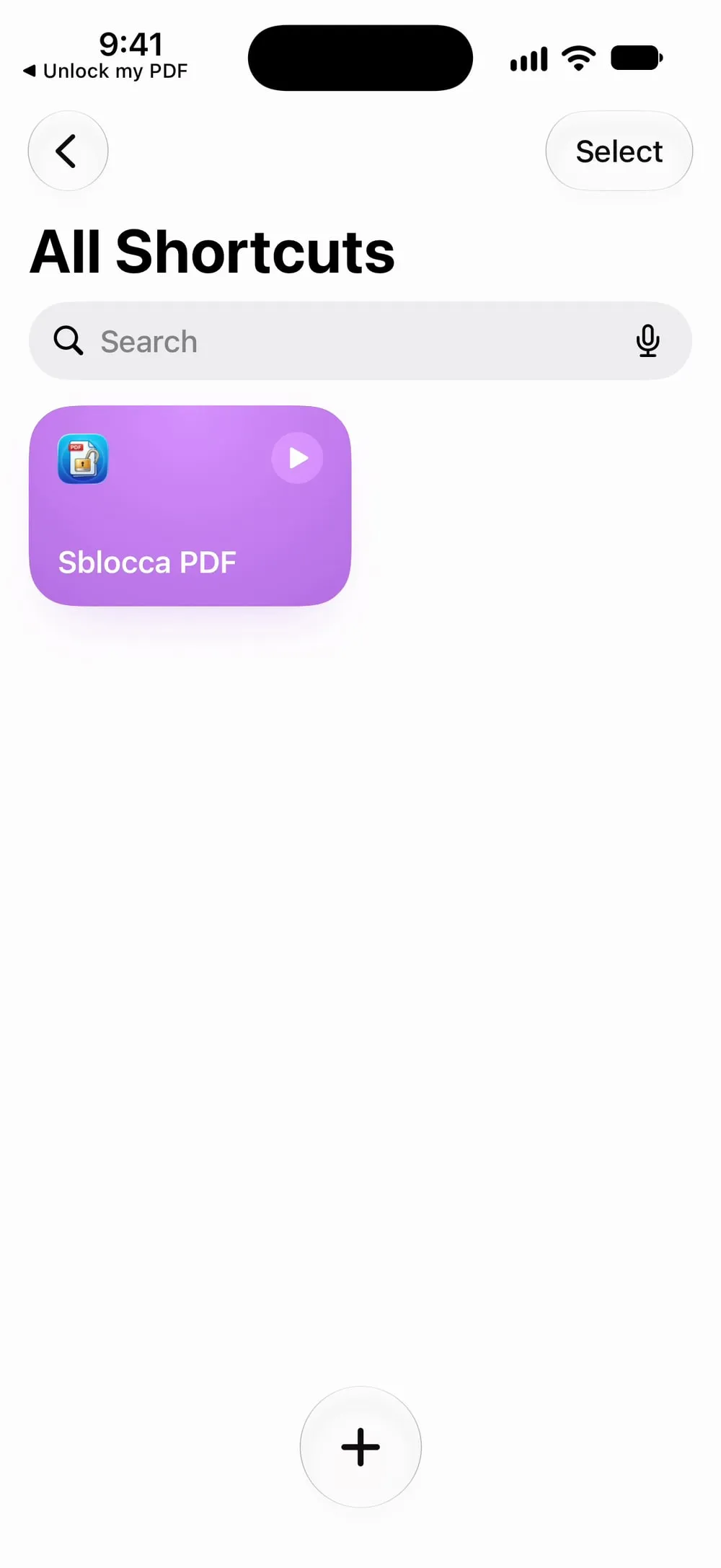
Open the Shortcuts app and tap +. If the new shortcut opens on Describe a shortcut, tap Editor at the top right to choose the actions yourself.
Step 02 of 04
Find the Unlock my PDF actions
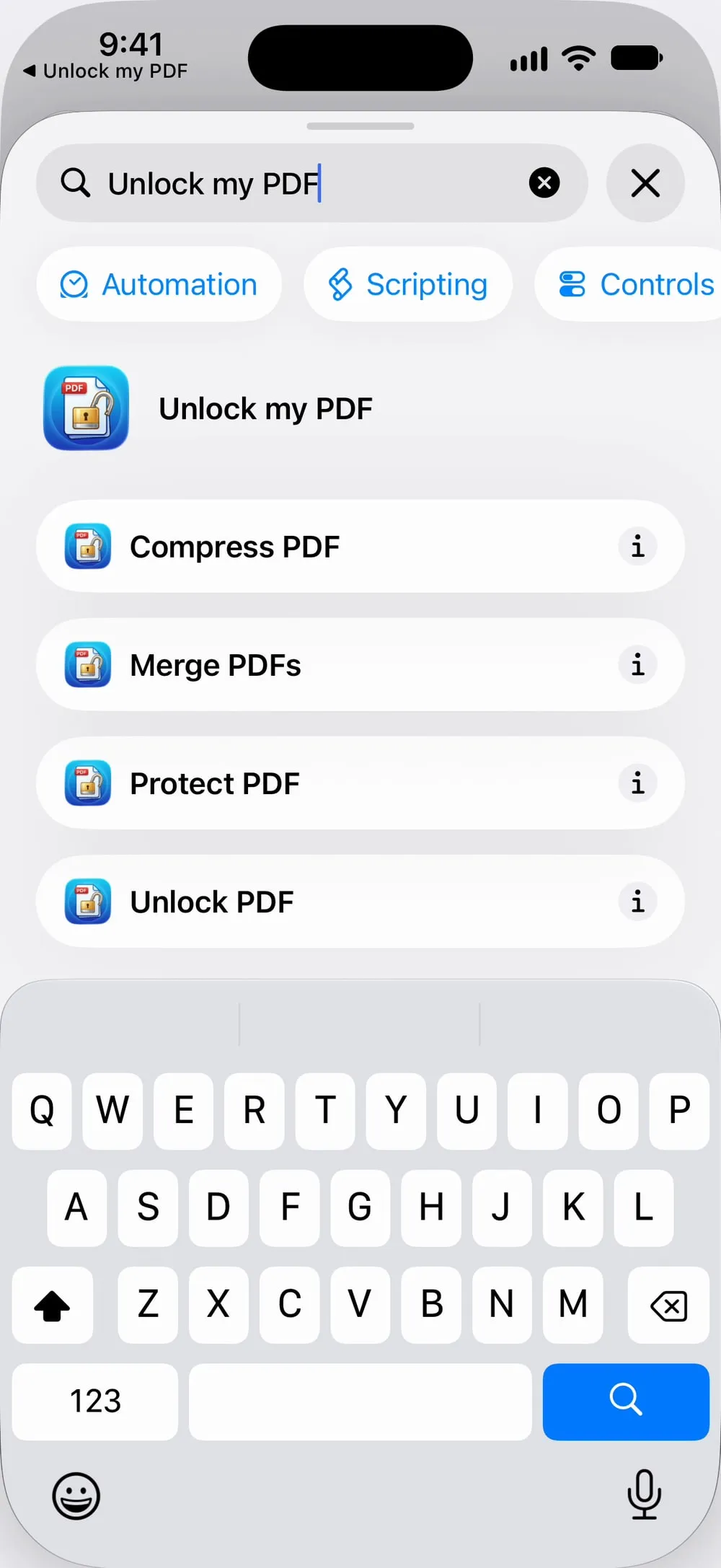
In the search field at the bottom, type Unlock my PDF. You see Unlock PDF, Protect PDF, Compress PDF and Merge PDFs. Tap the one you need.
Step 03 of 04
Fill in the action
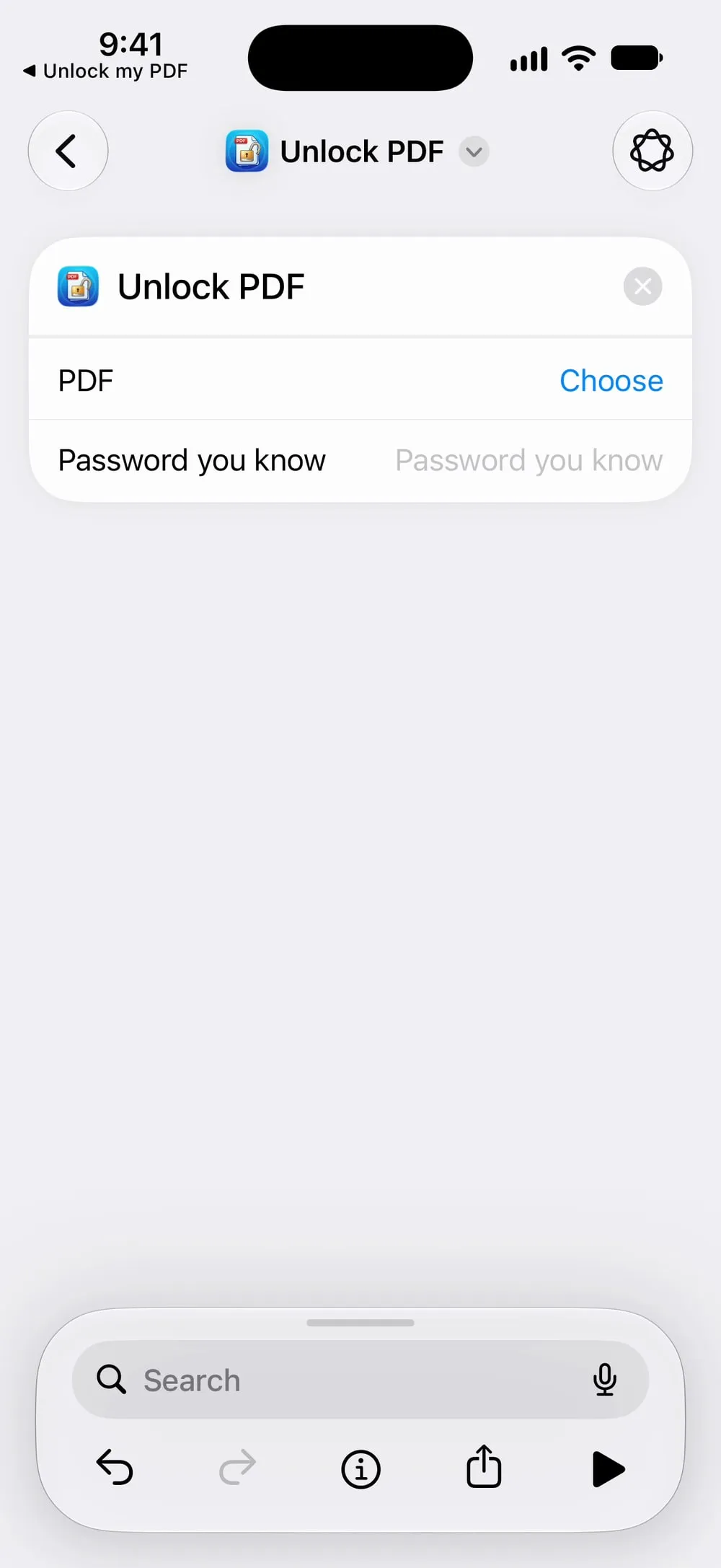
Choose the PDF, for example the file shared to the shortcut, and fill in the rest: Password you know, a New password or the Compression level.
Step 04 of 04
Run it, or ask Siri
Run the shortcut from the app, from the share sheet of a PDF, or say "Unlock a PDF with Unlock my PDF".
Steps
-
Open the Shortcuts app and tap +. If the new shortcut opens on Describe a shortcut, tap Editor at the top right to choose the actions yourself.
-
In the search field at the bottom, type Unlock my PDF. You see Unlock PDF, Protect PDF, Compress PDF and Merge PDFs. Tap the one you need.
-
Choose the PDF, for example the file shared to the shortcut, and fill in the rest: Password you know, a New password or the Compression level.
-
Run the shortcut from the app, from the share sheet of a PDF, or say "Unlock a PDF with Unlock my PDF".
Good to know
From the share sheet
In the shortcut's settings, turn on Show in Share Sheet: then you can run it from Mail or Files on the PDF you are looking at.
Ask for the password each time
A password typed into a shortcut is saved in it. For PDFs with different passwords, set the password to Ask Each Time.
Chain the actions
Compress PDF and Merge PDFs need files without a password. Put Unlock PDF first in the same shortcut.
Questions
Does the app need to be open?
No. The actions run in the background and give the new PDF to the next step of the shortcut.
Is it free?
The Shortcuts actions are included in Premium. Without it, the action asks you to open the app to activate it.
Which Siri phrases work?
"Unlock a PDF with Unlock my PDF", "Protect a PDF with Unlock my PDF", "Compress a PDF with Unlock my PDF" and "Merge PDFs with Unlock my PDF".
Are my files uploaded?
No. The actions run on your iPhone or iPad.